EasyManua.ls Logo

Lynx Evo - Communicating with the Vehicle

Lynx Evo
62 pages
Print Icon
To Next Page IconTo Next Page
To Previous Page IconTo Previous Page
Loading...
54
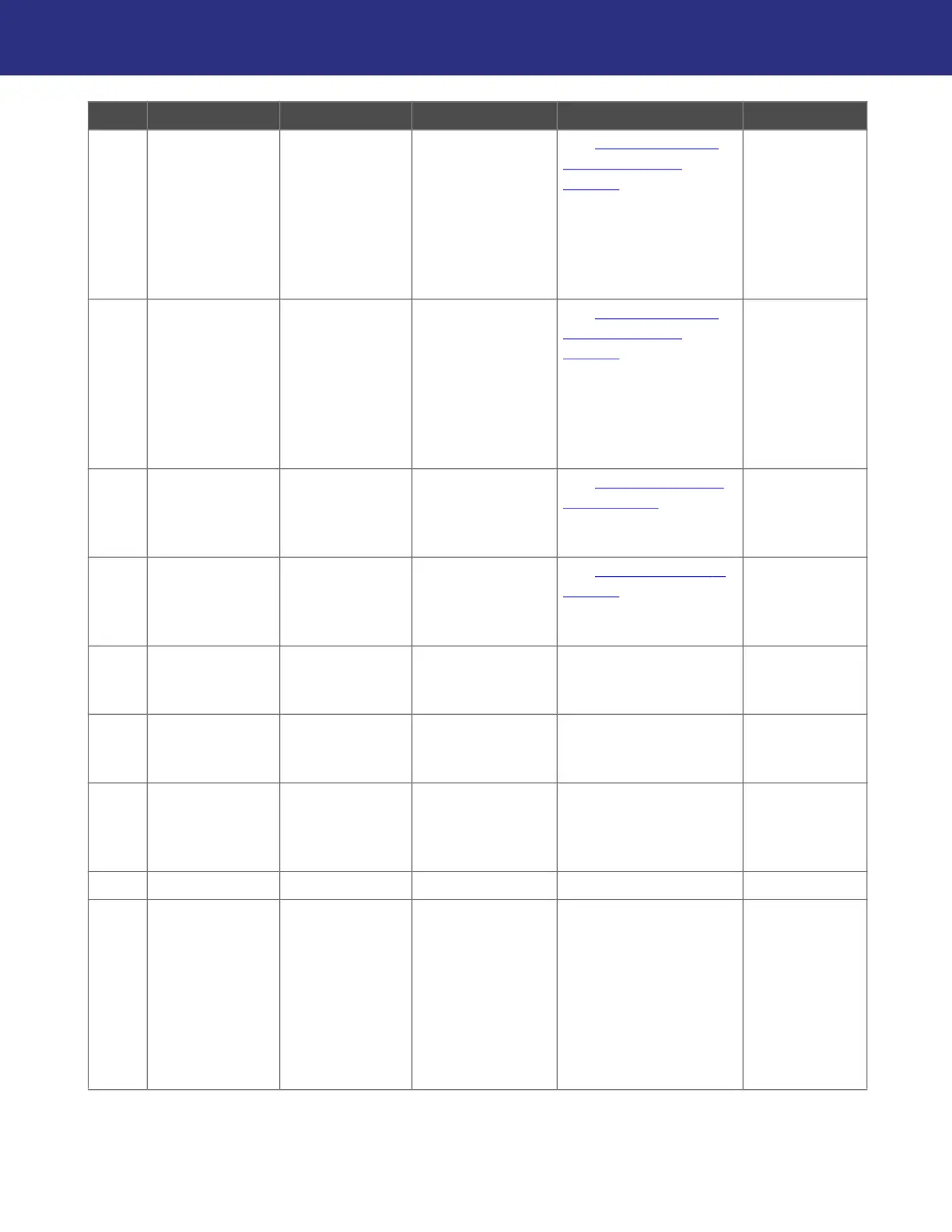
Troubleshooting
5 Is the Diagnostic
Tool's serial
number in the list
of paired or
available
Bluetooth®
devices on your
device?
Continue See “FAQ: Pairing the
Diagnostic Tool”,
page 58 for a list of
possible issues and
resolutions.
6 Does the
Diagnostic Tool
show as
“connected” in
the list of paired
Bluetooth®
devices on your
device?
Continue See
FAQ: Pairing the
Diagnostic Tool”,
page 58 for a list of
possible issues and
resolutions.
7 Start the Lynx
Evo app.
Did the app open
successfully?
Continue See
FAQ: Starting the
app”, page 58 for a list of
possible issues and
resolutions.
8 Log into the Lynx
Evo app.
Continue See
FAQ: Logging in”,
page 57 for a list of
possible issues and
resolutions.
9 From the home
page, select your
vehicle.
10 Diagnosis Pre
Check box is
displayed.
Are all available
diagnostic files
downloaded?
Continue Press Download. After files are
downloaded, re-
check Step 6.
11 Did you receive a
prompt to update
the Diagnostic
Tool's firmware?
Follow the prompts
to download and
update firmware.
Continue
12 Select Continue.
13 Select the
Vehicle Type.
Can you
successfully
select your
vehicle type and
display the first
vehicle menu,
which shows the
available model
year options?
Continue Models which have been
purchased and
downloaded will be
highlighted. Lynx Evo
Pro users can download
additional model
coverage by clicking the
arrow on a vehicle
model.
STEP ACTION CHECK YES NO NOTE