72 Chapter 3: Writing and Debugging Scripts
Displaying and modifying variables
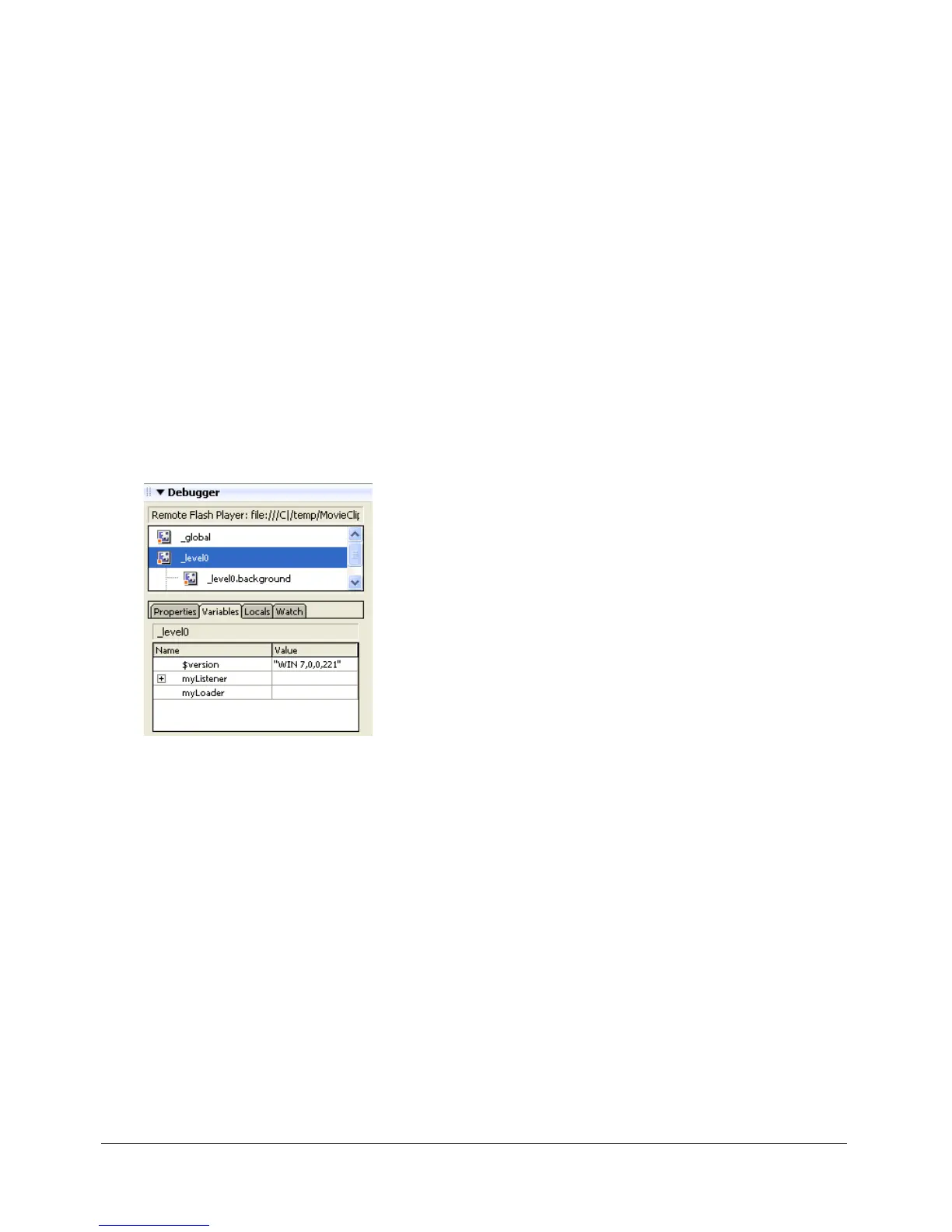
The Variables tab in the Debugger displays the names and values of any global and Timeline
variables in the SWF file. If you change the value of a variable on the Variables tab, you can see
the change reflected in the SWF file while it runs. For example, to test collision detection in a
game, you can enter the variable value to position a ball in the correct location next to a wall.
The Locals tab in the Debugger displays the names and values of any local variables that are
available wherever the SWF file has stopped at a breakpoint or anywhere else within a user-
defined function.
To display a variable:
1 Select the movie clip containing the variable from the display list.
To display global variables, select the
_global clip in the display list.
2 Click the Variables tab.
The display list updates automatically as the SWF file plays. If a movie clip is removed from the
SWF file at a specific frame, that movie clip, along with its variable and variable name, is also
removed from the display list in the Debugger. However, if you mark a variable for the Watch list
(see “Using the Watch list” on page 73), that variable is not removed.
To modify a variable value:
• Double-click the value, and enter a new value.
The value cannot be an expression. For example, you can use
"Hello", 3523, or "http://
www.macromedia.com"
, and you cannot use x + 2 or eval("name:" +i). The value can be a
string (any value surrounded by quotation marks), a number, or a Boolean value (
true or false).
Note: To write the value of an expression to the Output panel in test mode, use the trace statement.
See “Using the trace statement” on page 79.



 To Next Page