Pronto 100 ID Card Printer – User Guide
26
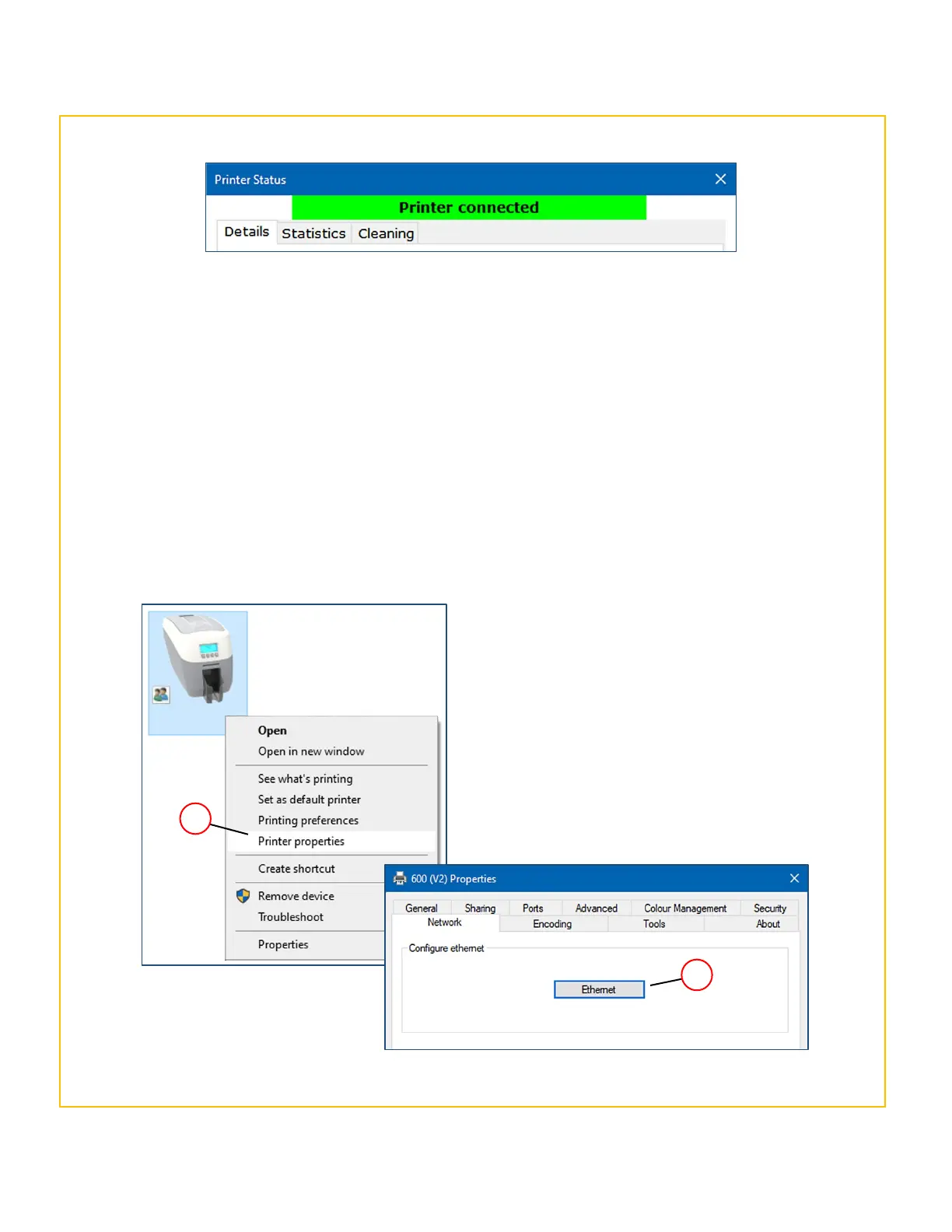
Printer Status – Connected
With the ‘connected’ status, further information will also be available to the user such as printer details and
statistics and cleaning history details.
4. If there is no problem, close the Printer Status dialogue box and continue (NOTE: Setting the printer up for
network operation will not be possible if there is no status (communication) between the printer and PC).
5. Right-click on the printer icon (in the ‘Devices and Printers’ window) and select Printer Properties (2) and
then the Network tab. Next, click the Ethernet button (3). The Network configuration dialogue box should
now be displayed.
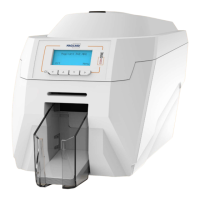
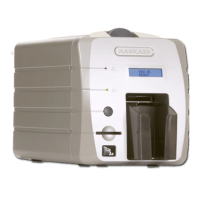
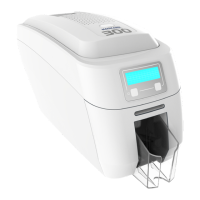
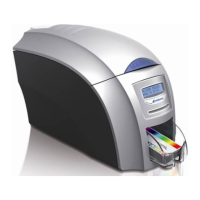
The procedure is identical for the Pronto 100.
NOTE: The physical appearance of the Network
Configuration window may vary slightly between
printer models in terms of layout (please see the
following page for further details).
Printer Properties
window



 To Next Page