EasyManua.ls Logo

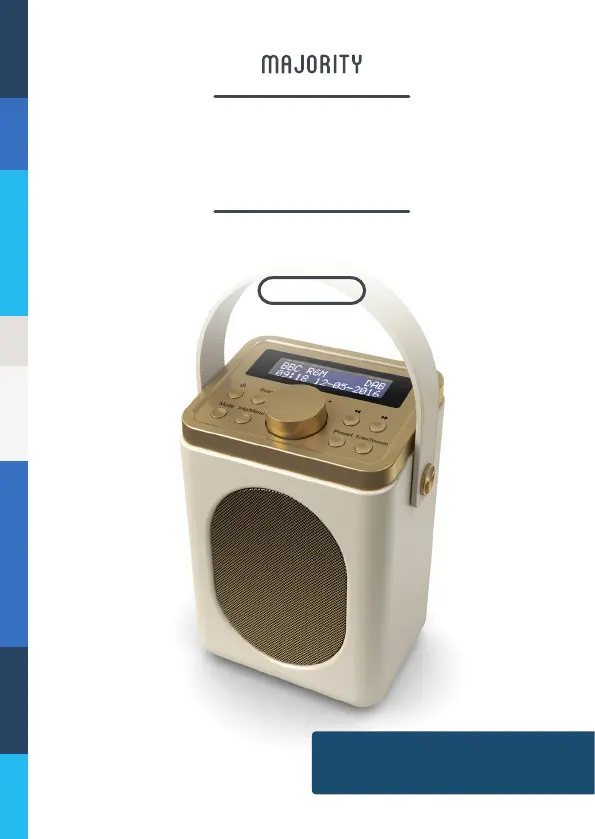
MAJORITY LITTLE SHELFORD - User Manual

MAJORITY LITTLE SHELFORD
25 pages
Print Icon
To Next Page IconTo Next Page
Loading...
LSH-DAB-CRM
Instructions Guide
LITTLE
SHELFORD
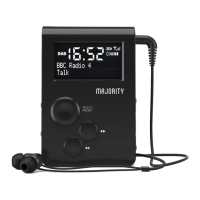
PORTABLE DIGITAL RADIO

Questions and Answers

  • D
    dmcgrathAug 16, 2025
    Why can't I preset stations on my MAJORITY LITTLE SHELFORD Radio?
    • R
      Rodney JohnsonAug 16, 2025
      If you cannot preset stations on your MAJORITY Radio, ensure that you are pressing and holding down the Preset button for 2-3 seconds to open Preset Store settings. Only press, do not hold, to open Preset Recall.
  • V
    Valerie PowellAug 18, 2025
    What to do if the MAJORITY LITTLE SHELFORD Radio display shows “No Service”?
    • G
      Gregory KellyAug 18, 2025
      If the display on your MAJORITY Radio shows “No Service”, it indicates that there is no DAB coverage in your area or the reception is poor. Try adjusting the position of the aerial or move the unit to a location with a stronger signal.
  • S
    Scott MarshallAug 22, 2025
    Why is my MAJORITY LITTLE SHELFORD having static sound on FM or burbling/ intermittent cut-out on DAB?
    • Y
      Yvonne PriceAug 22, 2025
      If you are experiencing a static sound on FM or burbling/intermittent cut-out on DAB with your MAJORITY Radio, the signal reception is likely low. To improve this, adjust the aerial or move the unit to a location with a stronger signal. You may also need to re-scan for stations or perform a factory reset.
  • A
    Anna WilsonAug 25, 2025
    How to fix no sound on my MAJORITY Radio?
    • J
      Joseph TannerAug 26, 2025
      If you are not getting any sound from your MAJORITY Radio, it might be that the station is not tuned in properly. Please perform a rescan for available stations or manually scroll through the available stations.
  • M
    michaelfinleyAug 28, 2025
    What to do if the sound is distorted on my MAJORITY LITTLE SHELFORD Radio?
    • K
      Kathryn LoweAug 28, 2025
      If the sound from your MAJORITY Radio is distorted, it is likely that the volume is too high. Try adjusting the volume control to a lower level.
  • C
    Claudia JohnsonAug 31, 2025
    How to set the time and date automatically on my MAJORITY Radio?
    • J
      Jim HutchinsonAug 31, 2025
      If your MAJORITY Radio is not automatically setting the time and date, go to DAB mode and perform a scan, and this will automatically set it. Alternatively, you can manually set it in your ‘Settings’ menu.
  • C
    Carolyn Shaw MDSep 3, 2025
    What to do if desired station is not found on MAJORITY LITTLE SHELFORD Radio?
    • L
      Lisa SimonSep 3, 2025
      If you cannot find the desired station on your MAJORITY Radio, it might be due to a weak signal. Use the manual tune function and try rescanning in a different area.
  • S
    Steven FreySep 6, 2025
    Why is there no sound on my MAJORITY Portable Radio?
    • G
      Gary CraigSep 6, 2025
      If there's no sound on your MAJORITY Portable Radio, it could be due to a few reasons. First, the station might not be tuned in properly, so try rescanning for available stations or manually scrolling through them. Also, check if the signal reception is weak. If so, adjust the aerial or move the radio to a location with a stronger signal. Performing a factory reset may also help.
  • J
    Jessica WilsonSep 8, 2025
    What to do if the sound is distorted on my MAJORITY Portable Radio?
    • R
      Richard WilkinsonSep 8, 2025
      If the sound from your MAJORITY Portable Radio is distorted, try these steps: First, the volume might be too high, so adjust the volume control. If the signal is weak, use the manual tune function. Also, if there's no DAB coverage or poor reception in your area, adjust the position of the aerial or move the unit to a stronger signal location. If the broadcaster changes the label of a service or removes a label while tuned, the radio will try to retune or perform a scan. You can also perform a factory reset of the radio in your settings.
  • L
    Lisa StevensSep 12, 2025
    How to automatically set DAB mode on MAJORITY Portable Radio?
    • B
      Brandon CampbellSep 12, 2025
      To automatically set DAB mode on your MAJORITY Portable Radio, go to DAB mode, and it will automatically set once a scan is performed. Alternatively, set in your ‘Settings’.

Summary

Box Contents

Whats in the Box?

Lists the items included in the product packaging, such as the radio, power supply, and user guide.

Controls And Functions

Top View;Control Buttons

Details the buttons and controls located on the top panel of the radio, with numbered references.

Back View;Connections

Illustrates the rear panel features, including power switch, DC input, earphone jack, and aerial.

Support

Customer Support

Provides guidance on setting up the radio and contact information for further assistance via the website.

Basic Operation

Starting Up Your Radio

Steps for powering on the radio using mains adapter or batteries and initial setup steps.

Standby Mode

Instructions on how to put the radio into standby mode or turn it off completely.

DAB;DAB+ Radio

Tuning DAB Stations

Guide on scanning for and selecting DAB radio stations, including how to rescan.

DAB;DAB+ Presets

Storing DAB Stations

How to save up to 10 DAB radio stations for quick access.

Recalling a DAB Stored Station

Steps to retrieve and play previously saved DAB radio stations.

DAB;DAB+ Station Information

Displaying Programme Information

Details various information displayed for DAB stations, like signal strength and programme type.

FM Radio

Tuning FM Stations

Instructions for scanning and manually tuning FM radio stations.

Stereo and Mono Mode

How to switch between Stereo and Mono audio modes for FM broadcasts.

FM Radio Presets

Storing FM Stations

Guide on saving up to 10 FM radio stations for easy recall.

Recalling a FM Stored Station

Instructions on how to access and play saved FM radio stations.

FM Radio Station Information

Displaying Programme Information

Details information displayed for FM stations, including PTY, signal strength, and radio text.

Bluetooth Connectivity

Setting Up Bluetooth

Steps to connect a Bluetooth device to the radio for audio playback.

Clock and Date Settings

Manually Setting the Time

Procedure for manually adjusting the radio's time.

Manually Setting the Date

Procedure for manually adjusting the radio's date.

Dual Alarm Clock Settings

Alarm Setting

Guide to setting up one or two alarms, including time, volume, and sound.

Alarm Functions and Snooze

Turn off the Alarm when Sounding

How to cancel an active alarm.

Snooze Function

Instructions on using the snooze feature to delay the alarm.

Sleep Timer Settings

Setting the Sleep Timer

How to set the radio to automatically turn off after a specified duration.

Radio Settings Configuration

Factory Reset

Procedure for resetting the radio to its default factory settings.

System Version

How to view the current system software version of the radio.

Language Selection

How to change the radio's display language.

Additional Features

Dimmer Control

How to adjust the brightness of the radio's display screen.

Headphone Jack Usage

Information on connecting earphones for private listening.

Power Supply and Batteries

Details on how the radio is powered, including mains adapter and battery options.

Troubleshooting Guide

Common Issues and Solutions

Table outlining common problems like no sound or preset issues and their solutions.

Product Specifications

Technical Details

Lists key technical specifications such as power supply, modes, dimensions, and weight.

Warranty Information

Product Warranty Details

Explains the standard 12-month warranty and how to register for an extended warranty.

Safety Information and Warnings

General Safety Instructions

Essential guidelines for safe operation, cleaning, and placement of the apparatus.

Additional Warnings

Specific warnings regarding liquid exposure, mains plug, and battery heat.

Recycling Electrical Products

Information on responsible disposal of electrical products and batteries.

MAJORITY LITTLE SHELFORD Specifications

General IconGeneral
DisplayLCD
Alarm ClockYes
Power Output3W
TypeDAB Radio
Power SourceMains/Battery
ConnectivityBluetooth
FeaturesSleep Timer
Power SupplyAC 100-240V

Related product manuals