EasyManua.ls Logo

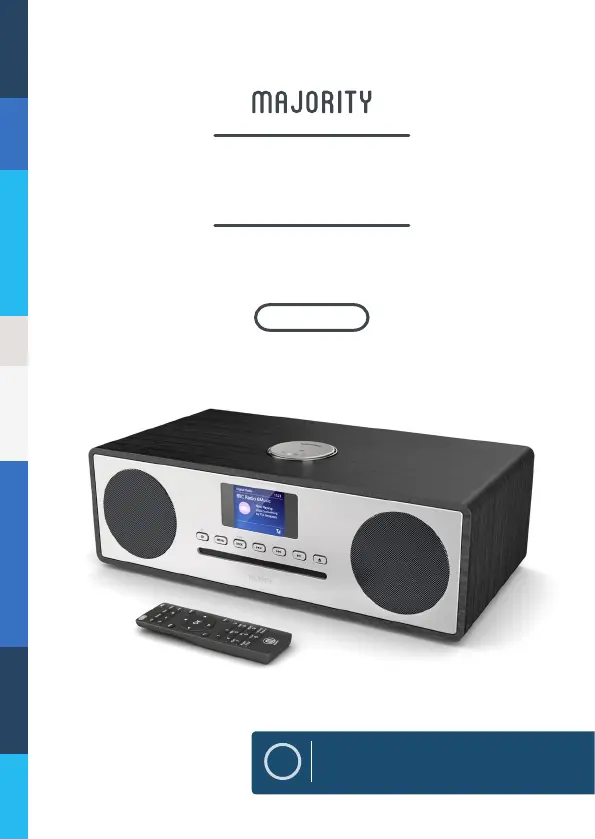
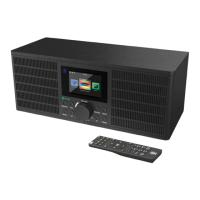
MAJORITY OAKINGTON+ - User Manual

MAJORITY OAKINGTON+
128 pages
Print Icon
To Next Page IconTo Next Page
Loading...
OAK-CDAB-BLK-P
OAKINGTON+
DIGITAL RADIO & MUSIC SYSTEM
EN
Instructions Guide

Questions and Answers

  • J
    Joshua ReedAug 13, 2025
    How to set the time and date on my MAJORITY OAKINGTON+?
    • D
      David MillerAug 13, 2025
      If your MAJORITY Radio isn't automatically setting the time and date, try going to DAB mode and performing a scan. This should automatically set the time and date. Alternatively, you can manually adjust the time and date in your radio's 'Settings'.
  • K
    Karen BanksAug 17, 2025
    What to do if the buttons on my MAJORITY Radio are not working?
    • J
      jenniferleeAug 17, 2025
      If the buttons on your MAJORITY Radio are not working, try turning the unit off and then back on after a few seconds. Also, try unplugging the radio and then plugging it back in.
  • J
    Jean ThompsonAug 21, 2025
    What to do if my MAJORITY OAKINGTON+ Radio display shows 'No Service'?
    • U
      umasonAug 21, 2025
      If the display on your MAJORITY Radio shows 'No Service', it might be due to a lack of DAB coverage in your area or poor signal reception. Try adjusting the position of the aerial or moving the unit to a location with a stronger signal.
  • C
    Catherine BaileyAug 25, 2025
    Why does my MAJORITY OAKINGTON+ have static sound on FM or burbling on DAB?
    • S
      Shelby HoganAug 26, 2025
      If you're experiencing static sound in FM or burbling/intermittent cut-out in DAB on your MAJORITY Radio, it's likely due to low signal reception. Try adjusting the aerial or moving the unit to a location with a stronger signal. You may also need to re-scan for stations or perform a factory reset.
  • J
    Joshua HouseAug 28, 2025
    Why is there no sound coming from my MAJORITY Radio?
    • C
      Christopher DavisAug 28, 2025
      If your MAJORITY Radio isn't producing any sound, there could be a few reasons. First, make sure the station is properly tuned in by fine-tuning it. Also, check that the volume isn't set too low and increase it if necessary. Finally, ensure that headphones are disconnected.
  • J
    John RamosSep 1, 2025
    What causes distorted sound on my MAJORITY OAKINGTON+ Radio?
    • A
      Alyssa WarrenSep 1, 2025
      If the sound from your MAJORITY Radio is distorted, it's likely that the volume is set too high. Try adjusting the volume control to a lower level.
  • R
    raymond27Sep 5, 2025
    What to do if my MAJORITY OAKINGTON+ Radio can't find a station?
    • H
      henryduaneSep 5, 2025
      If your MAJORITY Radio is not finding the desired station, it might be due to a weak signal. Try using the manual tune function and rescanning in a different area.
  • E
    Elizabeth RussellSep 8, 2025
    What to do if I have other issues with my MAJORITY OAKINGTON+?
    • P
      Patrick RiveraSep 8, 2025
      If you are experiencing other problems or functional issues with your MAJORITY Radio, perform a factory reset of the radio in your settings.

Summary

Controls and Functions

Front Panel Controls

Details the buttons and indicators on the front of the Majority Oakington+ unit.

Top and Rear Panel Features

Describes the antenna, ports, and switches located on the top and rear of the unit.

Remote Control Guide

Explains the functions of each button on the included remote control for operation.

Getting Started

Whats Included

Lists all the items provided in the product packaging for initial setup.

Customer Support

Provides contact details and website for obtaining assistance with the product.

Initial Setup and Basic Operation

Guides users through connecting power, extending the antenna, and basic power-on procedures.

Radio Operation

DAB;DAB+ Radio Tuning

Instructions on how to scan for and select DAB and DAB+ radio stations.

DAB;DAB+ Settings and Presets

Details on managing DAB/DAB+ settings like scan, manual tuning, DRC, prune, and station presets.

FM Radio Tuning

Guides on how to scan for and manually tune into FM radio frequencies.

FM Radio Settings and Presets

Covers FM scan options, audio settings, and how to store and recall FM radio presets.

Connectivity and Media

Connecting to External Systems

Explains how to connect the unit to a TV or music system using audio cables.

CD Playback and Functions

Instructions for inserting, playing, and managing CD playback features like repeat and programming.

Bluetooth and Phone Pairing

Steps for connecting a phone or device wirelessly via Bluetooth for audio streaming.

AUX-In Audio Connection

Details on connecting external devices using a 3.5mm AUX audio cable.

USB Charging and File Playback

How to charge devices via USB and play audio files from a USB drive.

Device Settings

Time, Date, and Alarm Settings

Instructions for manually setting the time, date, and configuring alarm or timer functions.

Sleep Timer and Display Options

Guides on using the sleep timer and adjusting display brightness and themes.

Advanced System Settings

Information on system reset, software version display, and headphone connection.

Troubleshooting and Specifications

Troubleshooting Common Issues

A guide to identify and resolve common problems encountered with the unit.

Product Specifications

Lists the technical specifications of the Majority Oakington+ music system.

Warranty Information

Details regarding the product warranty, registration, and extension.

Safety Information

Safety Instructions and Warnings

Crucial safety precautions and warnings for the safe operation and handling of the device.

MAJORITY OAKINGTON+ Specifications

General IconGeneral
TypeDAB/DAB+/FM Radio
DisplayLCD
Alarm FunctionYes
Remote ControlYes
Headphone JackYes
AUX InputYes
Bluetooth Range10m
ConnectivityBluetooth
Power SourceMains/Battery
Frequency RangeFM: 87.5-108 MHz, DAB: 174-240 MHz
Speaker Size3 inches
FeaturesSleep Timer
Bluetooth Version5.0
Presets20 (10 FM, 10 DAB)

Related product manuals