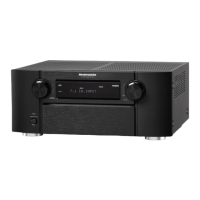
Mode 2: Update/Download DSP’s software to Flash-
ROM
Update/Download Software for DSP (Mode 2)
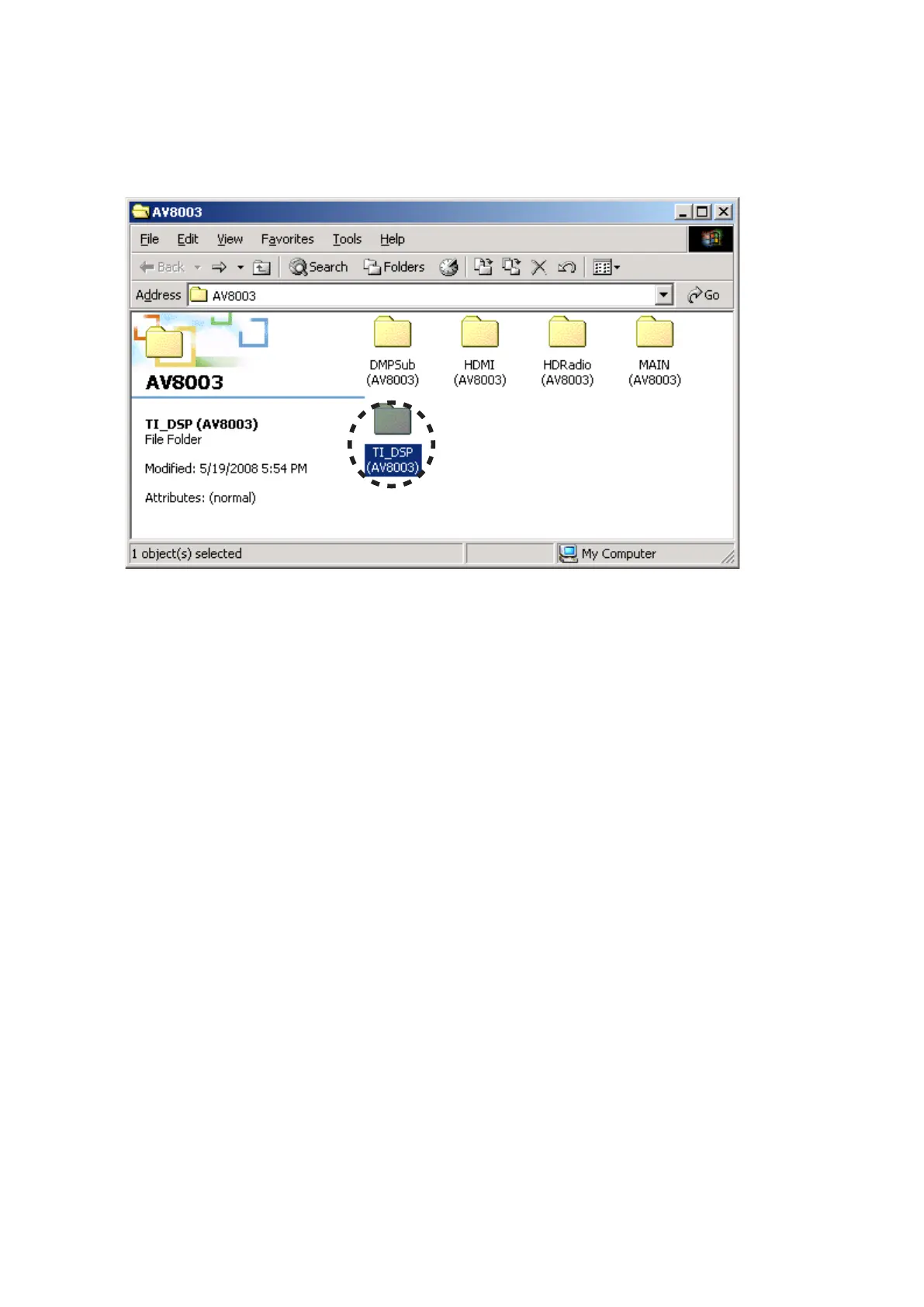
Put the "TI_DSP (AV8003)" folder into anywhere on your 1.
PC's hard disc.
Connect the RS-232C on rear panel of the unit and the 2.
Serial Port of windows PC with RS-232C cable.
Connect the mains cord into the unit.3.
Press the 4. POWER ON/OFF (STANDBY) button for turn
on the unit.
Press the 5. ENTER, SURROUND MODE and T-MODE
buttons simultaneously more than 3 seconds to turn the
unit into Loading Mode.
The FLD shows "SELECT MAIN" after showed 6.
"LOADING MODE".
Turn the7. INPUT SELECTOR to change display from
"SELECT MAIN" to "SELECT DSP" on FLD.
Press the 8. ENTER button.
"SELECTED DSP" shows on the FLD.9.
Mode 2 : Update/Download DSP's software to Flash-
ROM
Update/Download Software for DSP (Mode 2)
"TI_DSP (AV8003)"フォルダをPCの任意のフォルダにコ1.
ピーします。
本機のリアパネルにあるRS-232CコネクタとWindows 2.
PCのSerialポートをRS-232Cケーブルで接続します。
本機に電源ケーブルを差します。3.
POWER ON/OFF (STANDBY)4. ボタンを押し、本機の電源
を入れます。
ENTER5. 、SURROUND MODE、T-MODEの3つボタンを
同時に3秒以上押し続け、本機をローディングモードにし
ます。
FLに"LOADING MODE"と表示された後、"SELECT 6.
MAIN"と表示されます。
本機の7. INPUT SELECTORを回して、FLの表示
を"SELECT MAIN"から"SELECT DSP"に換えます。
ENTER8. ボタンを押します。
FLに"SELECTED DSP"と表示されます。9.


 To Next Page