Inputting characters
On this unit, you can change the name displayed on the following menu to the names that you prefer.
•Character Search (vpage28, 32, 50)
•Friendly Name (vpage74)
•Character input for the network functions (vpage28, 35, 39, 40)
Using the number buttons
1
Display the menu for inputting characters.
2
Use o p to move the cursor to the character you want
to change.
3
Press +10 to select the character type (upper case, lower
case, or numeric characters).
4
Press 0 – 9, +10 until the desired character is displayed.
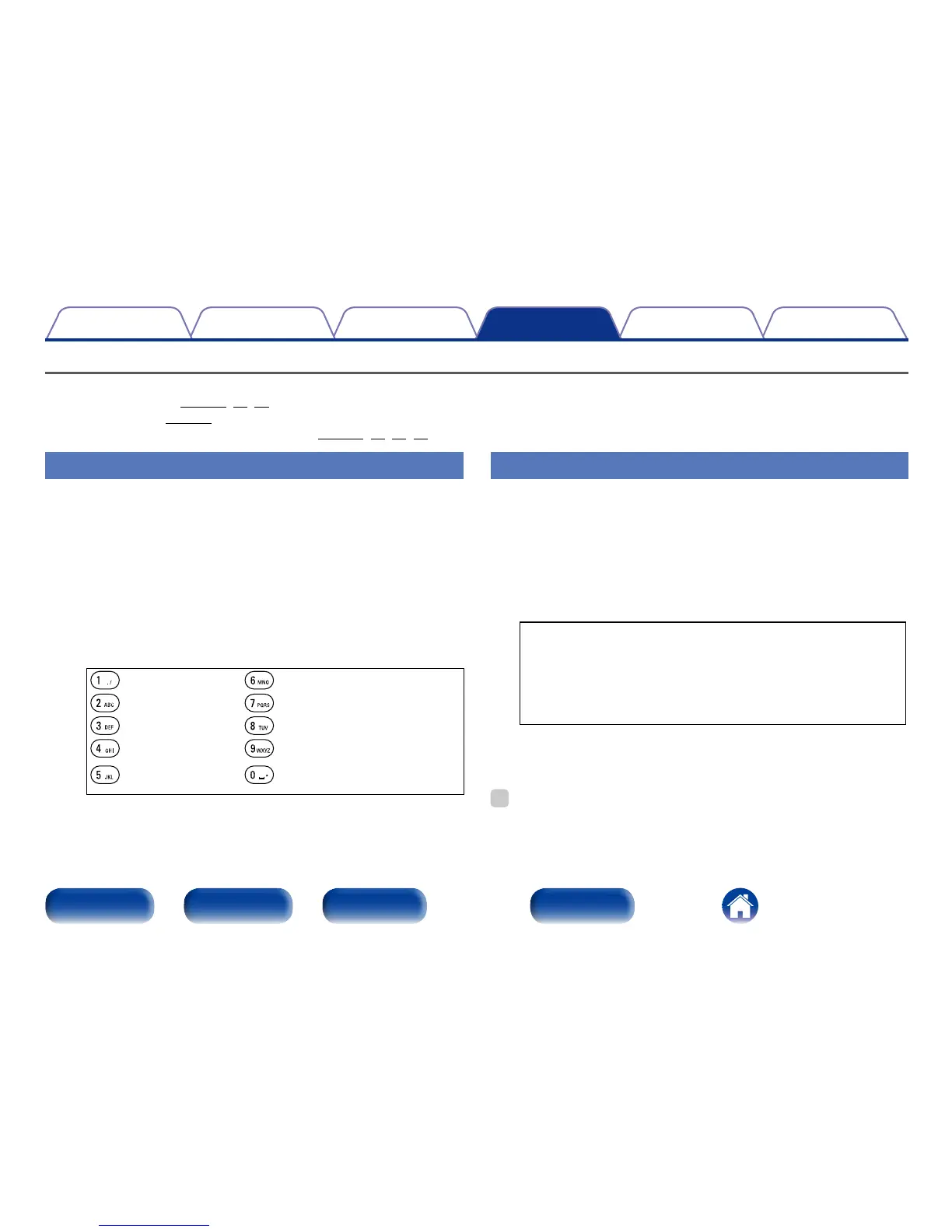
•The types of characters that can be input are as shown below.
1 . @ - _ / : ˜ m n o M N O 6
a b c A B C 2 p q r s P Q R S 7
d e f D E F 3 t u v T U V 8
g h i G H I 4 w x y z W X Y Z 9
j k l J K L 5
0 (Space) ! “ # $ % & ‘ ( ) z + ,
; < = > ? [ \ ] ^ ` { | }
5
Repeat steps 2 – 4 to change the name then press ENTER
to register it.
Using the cursor buttons
1
Display the menu for inputting characters.
2
Use o p to move the cursor to the character you want
to change.
3
Use ui to change the character.
•The types of characters that can be input are as shown below.
GLower case charactersH
abcdefghijklmnopqrstuvwxyz
GUpper case charactersH
ABCDEFGHIJKLMNOPQRSTUVWXYZ
GSymbolsH ! “ # $ % & ‘ ( ) z + , - . / : ; < = > ? @ [ \ ] ^ _ ` { | } ˜
GNumbersH
0123456789 (Space)
4
Repeat steps 2 and 3 to change the name then press
ENTER to register it.
%
•Press CLEAR to delete the character.
•Press 9 to insert a space.


 To Next Page