19
ENGLISH
Getting Started Connections
Basic OperationsBasic Operations Advanced Operations TroubleshootingExplanation termsInformation Specifi cations Index
n Entering a character search for the track you
want to listen to
1
Press [SEARCH].
• You can search by artist name, album name or track name in menu
list.
• You cannot perform search on the playback screen.
2
Use ui to select the search item, then press [ENTER/
MEMO]
, <ENTER>.
The search display appears.
• For character input, see page 32.
3
Input the characters, then press [ENTER/MEMO] or
<ENTER>.
n Registering tracks in my Napster library
1
Press p while the track you wish to register is playing.
“Add to my library?” is displayed.
2
Press [ENTER/MEMO], <ENTER> or p.
The track is entered in the Library.
When you press o, the registration is cancelled and the display
returns to the previous page.
Listening to tracks registered in my Napster library
1
Use ui to select “My Napster Library”, then press
[ENTER/MEMO], <ENTER> or p.
2
Use ui to select the information or track, then
press [ENTER/MEMO], <ENTER>.
Use DISPLAY to switch between displaying the artist name, fi le type/
bitrate or album name.
Playing a network audio
n Napster operation
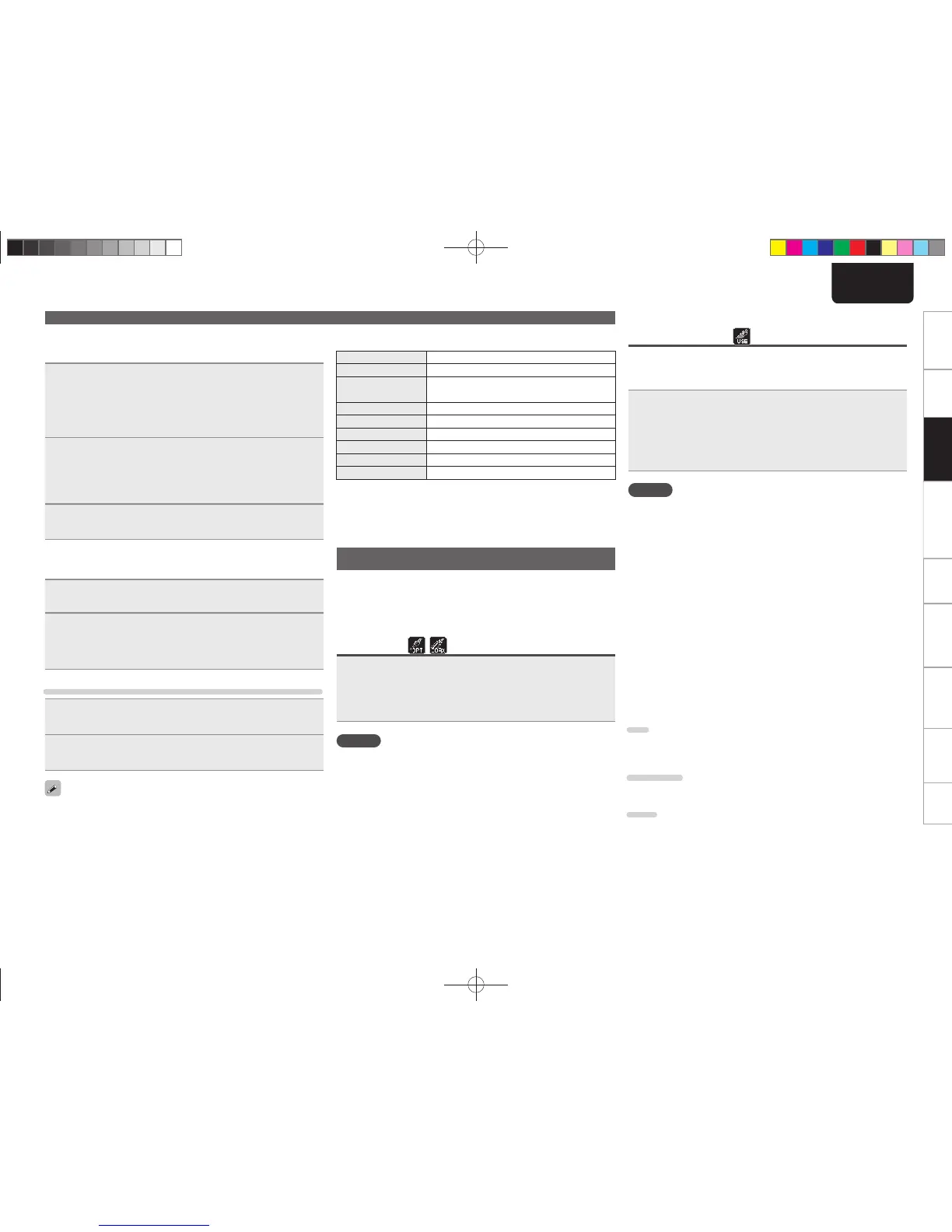
Operation buttons Function
MENU Menu
uio p
Cursor operation /
Auto search (cue, ui)
ENTER/MEMO Enter
SEARCH Search menu
HOME Return to top page
13
Playback
8 9
Auto search (cue)
2
Stop
• “Playing repeatedly (Repeat playback)” (vpage14)
• “Playing random order (Random playback)” (vpage15)
Using as a D/A converter
Digital audio signals input from an external device or computer into
this unit can be converted and output as analog signals using this unit.
(D/A converter)
Connect and playback from a digital device
(Opt/Coax)
Press [OPT/COAX] or turn <INPUT> to change the input
source to “Digital In OPT” or “Digital In COAX”.
• If the sampling frequency cannot be detected, “Signal Unlock“ is
displayed.
NOTE
• Linear PCM signals with sampling frequencies of 32 kHz, 44.1 kHz,
48 kHz, 64 kHz, 88.2 kHz, 96 kHz, 176.4 kHz and 192 kHz can be
input in the unit.
• Do not input non-PCM signals, such as Dolby Digital, and DTS. This
causes noise and could damage the speakers.
• If the sampling frequency switches, such as from A mode to B mode
in a CS broadcast, muting may operate for 1-2 seconds, cutting the
sound.
Connecting and playing back from a
computer (USB)
Connect a computer to the USB port on the rear panel of this unit
in advance. For details on how to connect the computer, see “PC
connection” (vpage5).
Press [USB] or turn <INPUT> to change the input source
to “Digital In USB”.
When “Digital In USB” is displayed on this unit, wait for approximately
10 seconds, and then start and operate the music playback software
on the computer.
This unit functions as a D/A converter.
NOTE
• Perform operations such as playback and pause on the computer. At
this time, you cannot operate the computer with the unit's keys or
remote control.
• You can also control the volume and equalizer on the computer.
Enjoy playing music at the desired volume.
• When this unit is functioning as a D/A converter, sound is not output
from the computer's speakers.
• If the computer is disconnected from this unit while the computer
music playback software is running, the playback software may
freeze.Always exit the playback software before disconnecting the
computer.
• If an error occurs on the computer, restart the computer while it is
still connected to the USB port of this unit.
• The supported sampling frequencies are 32/44.1/48/96 kHz.
• The sampling frequency of the music playback software and
sampling frequency displayed on this unit may differ.
n Computer (recommended system)
OS
• Windows® XP Service Pack2 or more, Windows Vista or Windows 7
• Macintosh OSX 10.6.3
Software
• Server software supporting Windows Media Player and iTune.
USB
• USB 2.0: USB Full speed/USB Audio Class1
1.NA7004NENG30A0714.indd191.NA7004NENG30A0714.indd19 2011/07/1411:37:152011/07/1411:37:15


 To Next Page