30
ENGLISH
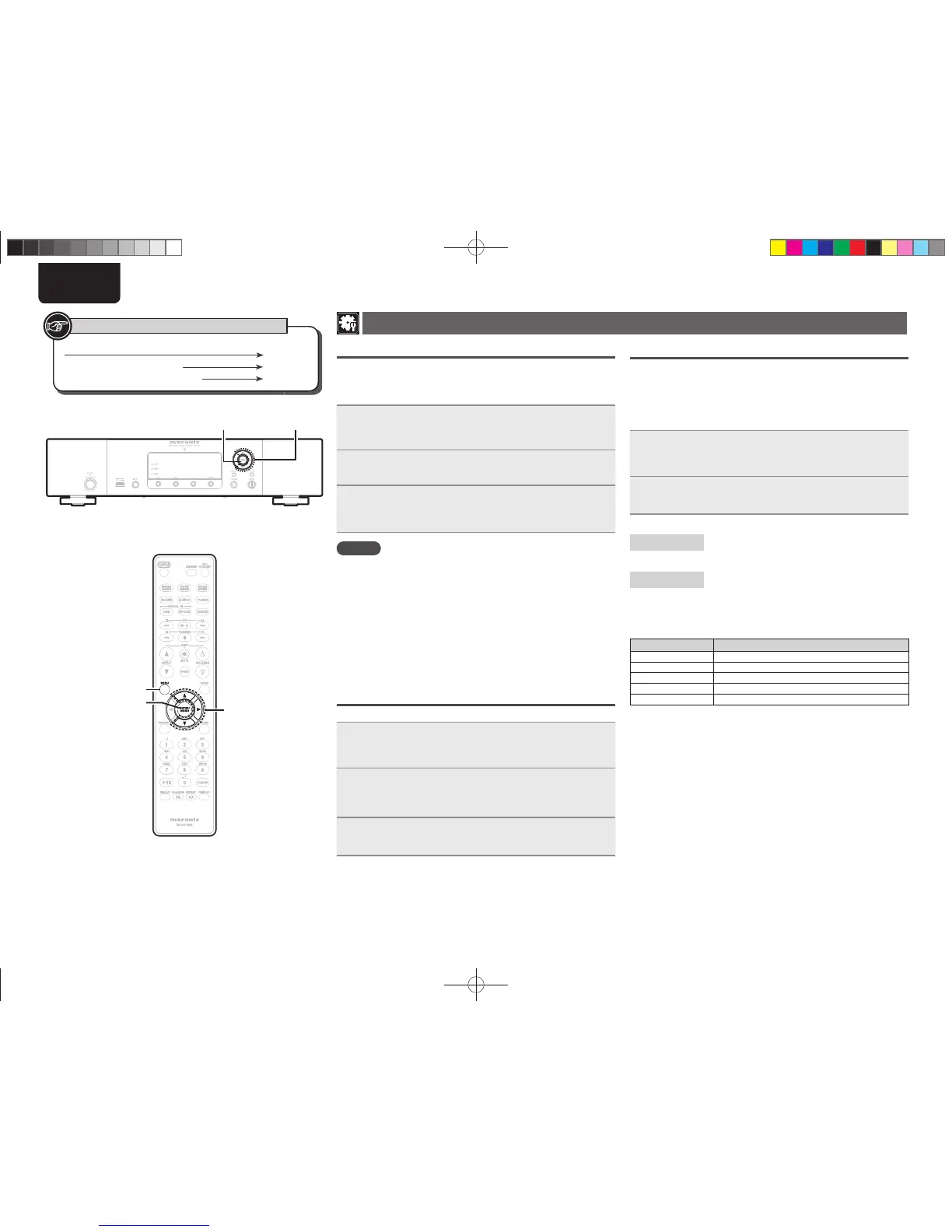
Button located on both the main unit and the remote control
BUTTON
Button only on the main unit
<BUTTON>
Button only on the remote control
[BUTTON]
Symbols used to indicate buttons in this guide
Setting the others [Other]
Auto standby
With the Auto standby ON, this unit will automatically enter the
standby mode after about 30 continuous minutes of stop mode with
no operation.
• The default setting is “OFF”.
1
Press [MENU].
Turns on the Menu settings mode and the Menu appears on the
display. (vpage22 “Menu map”)
2
Use ui to select “Other”-“Auto Standby”, then
press [ENTER/MEMO], <ENTER> or p.
3
Use ui to select “On”, then press [ENTER/MEMO],
<ENTER> or p.
The setting is entered.
NOTE
In the following situations, the Auto standby function does not operate.
• When an iPod or USB memory device is connected to the USB port
on the unit.
• When the input source is “TUNER”, “Digital In USB”, “Digital In
OPT” or “Digital In COAX”.
• When the input source is “M-XPort” and an RX101 wireless receiver
is connected to M-XPort.
• When the input source is “INTERNET RADIO”, “MUSIC SERVER” or
“ONLINE MUSIC”, and a ethernet cable is connected to NETWORK
connector.
Screen saver
Use the following procedure to set the screen saver.
1
Press [MENU].
Turns on the Menu settings mode and the Menu appears on
the display. (vpage22 “Menu map”)
2
Use ui to select “Other”-“Screen Saver”, then
press [ENTER/MEMO], <ENTER> or p.
“Screen Saver” menu appears.
3
Use ui to select “ON” , then press [ENTER/
MEMO]
, <ENTER> or p.
Firmware update
• In order to use these functions, you must have the correct system
requirements and settings for a broadband Internet connection
(vpage6).
• Perform the Firmware update after more than 2 minutes since the
power is turned on.
1
Press [MENU].
Turns on the Menu settings mode and the Menu appears on
the display. (vpage22 “Menu map”)
2
Use ui to select “Other”-“Firmware Update”,
then press [ENTER/MEMO], <ENTER> or p.
[Selectable items]
Check for Update
: Check for fi rmware updates. You can also check
approximately how long it will take to complete
an update.
Start
: Execute the update process.
• If updating fails, the set automatically retries, but if updating is still
not possible, one of the messages shown below is displayed. If
the display reads as shown below, check the settings and network
environment, then update again.
Display Description
Updating fail Updating failed.
Login failed Failure to log into server.
Server is busy Server is busy. Wait a while then try again.
Connection fail Failure in connecting to server.
Download fail Downloading of the fi rmware has failed.
[MENU]
[ENTER/MEMO]
u
,
i
,p
<ENTER>
u
,
i
,p
1.NA7004NENG30A0714.indd301.NA7004NENG30A0714.indd30 2011/07/1411:37:222011/07/1411:37:22


 To Next Page