26
ENGLISH
n Participating in the party mode as an attendee
• When the organizer starts the party mode, up to four attendees
are selected automatically. No operation is required.
• When a device becomes an attendee,
Party Mode Attendee
appears
on the display. The input source automatically switches to
“Music Server” and the same network audio as on the organizer
is played.
• If there are fewer than four attendees, a device can join the
party mode after it has started. To participate in the party mode,
perform the operation described below.
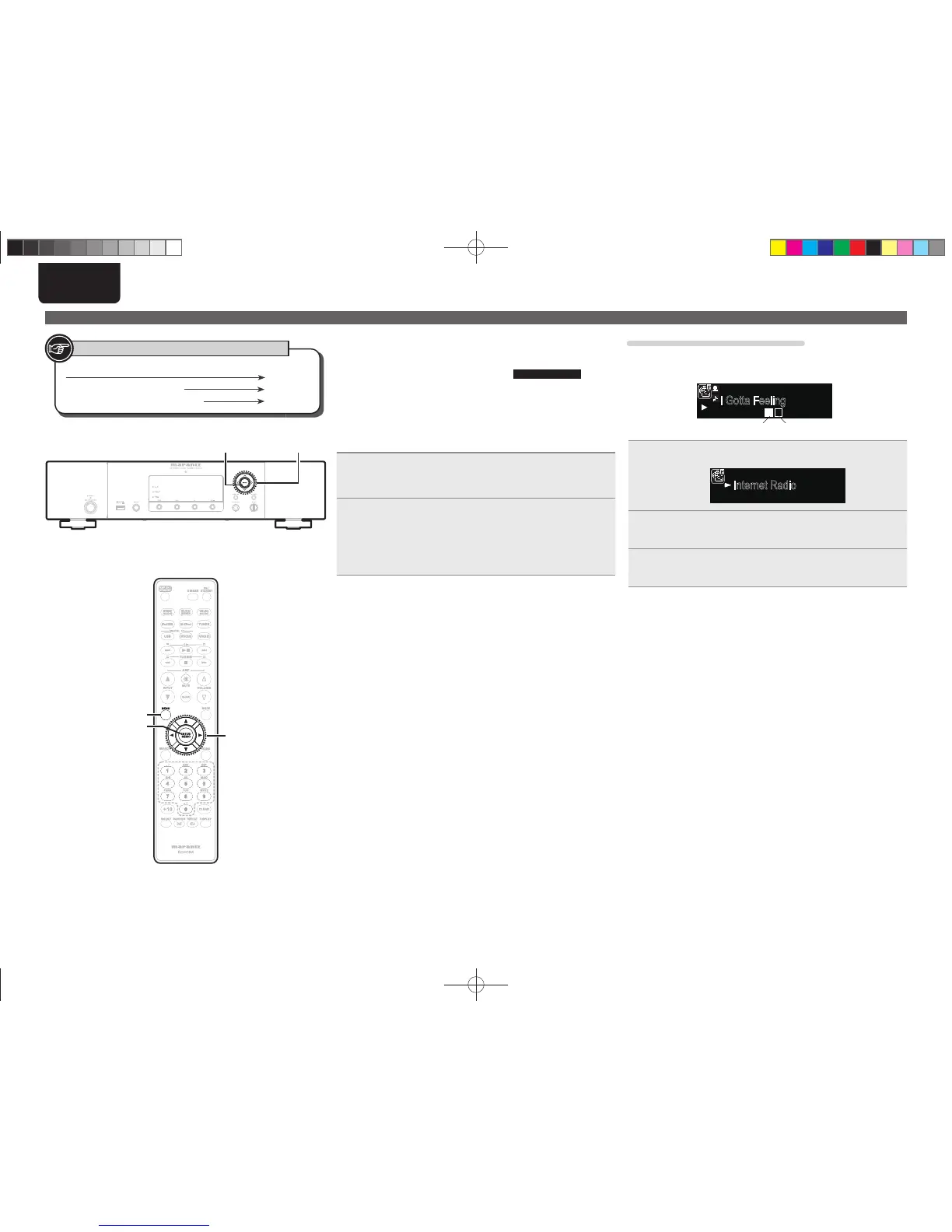
1
Press [MENU].
Turns on the Menu settings mode and the Menu appears on
the display. (vpage22 “Menu map”)
2
Use ui to select “Network” – “Party Mode” –
“Start Party”, then press [ENTER/MEMO], <
ENTER
>
or p.
• An error message is displayed when you are not connected to a
network.
Setting the network [Network]
Button located on both the main unit and the remote control
BUTTON
Button only on the main unit
<BUTTON>
Button only on the remote control
[BUTTON]
Symbols used to indicate buttons in this guide
Selecting tracks from attendees
When the party mode starts, “Party Mode Attendee” appears on the
attendee’s display, after which the organizer’s playback information
appears.
1/3
I Gotta Feeling
0:21100%
Top 40
AP
Party Mode Display Attendee Display
1
Press o to display the organizer’s input source.
1/3
Internet Radio
Music Server
---------------------------------
2
Press ui to select the input source, then press
[ENTER/MEMO], <ENTER> or p.
3
Press ui to select the item you want to play, then
press [ENTER/MEMO], <ENTER> or p.
[MENU]
[ENTER/MEMO]
u
,
i
,o,p
<ENTER>
u
,
i
,o,p
1.NA7004NENG30A0714.indd261.NA7004NENG30A0714.indd26 2011/07/1411:37:202011/07/1411:37:20


 To Next Page