Selecting the input source
1
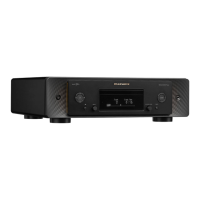
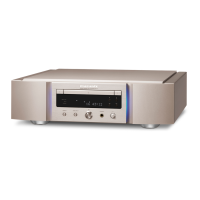
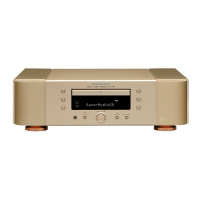
Press input source select buttons (CD/USB/USB-DAC/
COAXIAL/OPTICAL) to be played back.
The selected input source appears on the display.
0
You can also select the input source by turning INPUT selector on the main unit.
0
This unit switches between Optical 1 and Optical 2 each time OPTICAL is pressed.
0
You can also select the input source by using INPUT
.
Switching the display’s brightness
The display brightness can be adjusted from 100 % to Off (0 %) in steps of
5 %. Switching the display off reduces a source of noise that affects sound
quality, enabling higher sound quality playback.
1
Press DIMMER.
The dimmer menu screen is displayed on the display.
2
Use Cursor Up/Down buttons to adjust the brightness
of the display.
0
You can also adjust the brightness by pressing DIMMER.
0
The display brightness is set to 100 % by default.
0
If buttons are operated when the display is off, information is temporarily displayed
at 100 %.
0
The display brightness setting is synchronized with the “Illumination” - “Display”
setting in the settings menu. (v p. 58)
0
DIMMER does not work when LIGHTING is pressed and turned off.
Contents Connections Playback Settings Tips Appendix
31
Front panel Rear panel Remote control
unit
Index



 To Next Page