- 10
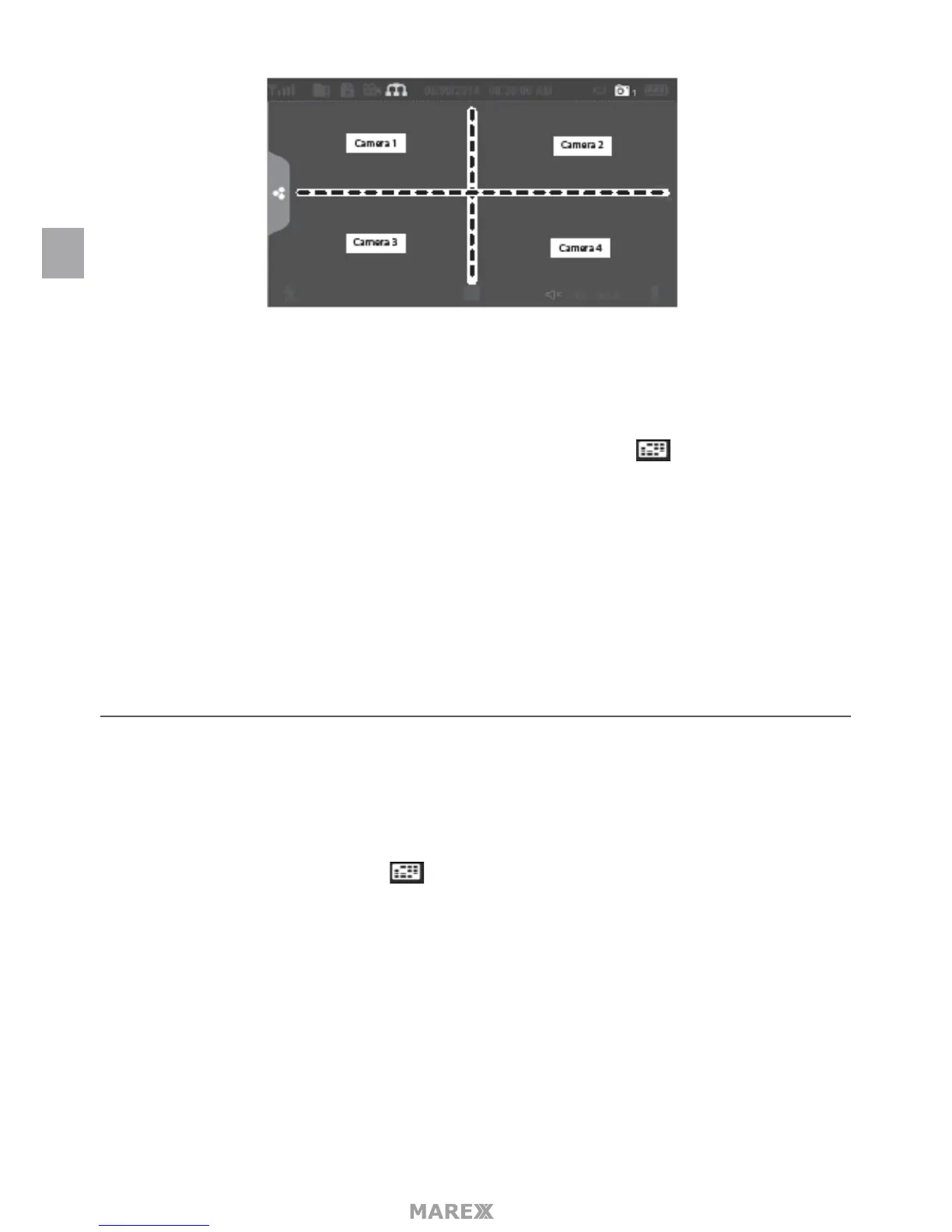
There are 4 viewing modes:
• Quad mode splits the screen’s image area into 4 quadrants and displays active camera video in each
quadrant. Tap the center of the quadrant to enter Single Channel mode.
• Single Channel mode displays one camera at a time on full screen. Press to change between the
channels. Tap the center of the image to return to Quad mode.
• With Scan mode, the monitor’s screen and speakers are o until a camera detects motion. That camera
then displays at full screen (sound and video on) until there has been no motion for 15 seconds. After
that, the o.monitor screen turns o again. Press and release POWER to to turn Scan mode on and
• Auto Sequence. Displays each channel automatically in sequence in full screen display. The system
defaults to Auto Sequence mode when Scan mode is turned o. Tap SEQ to turn Auto Sequence mode
o and return to Quad mode.
SYSTEM OPERATION
Your monitor operates through a series of screens that let you choose groups of operations.
LIVE VIEW SCREEN
The Live View screen is the monitor’s main screen that displays video from your camera(s). You can have the
system display a single camera or you can set the screen to display all of them. You can also set the screen to
cycle between all live video feeds. Tap the icon to change the Live screen video displays.
LIVE VIEW SCREEN ICONS
Dierent icons display on the monitor screen depending on what is going on with your cameras. This image
shows an example of what could be on your screen (the video image is removed to make it easier to see the
icons). A table follows of possible icons and their denitions.
EN


 To Next Page