- 21
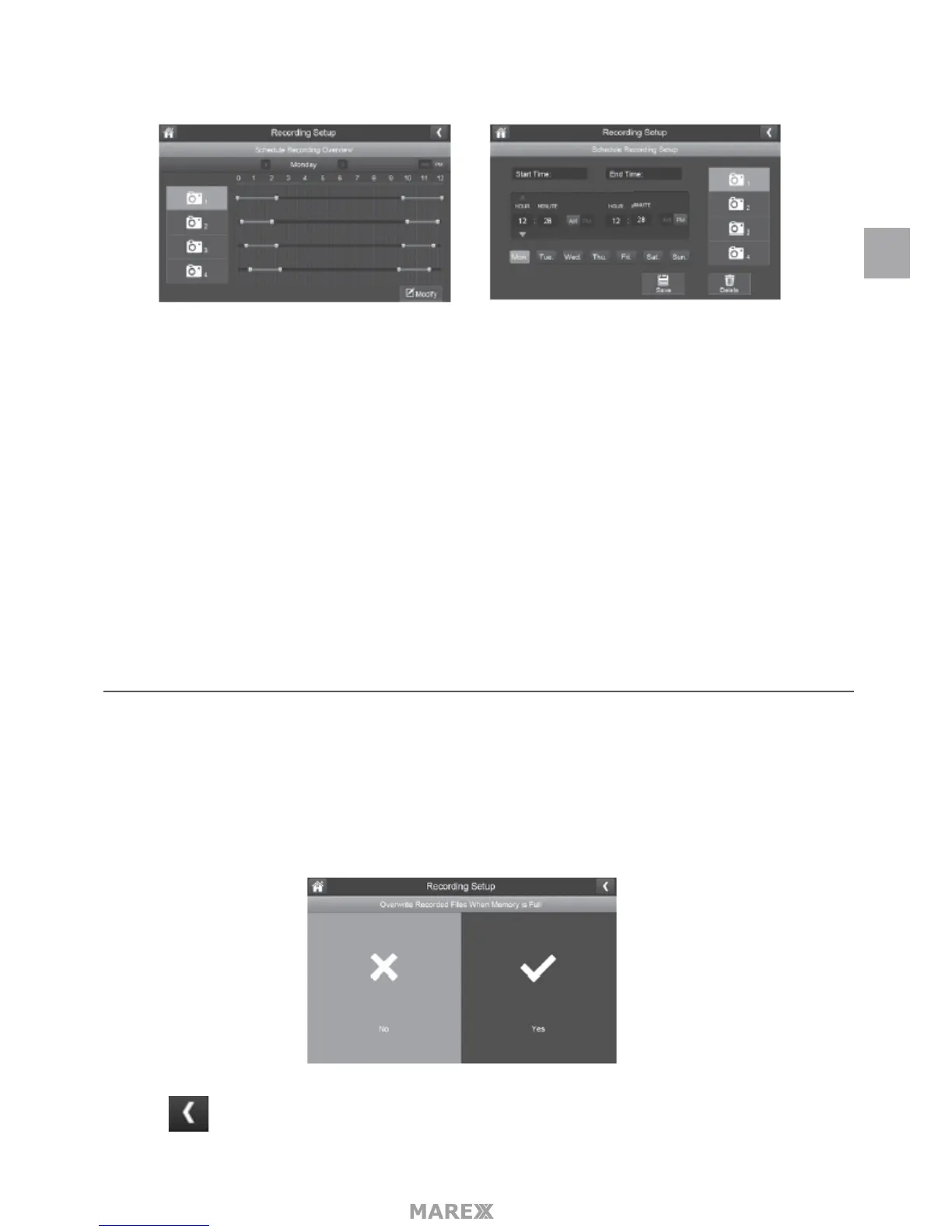
2. Tap MODIFY in the lower right corner. The Schedule Recording Setup menu will appear.
3. Select a camera. If you want more than one camera to record at the same time, select both camera’s.
4. Set the recording start time.
- Tap the AM/PM block to toggle between them.
- Tap the hour and number boxes separately and tap the up and down arrows to set the time in
HH:MM format.
- Tap the return arrow to save the number and move to the next setting
5. Tap SAVE the system returns to the Schedule Recording Overview screen with the recording period
indicated.
6. Top MODIFY again to set up another recording seesion to schedule.
Scheduled recordings are broken into 10 minute le sizes. For example, if you record a 25 minute event,
you will have two 10-minute recordings plus one 5-minute recording.
FILE OVERWRITE
This feature lets you set the system to automatically overwrite the oldest les once the SD card is full. This will
allow you to continue recording. If you do not allow overwrite, recording stops when the SD card is full.
1. Tap to access the File Overwrite function. The following screen gives you the option of allowing File
Overwrite (tap YES) or, if File Overwrite is on, cancelling it (tap NO).
2. Tap to return to the previous screen.
EN


 To Next Page