19
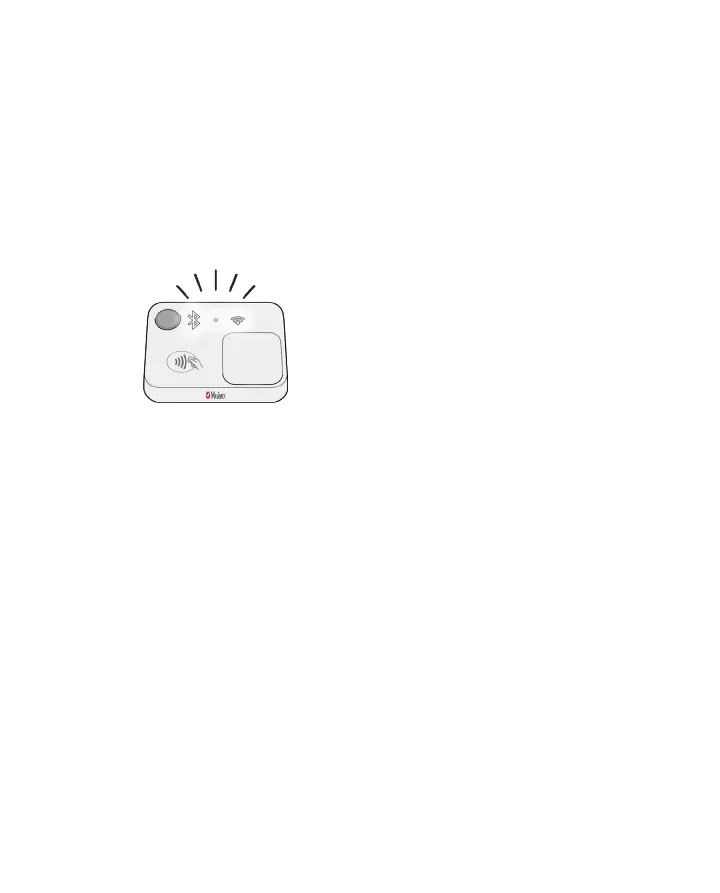
Masimo Stork Hub Setup
Follow the instructions below to set up the Masimo Stork Hub.
Note: Make sure your smartphone Wi-Fi and Bluetooth connections are turned on. Refer to the smart
phone's instructions to change its settings.
WARNING: Place the Masimo Stork Hub in a safe location so as not to fall on anyone and where the
alarm sounds can be heard.
1. Following the on-screen instructions, connect the Masimo Stork Hub to a power outlet using
the AC power cord and adapter and select Continue.
Note: The Masimo Stork Hub Status LED is white when powered on.
NEED NEW TBD
2. Scan the QR code located on the Hub as instructed on the App.
Note: If the Hub is not found when scanning the QR code, enter the Hub serial code (located
on the back of the Hub) manually into the App and select Continue. If the Masimo Stork Hub
still cannot connect, see Troubleshooting on page 33.
3. Next, select the wireless Network and enter the Password. Select Continue.
• To view available Wi-Fi networks within range of the Masimo Stork Hub, click the Tap
to select network field and select from the displayed list.
Note: When prompted on the smart phone, allow Masimo Stork to access the phone's Wi-Fi
settings.
4. Once the Wi-Fi connection is established, the Masimo Stork Hub Wi-Fi Setup Successful
TBD screen will appear. If the Masimo Stork Hub cannot connect, follow the on-screen
instructions to verify the network and try again or view Troubleshooting on page 33.
5. Next, you will connect the Masimo Sensor to the Masimo Stork Hub. See Masimo Sensor
Setup on page 19 for additional instructions.
Masimo Sensor Setup
Follow the on-screen instructions to:
• Charge the Sensor.



 To Next Page