Using the Scan Tool
CODE RETRIEVAL PROCEDURE
25
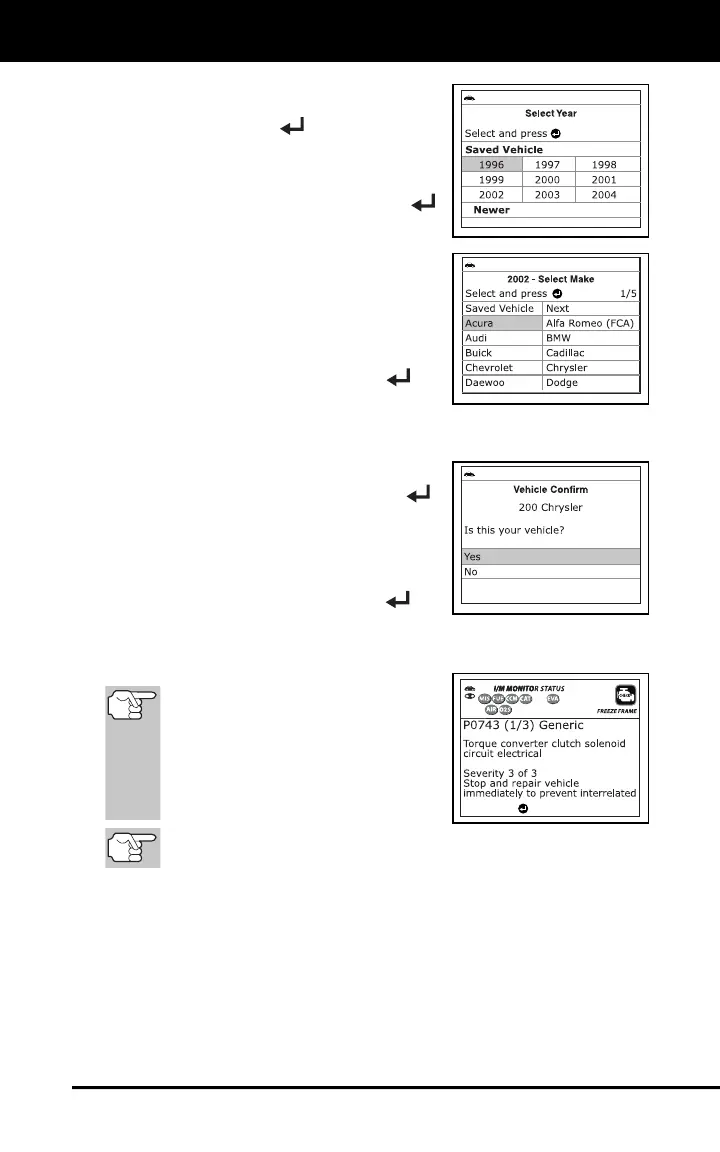
To select a new vehicle, highlight
Select New Vehicle, then press
MENU/ENTER
.
- The Select Year screen displays.
Select the desired vehicle model
year, then press MENU/ENTER
to continue, or, select Saved
Vehicle to return to the Select
Vehicle screen and select a
previously tested vehicle.
- The Select Make screen
displays.
Select the desired vehicle make,
then press MENU/ENTER
to
continue.
- The Confirm Vehicle screen displays.
If the information shown is correct
for the vehicle under test, select
Yes, then press MENU/ENTER
.
Proceed to step 10.
If the information shown is not correct
for the vehicle under test, or if you
wish to reselect the vehicle, select No,
then press MENU/ENTER
to
return to the Select Vehicle screen.
10. Refer to DISPLAY FUNCTIONS on page 3 for a description of
display elements.
In the case of long code
definitions, or when viewing
Freeze Frame Data, a small arrow
is shown in the upper/lower right-
hand corner of the Scan Tool
display area to indicate the
presence of additional information.
If a definition for the currently displayed code is not available,
an advisory message shows.
The Scan Tool will display a code only if codes are present. If no
codes are present, the message “No Powertrain DTCs or Freeze
Frame Data presently stored in the vehicle’s computer” displays.
The Scan Tool is capable of retrieving and storing up to 32
codes in memory, for immediate or later viewing.


 To Next Page