Using the FixAdvisor
™
CODE RETRIEVAL PROCEDURE
38 MD70
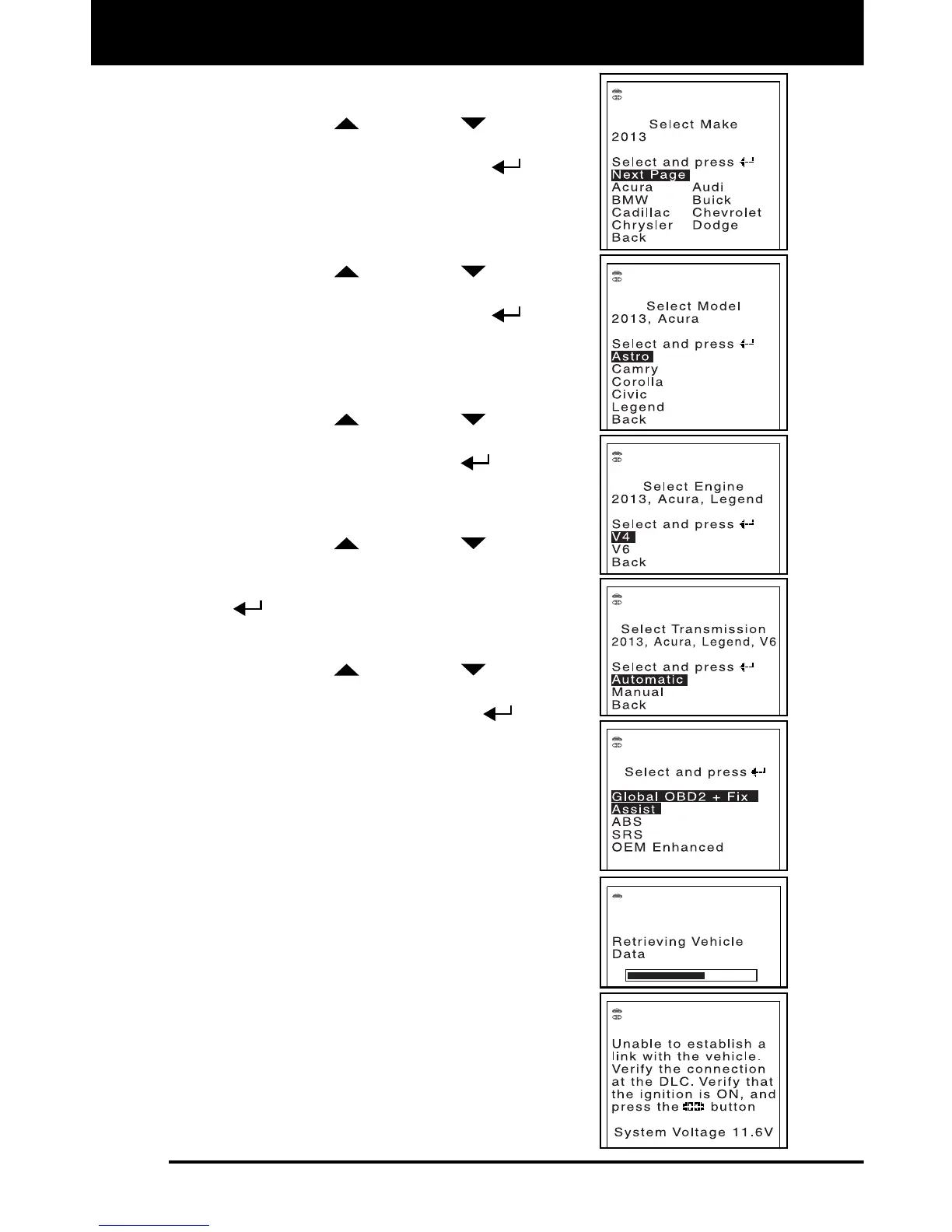
The Select Make screen displays.
10. Use the UP
and DOWN
buttons, as
necessary, to highlight the desired vehicle
make, then press the ENTER
button.
To view other pages of the list, select Next
Page.
The Select Model screen displays.
11. Use the UP
and DOWN
buttons, as
necessary, to highlight the desired vehicle
model, then press the ENTER
button.
To view other pages of the list, select Next
Page.
The Select Engine screen displays.
12. Use the UP
and DOWN
buttons, as
necessary, to highlight the desired engine
size, then press the ENTER
button.
The Select Transmission screen
displays.
13. Use the UP
and DOWN
buttons, as
necessary, to highlight the desired
transmission type, then press the ENTER
button.
The Select System screen displays.
14. Use the UP
and DOWN
buttons, as
necessary, to highlight Global OBD2 + FIX
Assist, then press the ENTER
button.
A progress screen displays while the
codes are retrieved.
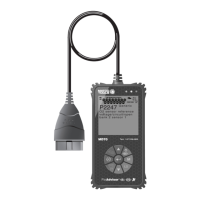
15. After approximately 10~60 seconds, the
FixAdvisor will retrieve and display any
Diagnostic Trouble Codes, Monitor Status
and Freeze Frame Data retrieved from the
vehicle’s computer memory.
If the FixAdvisor fails to link to the
vehicle’s computer a “Linking Failed”
message shows on the Scan Tool’s
display.
- Verify the connection at the DLC,
and verify the ignition is ON.
- Turn the ignition OFF, wait 5
seconds, then turn back ON to reset
the computer.


 To Next Page