32
Introduction &
Contents
Installing your
VCR
Setting up your
VCR
Playing a
Video Tape
Recording
Programmes
Advanced
Features
Help and
Specification
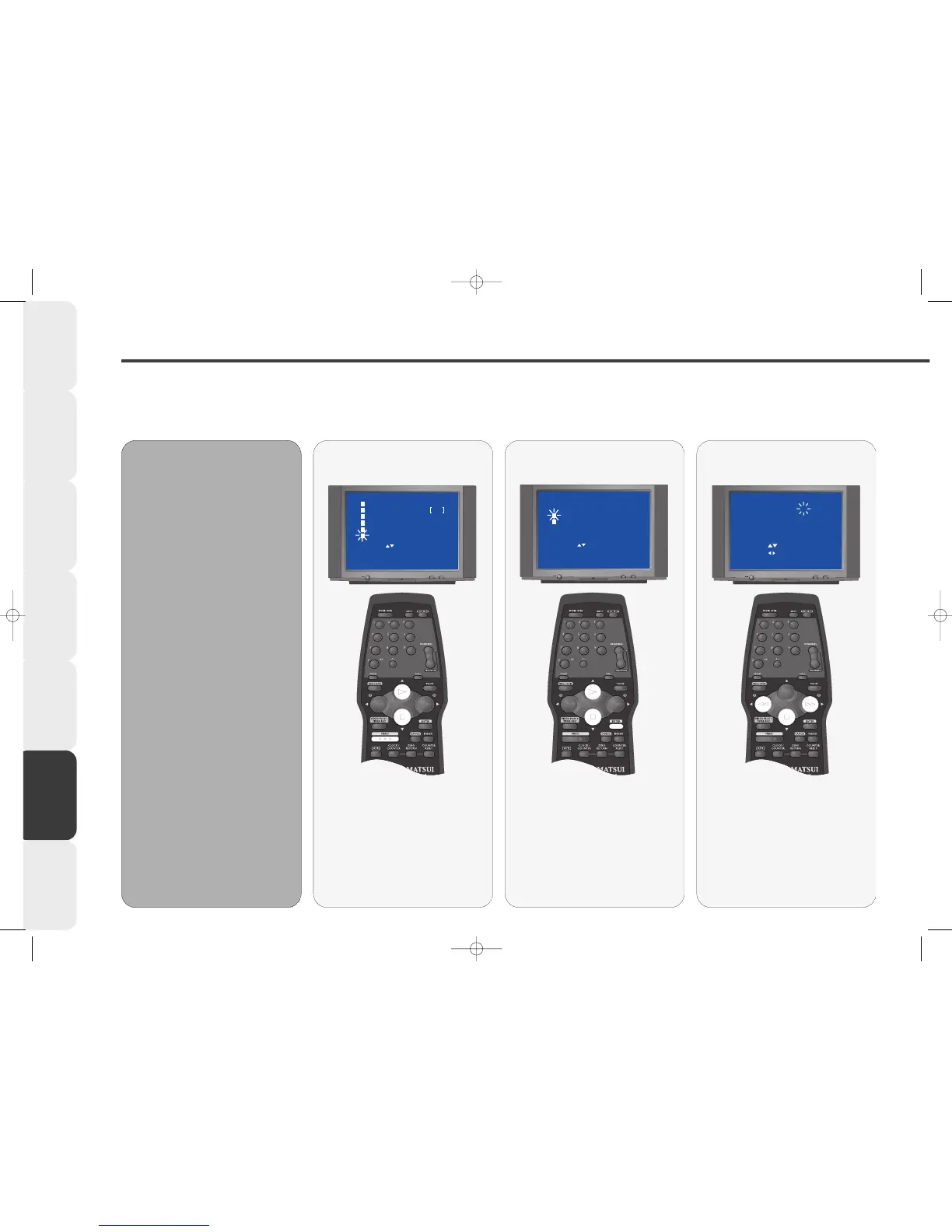
Manually setting the correct Time and Date
You must set the correct time and date on your VCR before you make any VIDEO Plus+ or timed recordings.
You should only need to set the time manually if it was not set during AUTO SET-UP (pages 10-11).
If your VCR is in standby, press the VCR ON button on the remote control to switch it on. Select the VCR channel on your TV.
11
11
Press the MENU button on the
remote control, the MAIN menu
will appear.
Press PLAY or STOP to highlight
SYSTEM SETUP.
Press ENTER.
Select SYSTEM
SETUP
22
22
The DATE digit will be flashing.
Press REW or F.FWD to set the
correct date.
The three letters after the date show the
DAY of the week (MON=Monday). The
DAY will NOT be correct until the
month and year have been set.
Press STOP to store the date.
Set the DAY
••
•• Your VCR is fitted with a 24hr
clock and a year 2000 compliant
calender.
••
•• Before you can make any
recording you must set the correct
time and date.
••
•• Your VIDEO Plus+ or timer
recordings might miss the
beginning or end of programmes if
the time or date are not set
correctly.
••
•• Once set, the time will show in
the VCR’s display when the VCR is
in stand-by.
••
•• If your VCR is unplugged from
the mains or you have a power cut,
your VCR will keep the correct time
and date in its memory for
approximately 30 minutes. If there
is no power for longer than this,
you must set the correct time and
date again.
MM
MM
aa
aa
nn
nn
uu
uu
aa
aa
ll
ll
SS
SS
EE
EE
TT
TT
UU
UU
PP
PP



 To Next Page