Maxtor OneTouch IV 71
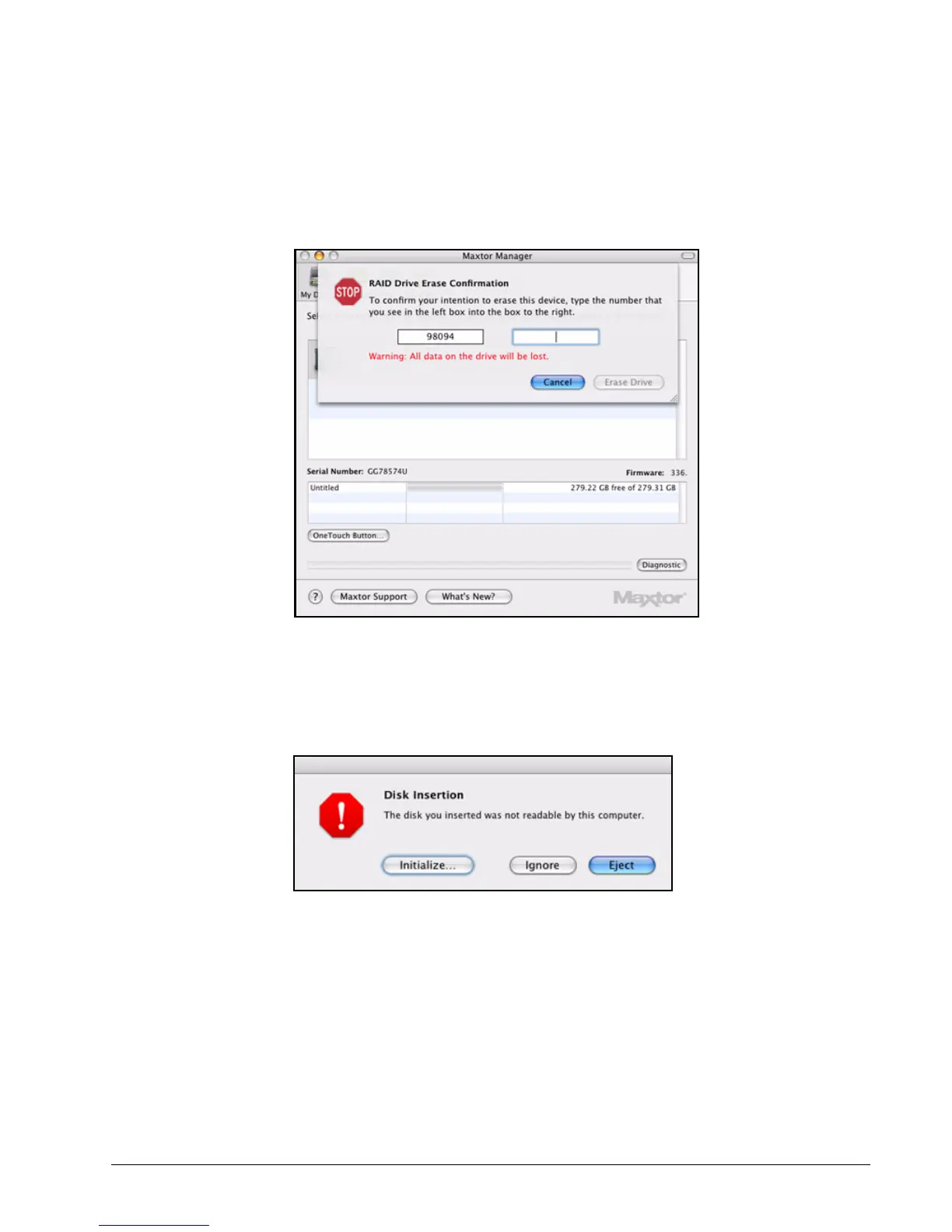
Step 2: Select the RAID configuration that is not currently selected and click Erase Disk.
The RAID Drive Erase Confirmation sheet is displayed:
Step 3: Enter the number displayed and click Erase Drive.
A Disk Insertion dialog is displayed:
Step 4: Click Initialize to prepare your OneTouch for use.
The Disk Utility window opens:
Figure 42: RAID Drive Erase Confirmation
Figure 43: Disk Insertion





 To Next Page