Maxtor OneTouch IV 61
Using Pre-configured Sync
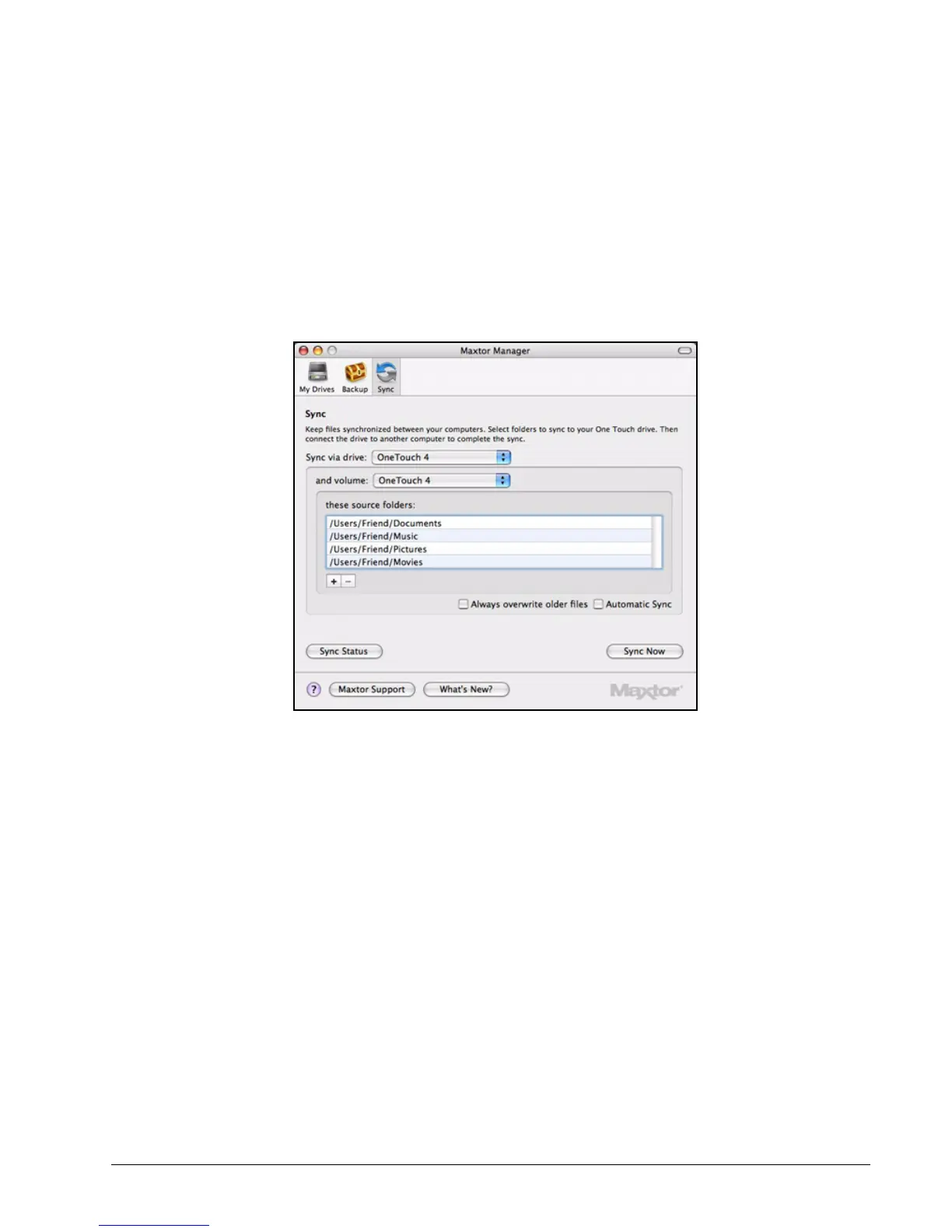
To use the pre-configured Sync settings,
Step 1: Click Sync in the toolbar.
The Sync window opens:
Step 2: Select the drive and volume on which to sync folders.
Documents, Music, Pictures, and Movies have been pre-selected for Sync.
Step 3: Check Automatic Sync and, if you wish, Always overwrite older files.
Your first sync starts when you check Automatic Sync. These folders will
automatically be synchronized each time a file within them changes.
Using Custom Sync
To customize your Sync options,
Step 1: Click Sync in the toolbar.
The Sync window opens:
Figure 29: Sync





 To Next Page