12
Skimmi Robotic Pool Skimmer | User Instructions
Dolphin Skimmi User Manual
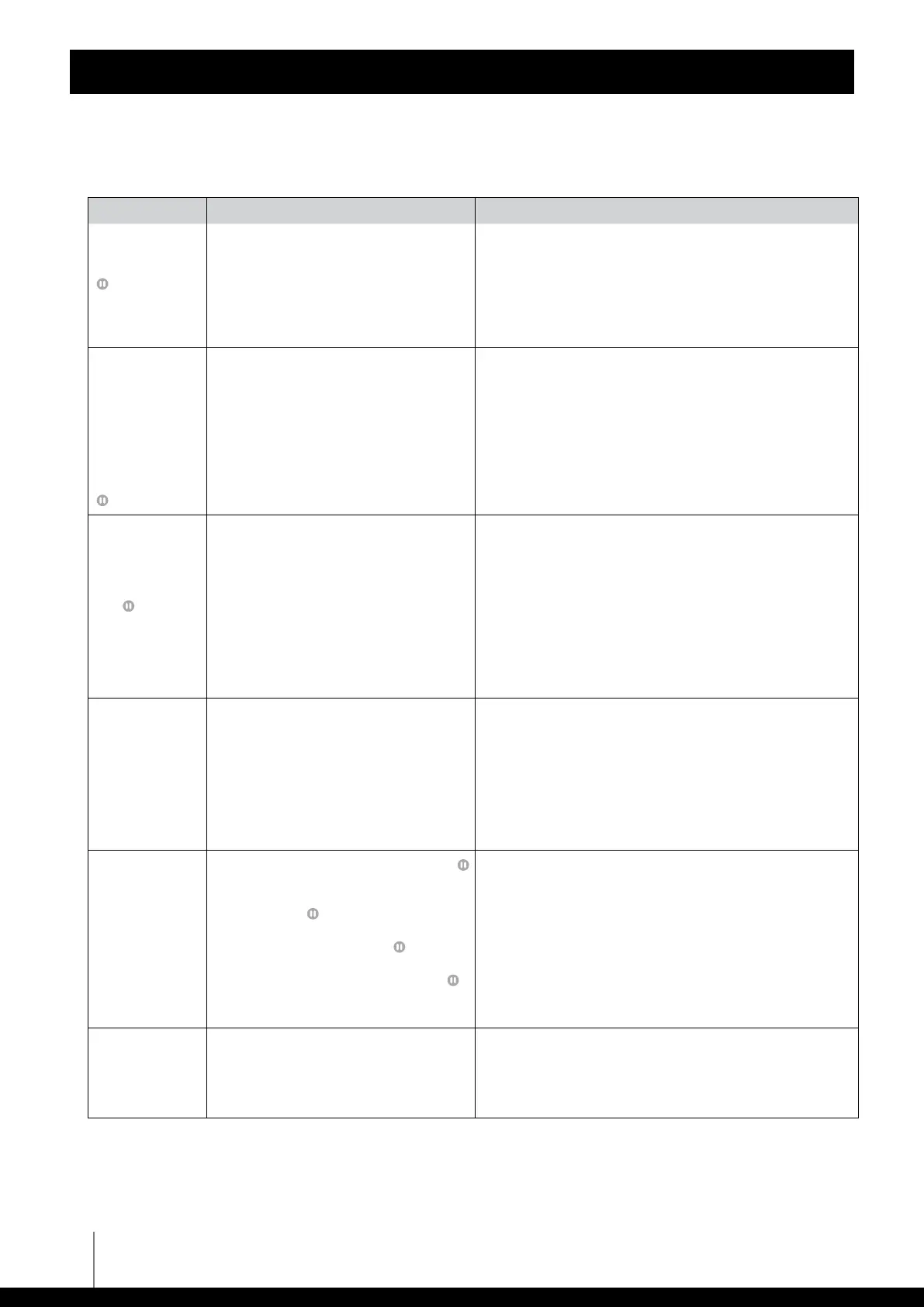
TROUBLESHOOTING
Symptom Possible reason Corrective action
Robot can't be
switched ON.
Green pause LED
is not lit or
blinking
• The filter tray is not inserted correctly.
• Battery is not charged.
• Remove clips from the filter tray (if still there) and insert the
tray until it snaps into place.
• Insert the filter tray and place the robot in direct sunlight.
The robot will immediately switch ON, the green Pause
LED, and the blue Charge LED will light up. If it still doesn’t
work after charging in the sun, contact Customer Care:
wecare@maytronics.com
Switching ON
the robot is not
confirmed by
a beep. After
inserting the filter
tray, the robot
switches OFF in a
moment.
Green pause LED
double-blinks
• Battery is too low. • Place the robot in direct sunlight and let the battery
recharge.
After night
cleaning, the
robot doesn’t
move and the
green pause
LED
is lit
continuously. It
will only start up
again when the
Start button is
pressed.
• "Auto Start" is disabled and low-light
conditions do not allow the battery to
adequately charge for night work, so
Skimmi turns OFF at night.
• Night cleaning settings are too
demanding, causing the battery to drain.
• Open the app and turn "Auto Start" = ON in "Device
Settings".
• Reduce night cleaning time and increase night pause
time in “Device Settings". Also, turn "Start Delay" ON in the
settings "Cleaning Schedule”.
Robot can only be
switched ON in a
sunny place. The
app indicates a
charged battery.
However, the
robot switches
OFF immediately
if it is shaded.
• Faulty battery. • Replace the battery
Contact Customer Care: wecare@maytronics.com
Robot does not
move.
• Cleaning has not started (green pause
LED constantly ON).
• Robot is on a pause between cleanings
(green pause
LED single-blinks every
5 seconds).
• Battery is low (green pause
LED
double-blinks every 10 seconds).
• New app update failed (green pause
LED is constantly blinking).
• Open the app and tap the Start button.
• Wait until the next cleaning cycle starts if the status bar in
the app shows that it is in a recharge pause.
• Wait for the battery to charge in the sun.
• Open the app and complete the robot’s software update.
Robot has
stopped moving,
it gives a warning
signal, the red
LED flashes.
• There is an object stuck in one of the
wheels of the robot.
• Open the app and use the robot's message to find out
which wheel is stuck. Remove the object or hair.
If it still doesn't work, contact Customer Care:
wecare@maytronics.com






 To Next Page