How to use USB mode
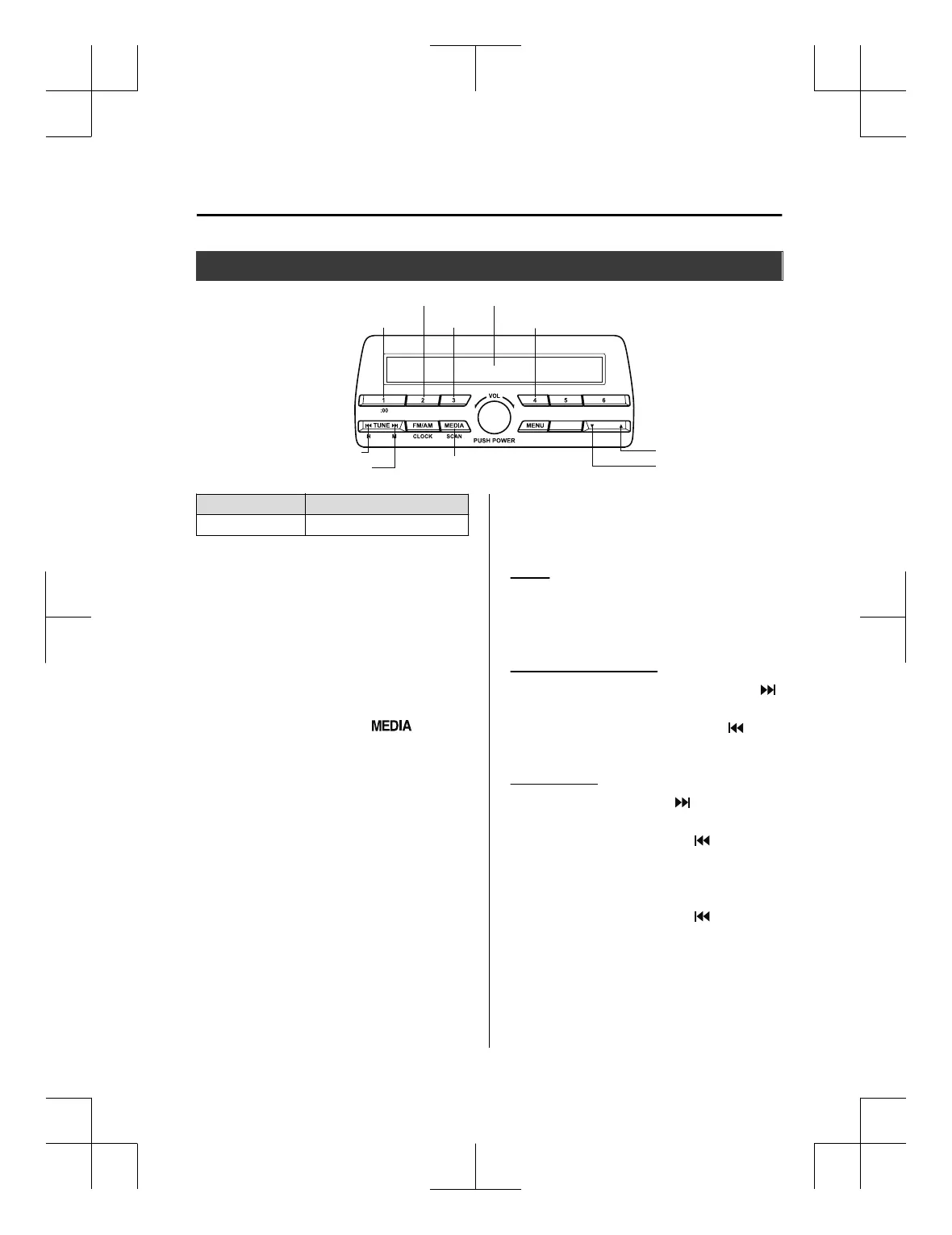
Media/Scan button
Folder down button
Folder up button
Play/Pause button
Random button
Repeat button
Audio display
Text button
Track down/Reverse button
Track up/Fast-forward button
Type Playable data
USB mode MP3/WMA/AAC file
This unit does not support a USB 3.0
device. In addition, other devices may not
be supported depending on the model or
OS version.
▼
Playback
1. Switch the ignition to ACC or ON.
2. Press the power/volume dial to turn the
audio system on.
3. Press the media button (
) to
switch to the USB mode and start
playback.
NOTE
x
Some devices such as smart phones may
require a setting change to allow
operation using a USB connection.
x
When the USB device is not connected,
the mode does not switch to USB mode.
x
When there is no playable data in the
USB device, “NO CONTENTS” is
flashed.
x
Playback of the USB device is in the
order of the folder numbers. Folders
which have no MP3/WMA/AAC files are
skipped.
x
Do not remove the USB device while in
the USB mode. The data may be
damaged.
Pause
To stop playback, press the play/pause
button (4).
Press the button again to resume playback.
Fast-forward/Reverse
Press and hold the fast-forward button ( )
to advance through a track at high speed.
Press and hold the reverse button (
) to
reverse through a track at high speed.
Track search
Press the track up button ( ) once to skip
forward to the beginning of the next track.
Press the track down button (
) within a
few seconds after playback begins to track
down to the beginning of the previous
track.
Press the track down button (
) after a
few seconds have elapsed to start playback
from the beginning of the current track.
Interior Features
Audio Set [Type A (non-touchscreen)]
5-33
CX-3_8GT4-EE-18D_Edition8_old 2019-11-14 12:53:52



 To Next Page