30
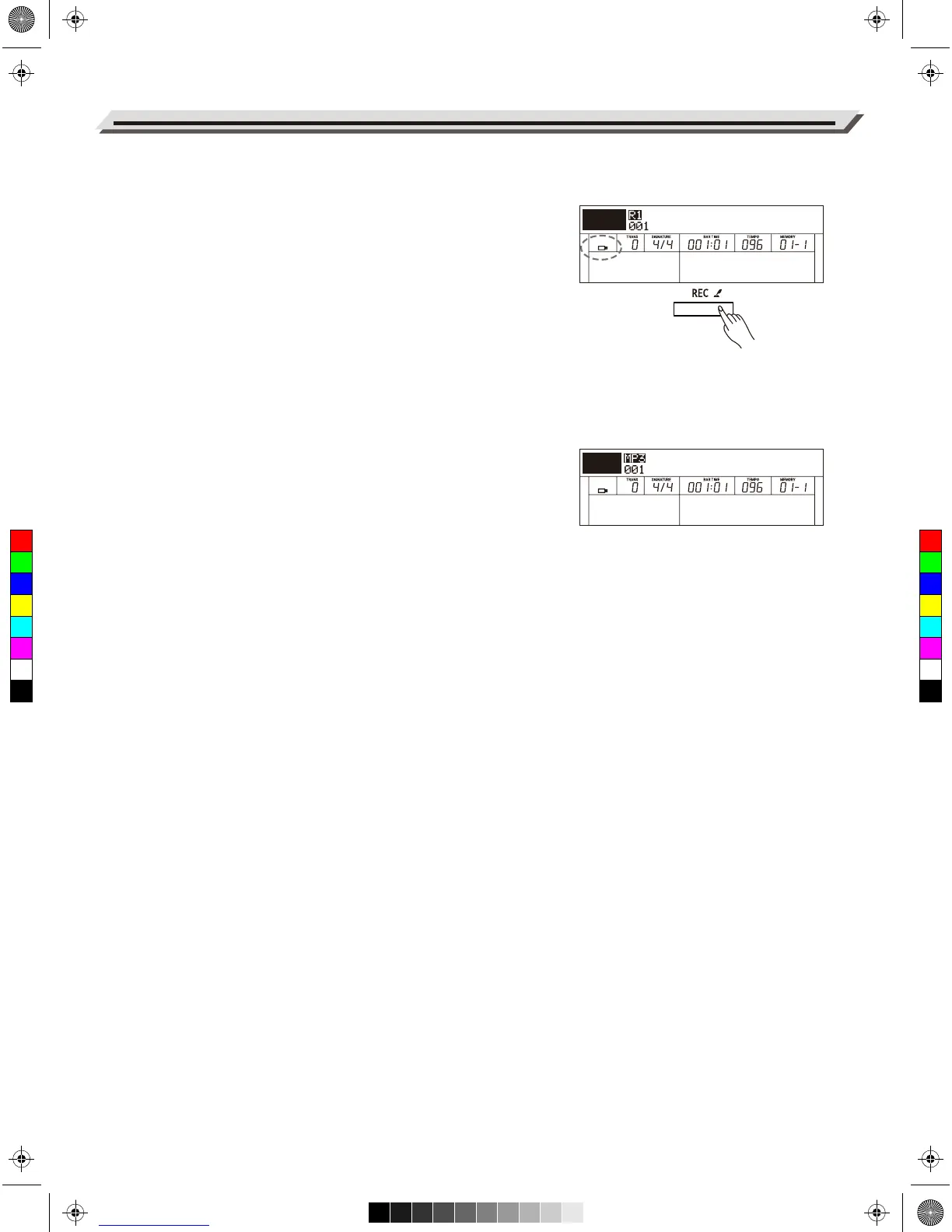
Audio recording will record your performance and save it to a USB flash
drive as an MP3 file. During recording, the sounds and effects you hear from
the instrument will all be recorded.
1. Connect a USB flash drive to the instrument, then wait until the USB
indicator appears on the LCD.
2. Press the [REC] button to start recording. The Record button LED and
“REC” indicator will light up.
Note:
If you want to switch to MIDI recording, press and hold the [REC] button
to enter the Recording settings menu, then set the Record Type to
“MIDI”. Please refer to Recording Settings for details.
3. During recording, you can play back style accompaniment, play the
keyboard, play back songs or demos, play back music from the AUX IN
jack, and sing through a microphone. All these sounds will be recorded.
4. During recording, press the [REC] button to stop recording. The recording
button LED and the “REC” indicator will turn off.
5. The recorded song will be automatically saved as “AudioRec XXX”.
Press the [START/STOP] button to play back the song.
Note:
Do not remove the USB flash drive or turn off the power when song saving
is in progress, otherwise it may cause damage to the audio files and the
USB flash drive.
Audio Recording
Grand Piano 1
AudioRec001
Voice
USB
C
M
Y
CM
MY
CY
CMY
K
aw_DP720_Manual_G03_170523.pdf 30 17/5/24 09:15


 To Next Page