Because the camera supports WPS/QSS, so you can set
wireless by simple way as below.
1� Please conrm if the router connected to camera sup-
ports WPS/QSS (you can check user manual of the router
or get the support from router factory);
2� Press WPS/QSS button on the router, it will launch the
function�
3� Press and hold on reset button for 2~5 seconds after
it ran normally (not need connect cable), it will launch
the WPS/QSS function, then match the setting with the
router, the status LED always on when it was matching,
and it will ash after matching successfully�
4� Unplug power adaptor and reboot the camera, then you
can use the wireless connect function�
Notice: The camera will automatically stop the function
when the matching is unsuccessful after continuing 50 sec-
onds. Due to dierence in the working of the routers, we don’t
guarantee that WPS function can be used successfully.
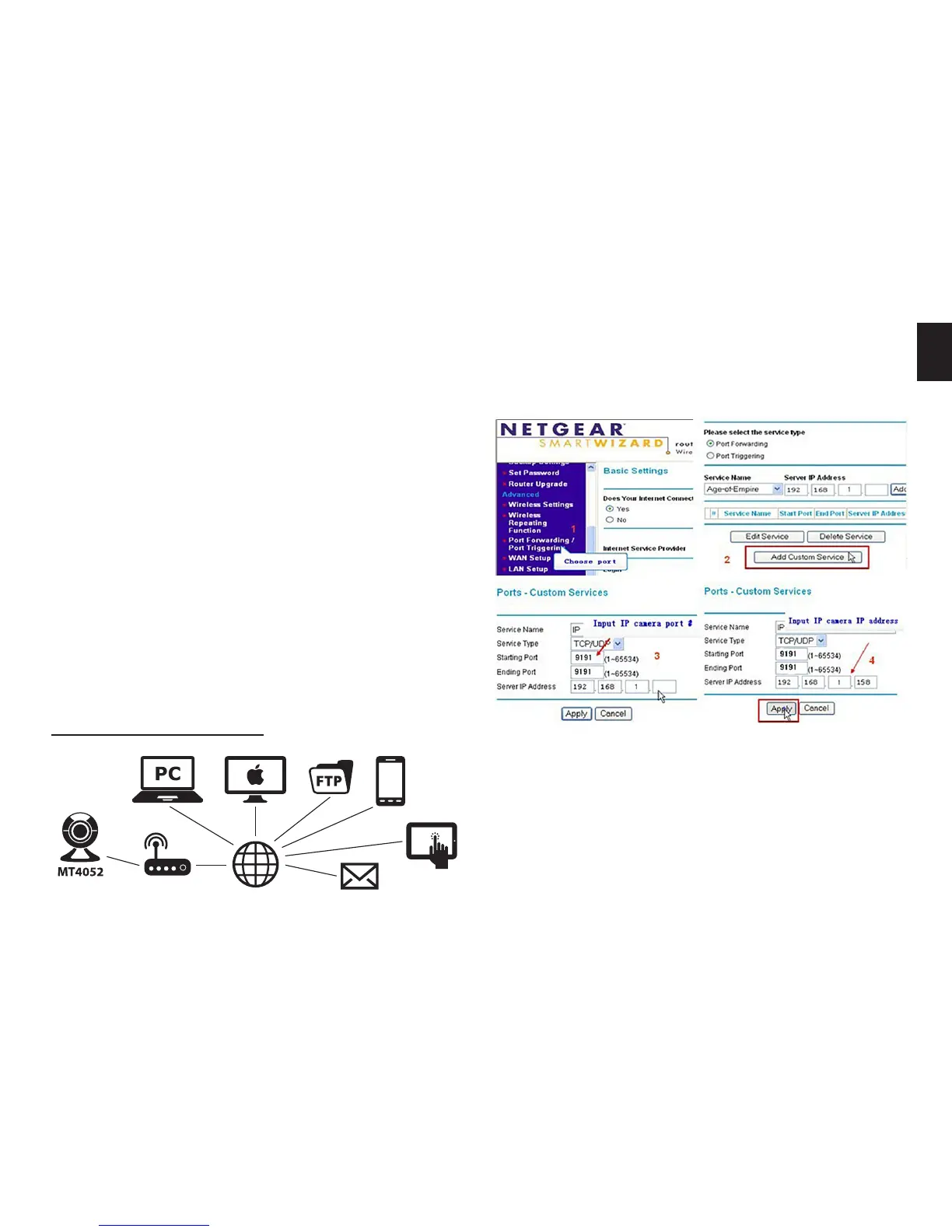
1� Please go to the setting interface of Router, and choose
“Port Forwarding”;
2� Choose “Add custom Service” ;
3� Input IP camera http port;
4� Input LAN IP Address of the camera, click “Apply”
After nishing the port forwarding, you can use WAN IP ad-
dress of router and http port of camera to visit the camera
by remote computer�
View video in internet
You should connect your internal network to the internet
rst and congure port forwarding, please refer to your
router manual for further details�
For example: operation step of port forwarding�


 To Next Page