MEGA65 Welcome Guide
4. Follow the prompts. When prompted, turn your MEGA65 on. If everything is working, the Connection Wizard
will detect the connection and close the window. If the window doesn’t close in a few seconds, click Abort and
proceed with setting up the connection settings manually.
The M65Connect manual has advice on troubleshooting connection issues: go to the Help menu, select Manual. I
won’t repeat all of it here, but advice that I personally found useful when doing this on my Mac (M65Connect 1.8, Intel
MacBook Pro, macOS 12.3.1):
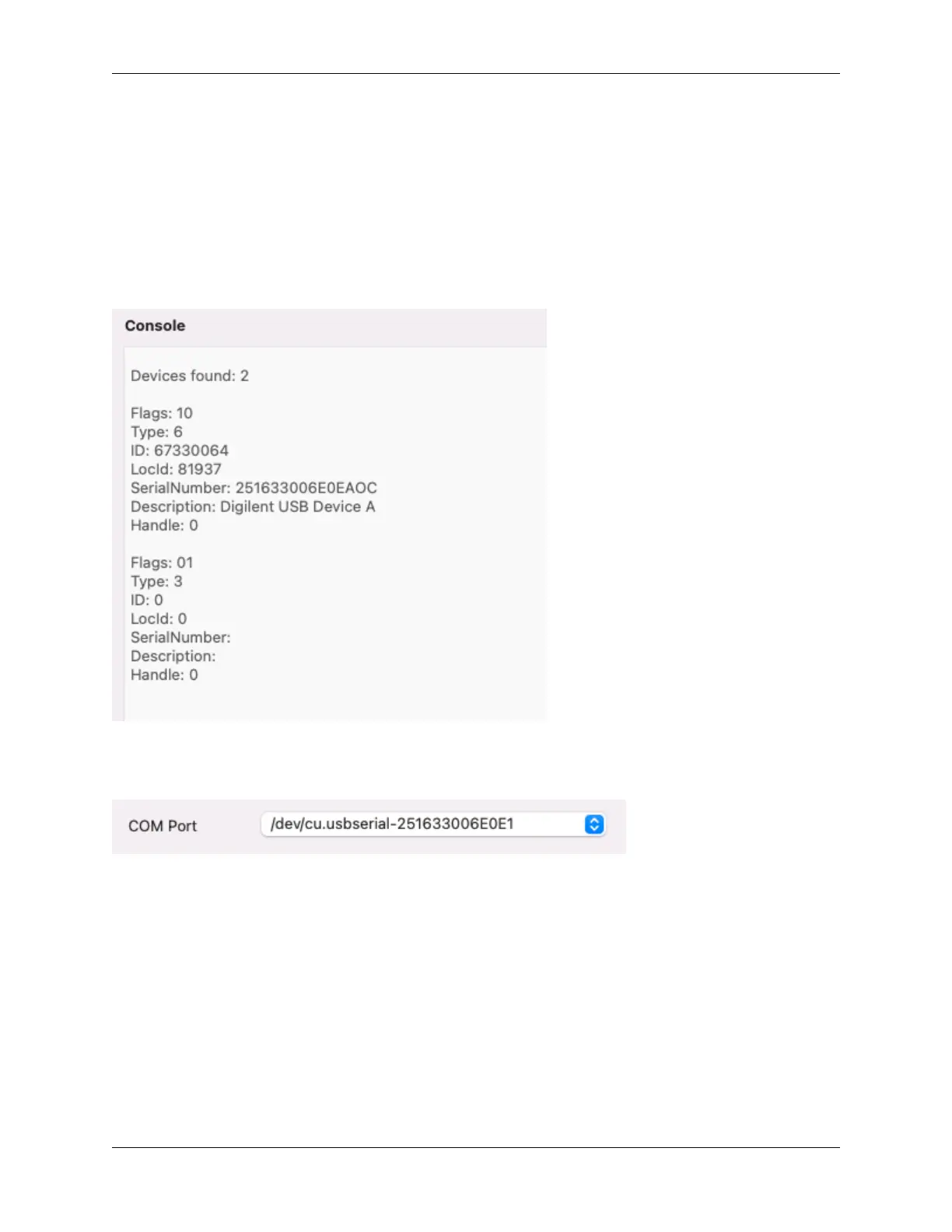
• The Command menu, List FTDI Devices is a good start for making sure the JTAG is connected. Even with the
MEGA65 turned off, it should list two devices when connected, one with flags “10” and one with flags “01”. My
JTAG device description is “Digilent USB Device A”.
• The Settings menu, Connection lets you pick a serial port manually. On my Mac, I have four /dev/cu.
usbserial... devices, some of which have numbers similar to (though not identical to) the device Serial-
Number printed by List FTDI Devices.
• If it looks like it should be connected, use the buttons at the top of the M65Connect window to attempt remote
actions. For example, Screenshot will ask the MEGA65 to take a screenshot and M65Connect will display it.
If it fails, it should print error messages in the main M65Connect window.
68 Chapter 11. Using the JTAG connector


 To Next Page