Chapter 2 – Commissioning
19
Registering the log printer on the MELAG device
For MELAtherm 10 / Premium-Class / Vacuquick:
The (practice) network must be operated in the subnetwork 192.168.40.xx so that the log printer can be
recognised automatically in the MELAG device without any further settings being performed.
Proceed as follows to register and save the log printer in the MELAG device:
1. Activate the MELAG device and wait until the main menu is displayed.
2. Connect the log printer power supply to the socket.
3. Switch off the MELAG device and then on again. The MELAG device will recognise and save the
IP address of the log printer automatically.
PLEASE NOTE
Should these steps not be successful, it is probable that the IP address saved in the MELAG
device and the log printer do not belong to the same subnetwork.
In this case, change the IP address of the log printer in the MELAG device. Consult the
technical manual of the MELAG device.
For Premium-Plus-Class / Evolution / Cliniclave Series:
The (practice) network must be operated in the subnetwork 192.168.40.xx so that the log printer can be
recognised automatically in the MELAG device without any further settings being performed.
Proceed as follows to register and save the log printer in the MELAG device:
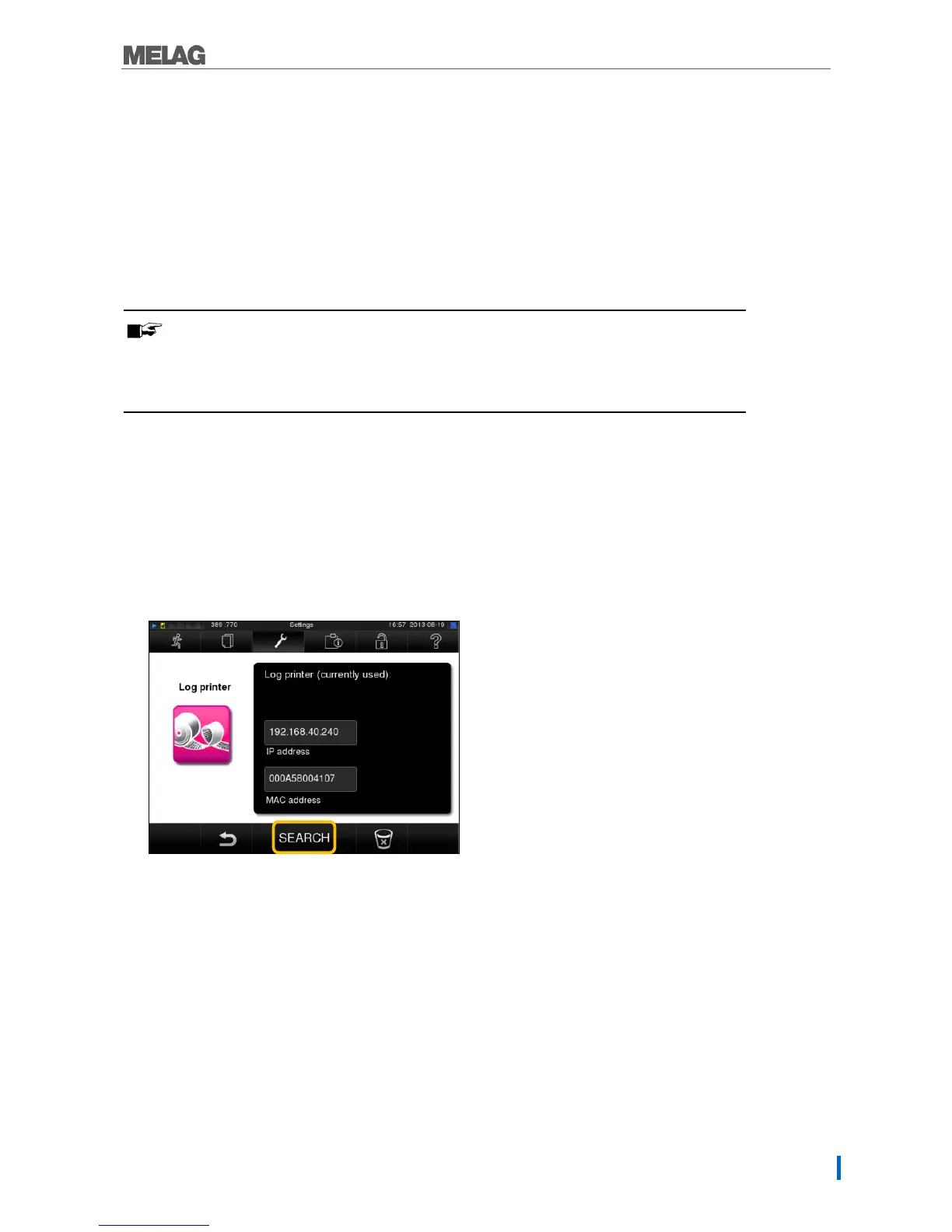
1. Select the Settings menu.
2. Navigate to the Log printer option. The display switches to the "Log printer" window. If a log
printer has not been setup, the "IP address" and "MAC address" fields are empty.
3. Select SEARCH to display a list of all available log printers connected in the network.
Fig. 12: Displaying the available log printers


 To Next Page