- 30 -
1 Access the Setup menu as described on page 23.
2 Press the q button to select Closed Caption.
3 Press the OK button to enter.
4 Press the q button to select a setting (i.e. CC Mode, etc.).
5 Press the t/u buttons to adjust the setting.
6 When done, press the EXIT button to exit the menus or press
the MENU button to return to the previous menu.
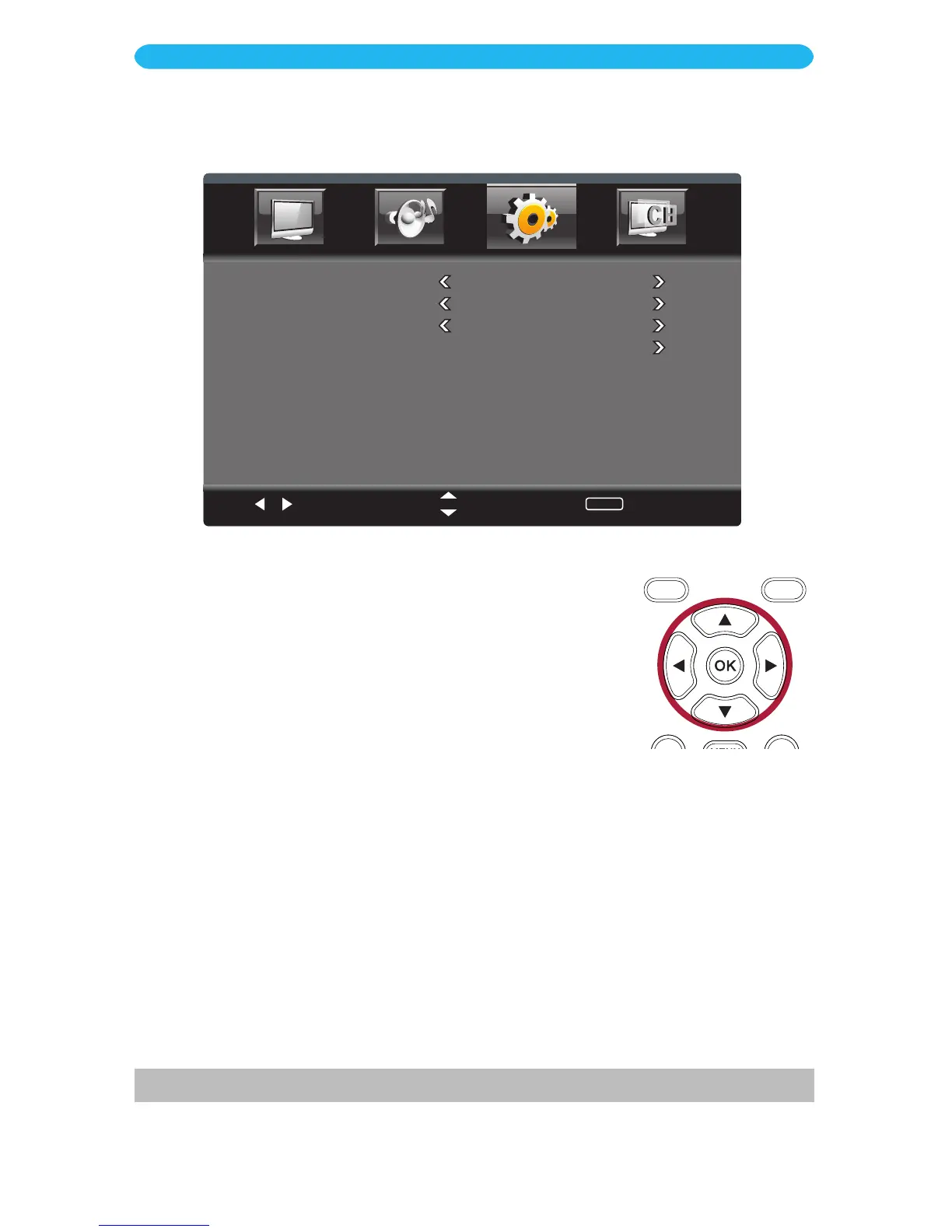
ON SCREEN DISPLAY
Setup Menu - Closed Caption Submenu
Select
Move
MENU
Return
CC Mode
On
Basic Selection
CC1
Advanced Selection
Service1
Option
CC MODE: Set the desired Closed Caption mode (Off, On, CC on Mute). Select CC on
Mute and the TV will display Closed Captions when muted.
BASIC SELECTION: Set the desired Analog Closed Caption mode. Used during Analog
broadcasting, CC1 will show the primary caption data, with captions representing the
language as it is spoken on-screen. Different languages are shown using CC2, if broadcast.
ADVANCED SELECTION: Set the desired Digital Closed Caption mode (Service1,
Service2, etc.). Used in digital broadcasting, Service1 will show the primary caption data,
with captions representing the language as it is spoken on-screen. Different languages are
shown using Service2, if broadcast.
OPTION*: Select to set the Closed Captioning appearance options such as fonts, colors,
opacity, etc.
* This option is only available when the set is broadcasting Digital signals.


 To Next Page