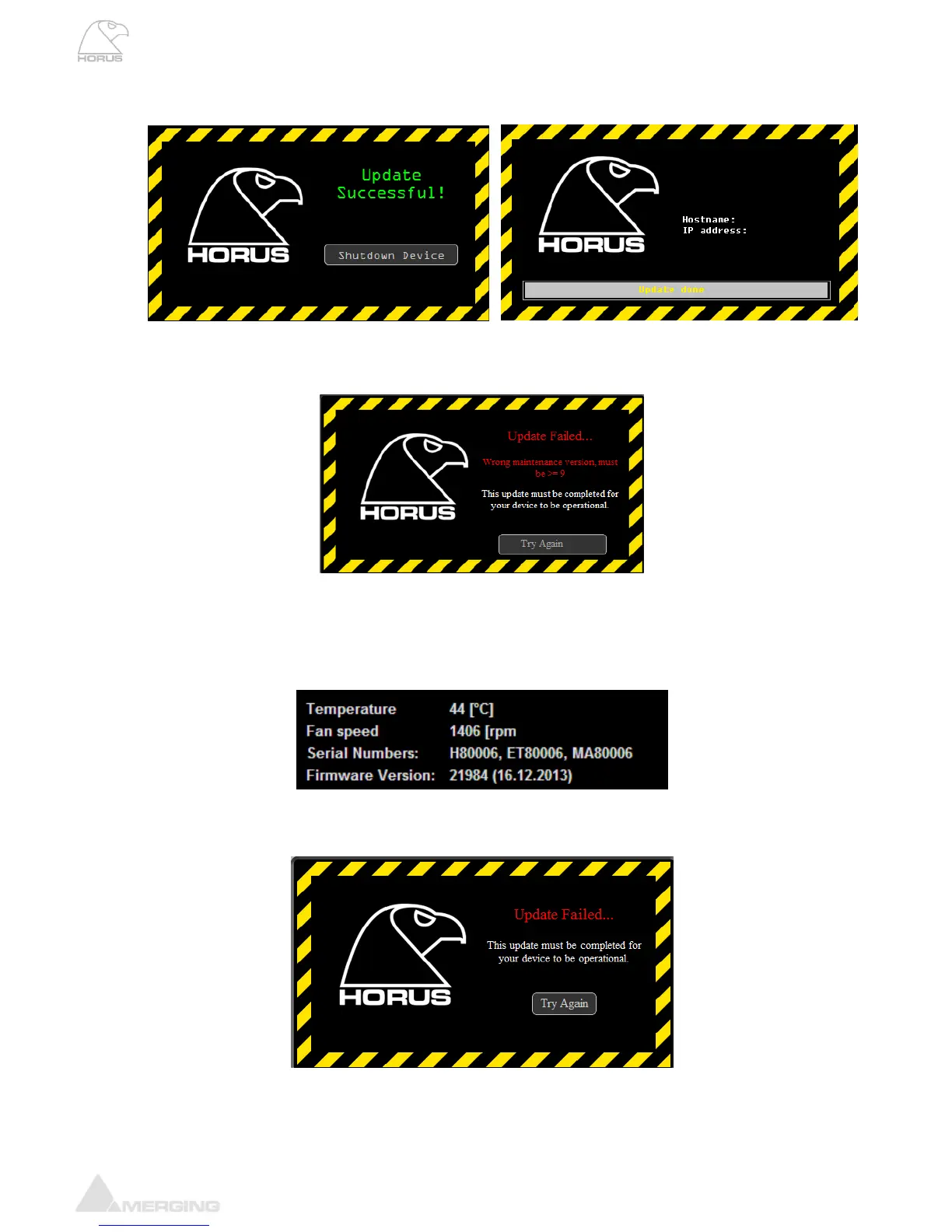
10) Wait until the webpage says “Update successful!” and Horus TFT displays “Update Done”.
Warning: Some Firmware updates will require first a Horus Maintenance Mode update. In such case
you might see a message posted like “Wrong maintenance version, must be >= 23” .
Note: A Maintenance Mode update requires a shutdown of the Horus once the update completed.
11) Shutdown your Horus after the Firmware or Maintenance Mode update. Restart your Horus
manually afterwards.
12) You can verify the firmware version installed by going into the Horus Setup menu and selecting
System info. The firmware version and date of issue will be displayed.
IMPORTANT: If the Firmware update procedure fails, repeat the Firmware update procedure by
pressing the “Try Again’ Button (it will bring you back to step 7)
Avoid powering down the HORUS if the firmware update has failed. It is mandatory that you
attempt to re-update the firmware, refresh the online web page if necessary. Or go back to the


 To Next Page