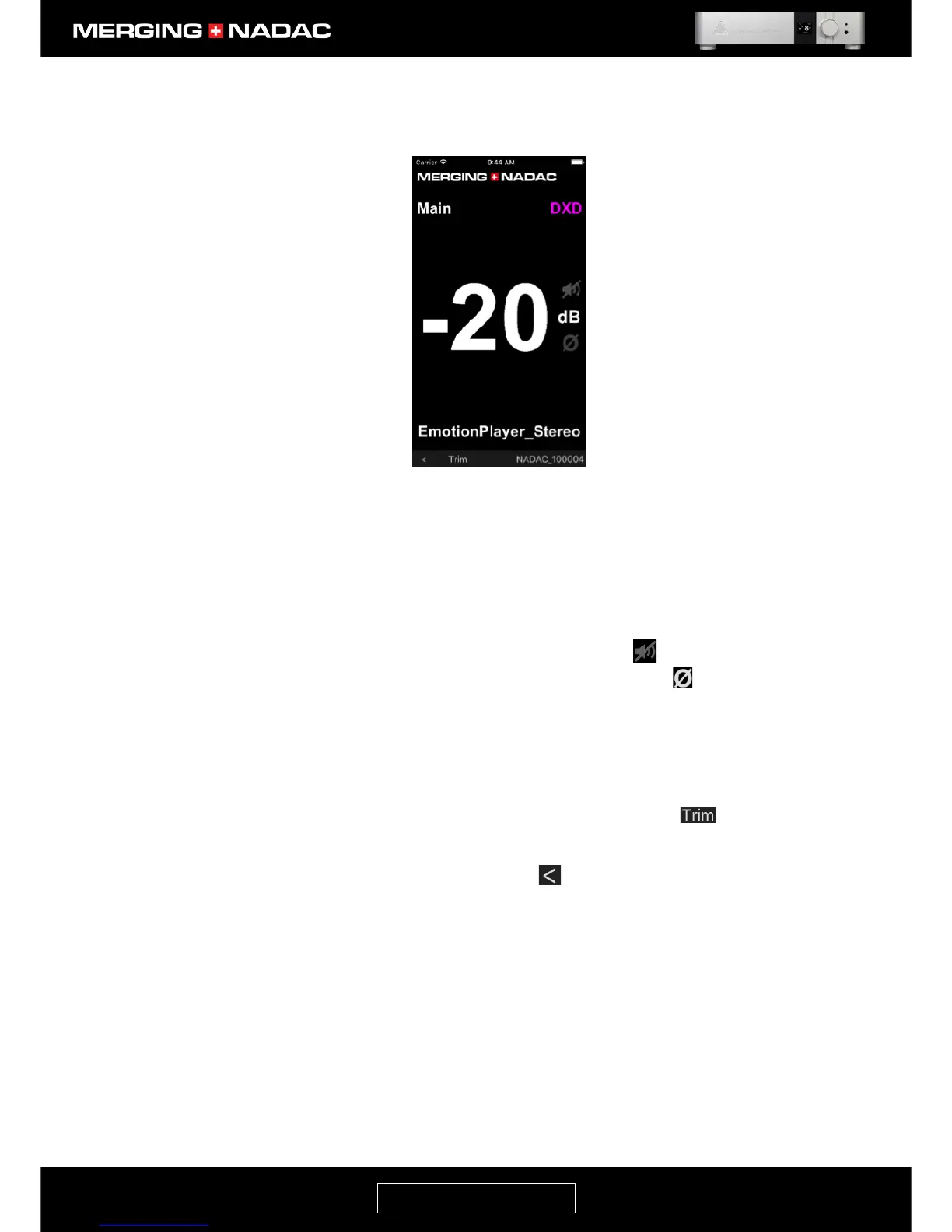
5. From the NADAC App Home page, the user can perform the following operations:
Change the volume by:
a. Holding down the primary mouse button and sliding the mouse – mouse controlled devices.
b. Swiping a finger horizontally – touch devices a. Swiping a finger horizontally – touch devices.
Left to right to increase the volume or from right to left to decrease the volume.
Mute or unmute the music by clicking or tapping the loudspeaker icon .
Change the absolute phase of the main outputs by clicking or tapping on the icon. When the
icon is greyed out the absolute phase is normal and when it is shown in white it is inverted.
Change the source that the unit is connected to by clicking or tapping on the source name displayed
just above page’s bottom bar. In Figure 80 this is shown as a source with the name
EmotionPlayer_Stereo. This will open the Select Source page – Figure 81.
Change the trim and polarity for each individual channel by clicking or tapping icon on the left
side of the bottom bar. This will open the Trim/Polarity page – Figure 82.
Go back to the previous page by clicking or tapping the icon on lower left hand side of the page.
For example from the Select Source or Trim pages to the Home page, Home page to the Devices
page.


 To Next Page