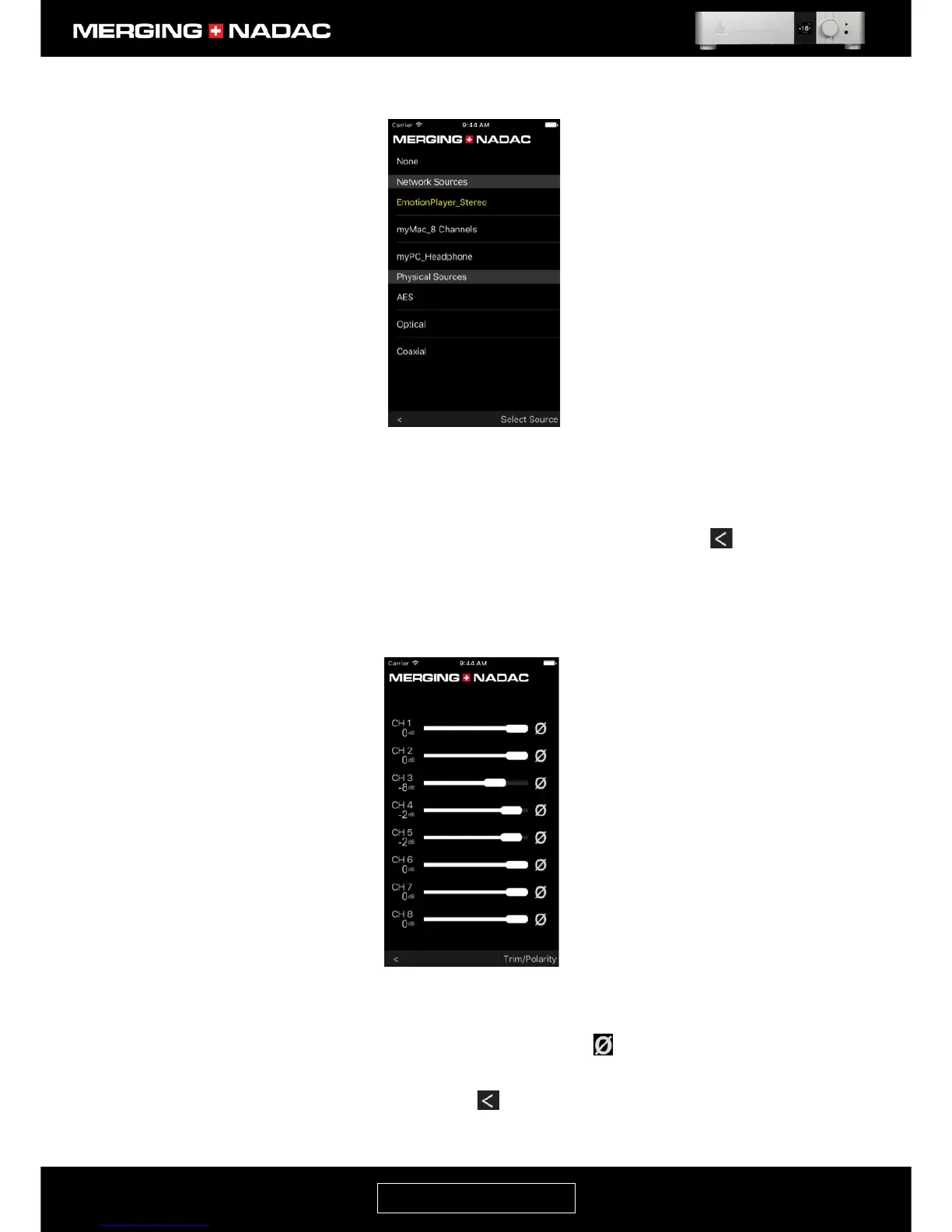
6. The Select Source page lists all the available network sources and physical sources.
The currently selected source will be shown in yellow. To select a different source, simply click or tap
on its name in the list. The new source will be selected and the display will revert to the Home page.
To go back to the Home page without changing the selected source, click or tap the icon on
lower left hand side of the page.
7. The Trim/Polarity page allows trim and polarity for each individual channel to be changed. Figure 82
shows the page that will be displayed for an 8-channel unit. For the stereo unit, only 2 channels will
be shown.
To change a channel trim, move the slider horizontally.
To change a channel phase (polarity) click or tap the appropriate icon. A grayed out icon indicates
normal phase and a white one indicates inverted phase (polarity).
To go back to the Home page, click or tap the icon on lower left hand side of the page.


 To Next Page