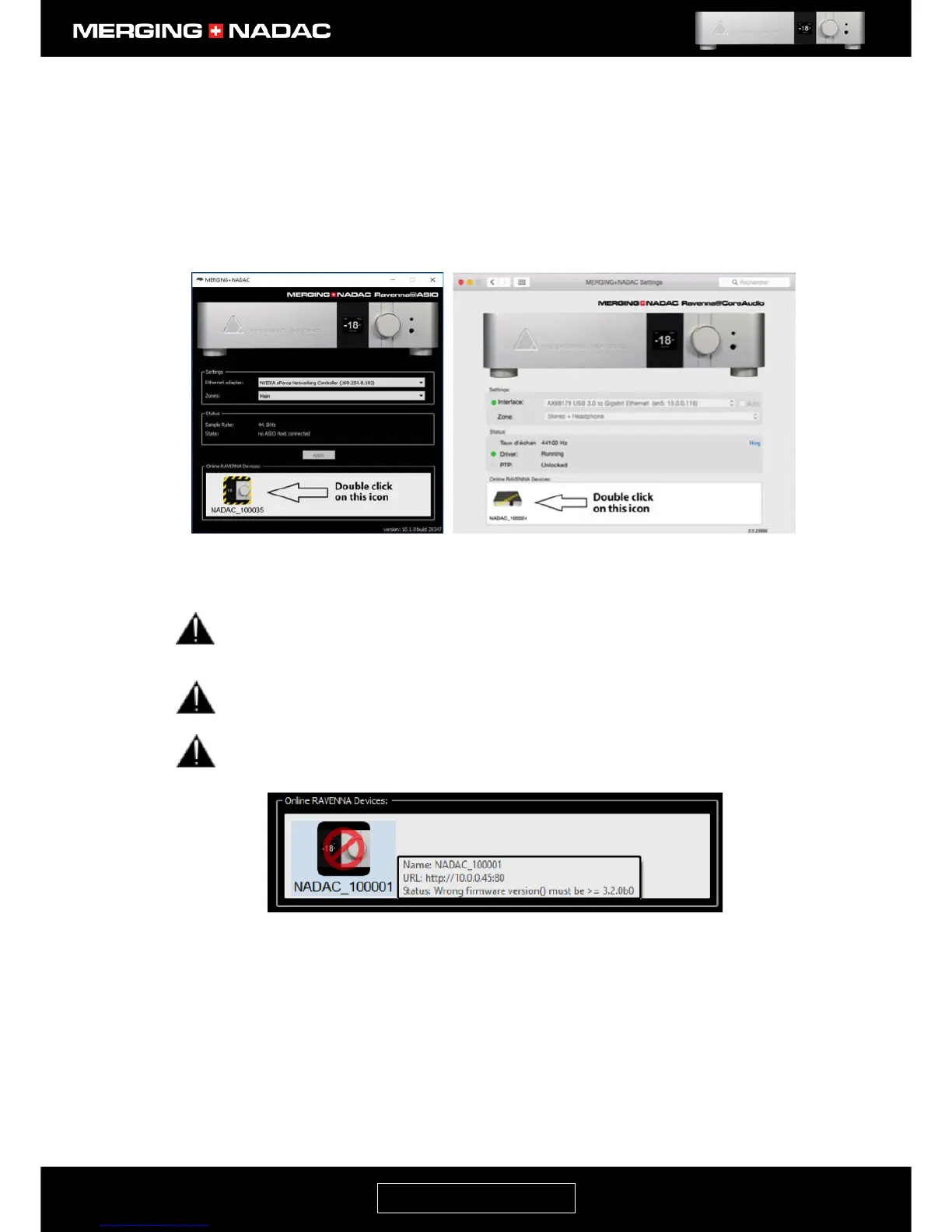
5. Windows users: Open the NADAC Ravenna ASIO panel: (Windows Start Menu - All Apps > Merging
Technologies > NADAC Panel). This will open a panel like that shown in Figure 89.
MacOS users : Open the NADAC Ravenna Core Audio panel: (Apple icon on the top left corner > System
Preferences > Other > NADAC icon). This will open a panel like that shown in Figure 90.
6. In the Online RAVENNA devices section of the window you have just opened, you will find a NADAC
maintenance icon representing the unit that you are about to perform a firmware update on. Double
click on this.
If you do not see a NADAC maintenance icon, reboot the unit in Maintenance mode and check the
Ethernet Connection between the unit and the computer you are using. In this case you will have
to shut the unit down by holding down the power button.
To use the Maintenance mode the unit must be set for automatic IP address selection. See the
Network menu on page 35 for details.
If the NADAC icon displayed has a red circle with a line through it as shown in Figure 91 below, you
must update the unit’s firmware.


 To Next Page