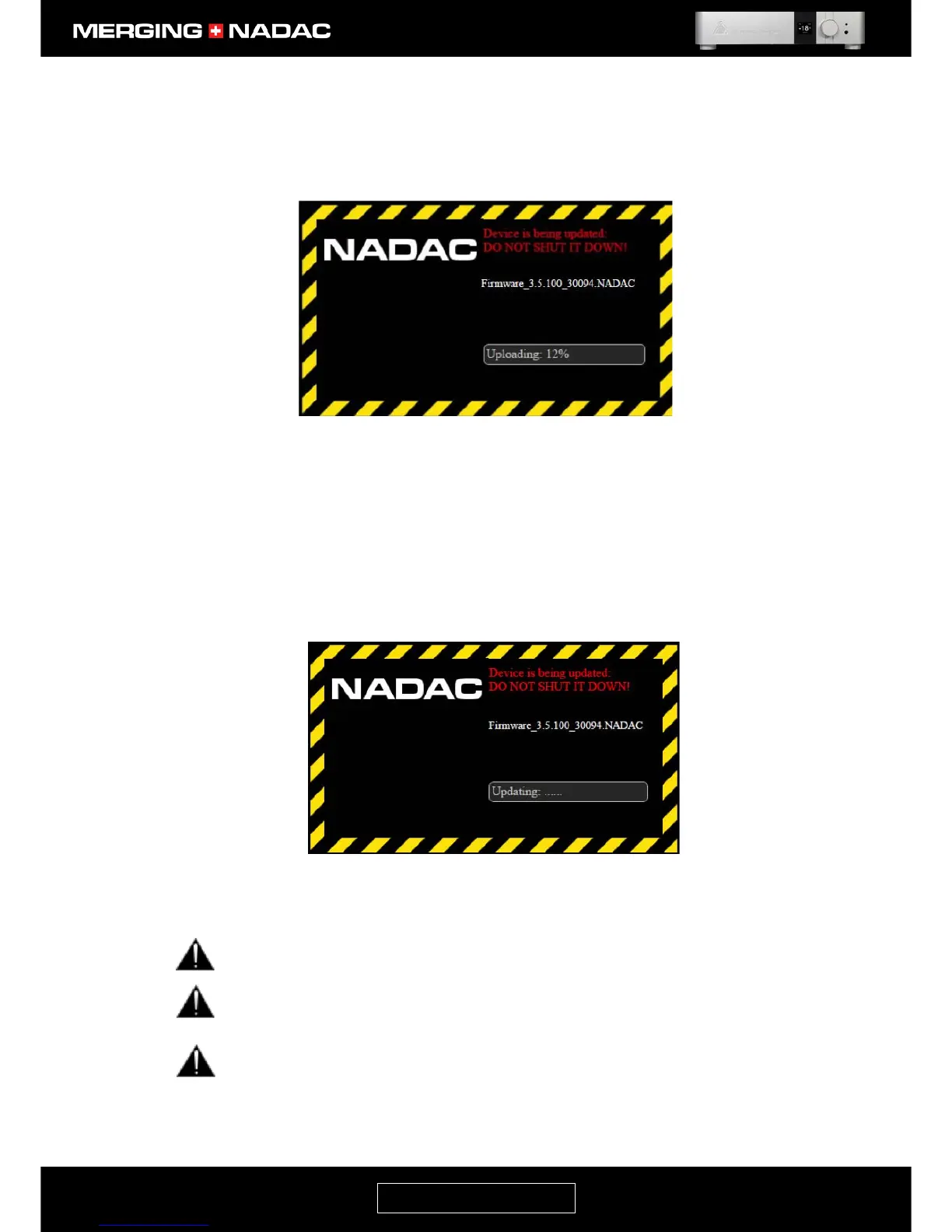
10. Click on the Update button. First the new firmware will be uploaded into the unit. The state of the
upload will be indicated by a progress bar on the firmware update window (Figure 94) and also by a
progress bar on the unit’s front panel display.
The unit’s power button light will be a steady amber during the upload process.
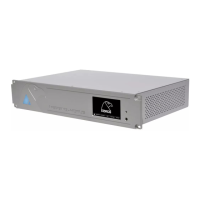
Once the new firmware has been uploaded to the unit the update process will start. The firmware
update window on the computer will change to that shown in Figure 95 and the update progress will be
shown by a progress bar on the unit’s front panel display.
The unit’s power button light will blink red during the update process.
During this procedure do not update or refresh your browser until the process is completed.
Pressing F5 on a Windows computer will refresh the browser. The Firmware update should take
from 3 to 5 minutes.
Do not perform any other installation during this procedure.
Do not shutdown the unit during this procedure.


 To Next Page