© Microhard Systems Inc. 122
4.0 Configuration
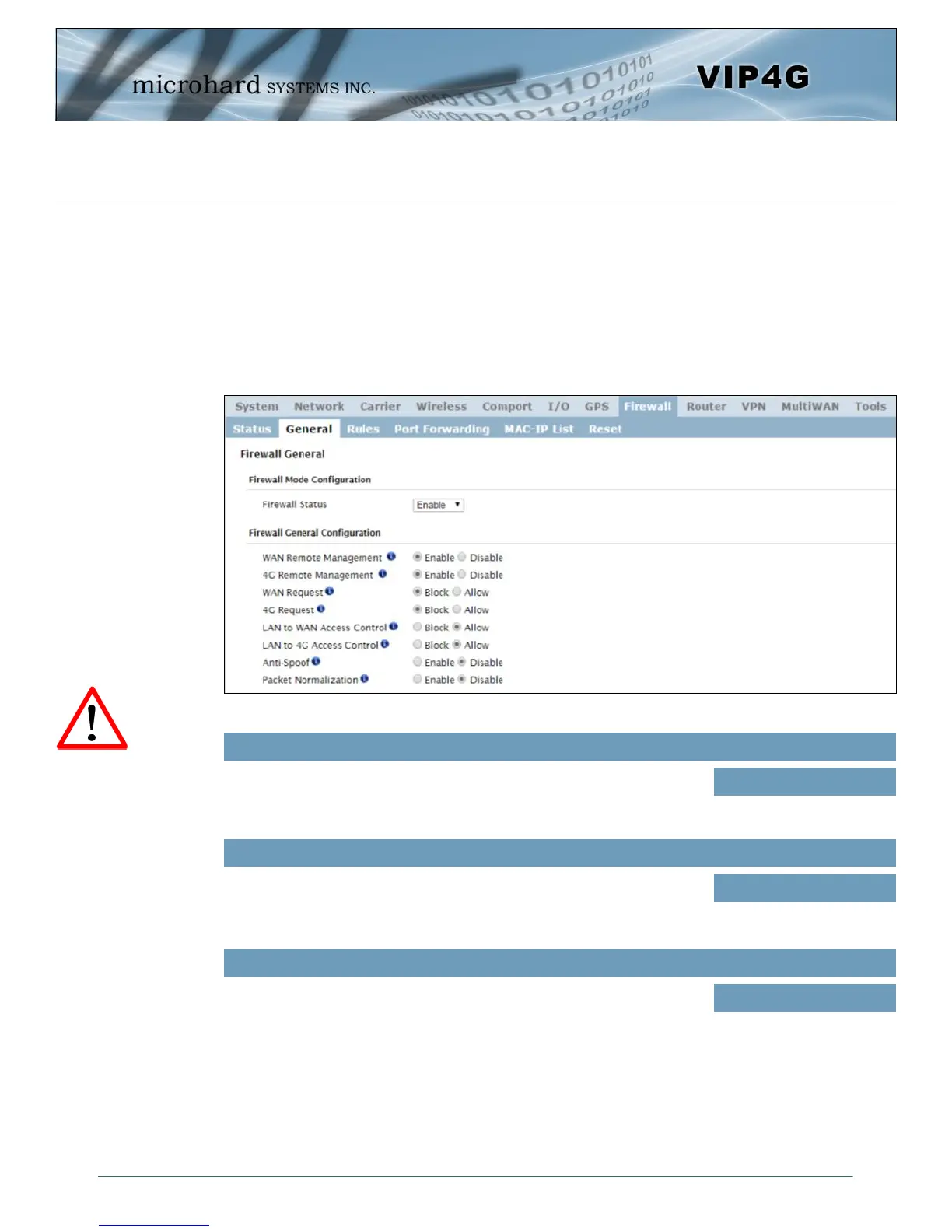
Image 4-8-2: Firewall > General
4.8.2 Firewall > General
The General Firewall settings allow users to enable or disable the firewall, and to decide which areas of the
modem to protect. The Firewall can also be reset to factory defaults from this area of the WebUI.
In a cellular device such as this, it is highly recommended to configure the firewall to protect any devices
connected to the modem, and to control data usage. This is especially important units set up with a public
IP address as the modem is effectively on the public internet and is susceptible to a wide range of threats
which may severely impact the data usage. This can be avoided by blocking all 4G/Cellular traffic and
setting up specific rules to either open only used ports, or even restrict access to specific IP/networks.
Firewall Status
When enabled, the firewall settings are in effect. When disabled, none of
the settings configured in the menu’s below have an effect, the modem is
“open” to anyone.
Values
Disable / Enable
WAN Remote Management
Allow remote management of the VIP4G on the WAN side using the WebUI
on port 80(HTTP), and 443 (HTTPS). If disabled, the configuration can only
be accessed from the LAN (or 4G if enabled)..
Values
Enable / Disable
4G Remote Management
Allow remote management of the VIP4G from the 4G side of using the
WebUI on port 80(HTTP), and 443 (HTTPS). If disabled, the configuration
can only be accessed from the LAN (or WAN if enabled)..
Values
Enable / Disable
For best practices and to
control data usage it is
critical that the firewall be
configured properly.
It is recommended to block
all incoming 4G/Cellular
traffic and create rules to
open specific ports and/or
use ACL lists to limit
incoming connections.



 To Next Page