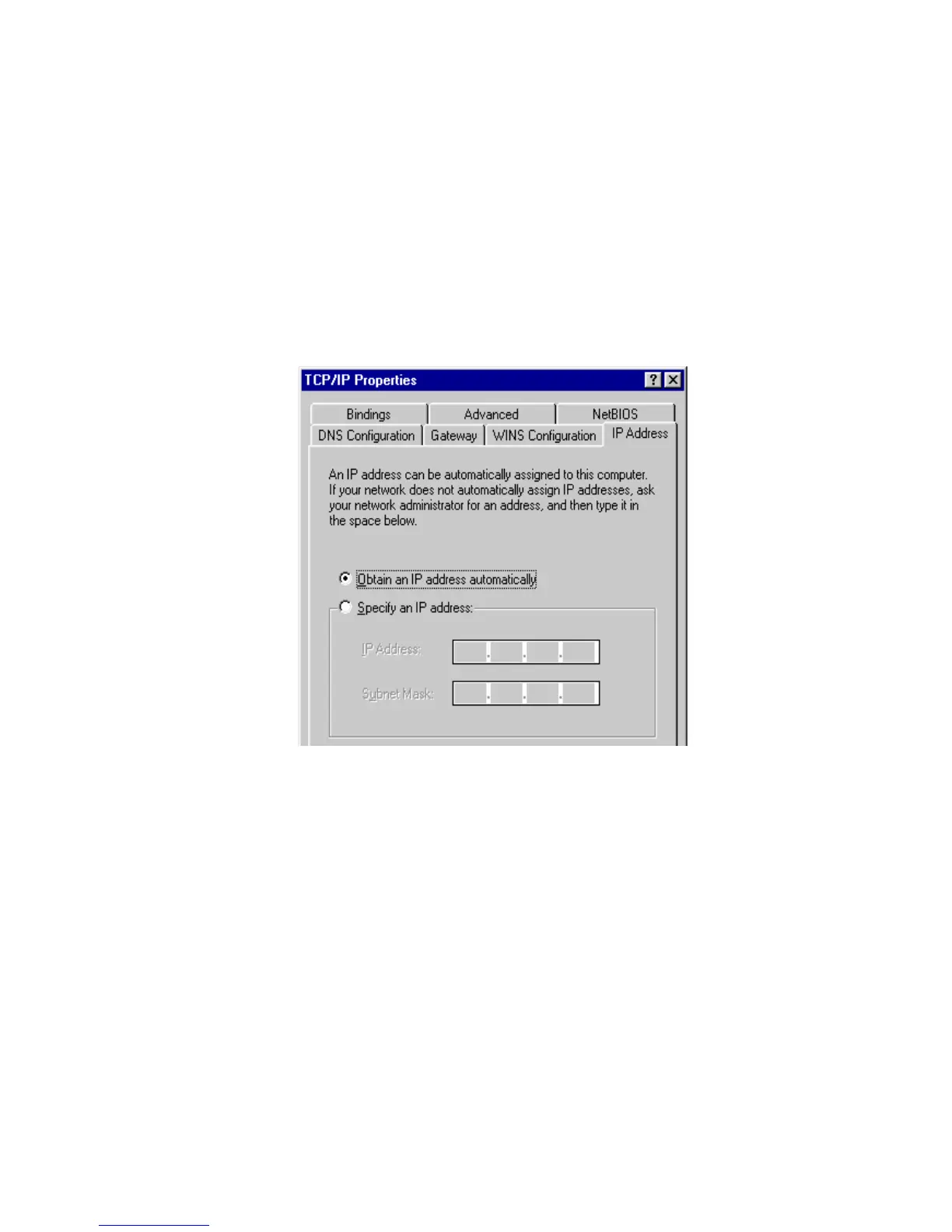
6. After installing TCP/IP, go back to the Network dialog box. Select <TCP/IP>
from the list of Network Components and then click the <Properties> button.
7. Check each of the tabs and verify the following settings:
y Bindings: Check Client for Microsoft Networks and File and printer sharing
for Microsoft Networks.
y Gateway: All fields are blank.
y DNS Configuration: Select Disable DNS.
y WINS Configuration: Select Disable WINS Resolution.
y IP Address: Select Obtain IP address automatically.
8. Reboot the PC. PC will now obtain an IP address automatically from the
Broadband Router’s DHCP server.
9. Please make sure that the Broadband router’s DHCP server is the only DHCP
server available on the LAN network.
10. Proceed to Web-based User Interface once IP address is correctly configured.
b) Windows 2000
1. Click the <Start> button and select <Settings>, then click <Control Panel>.
The Control Panel window will appear.
2. Double-click <Network and Dial-up Connections> icon. In the Network and
Dial-up Connection window, double-click on <Local Area Connection> icon.
The Local Area Connection window will appear.
3. In the Local Area Connection window, click the <Properties> button.
9



 To Next Page