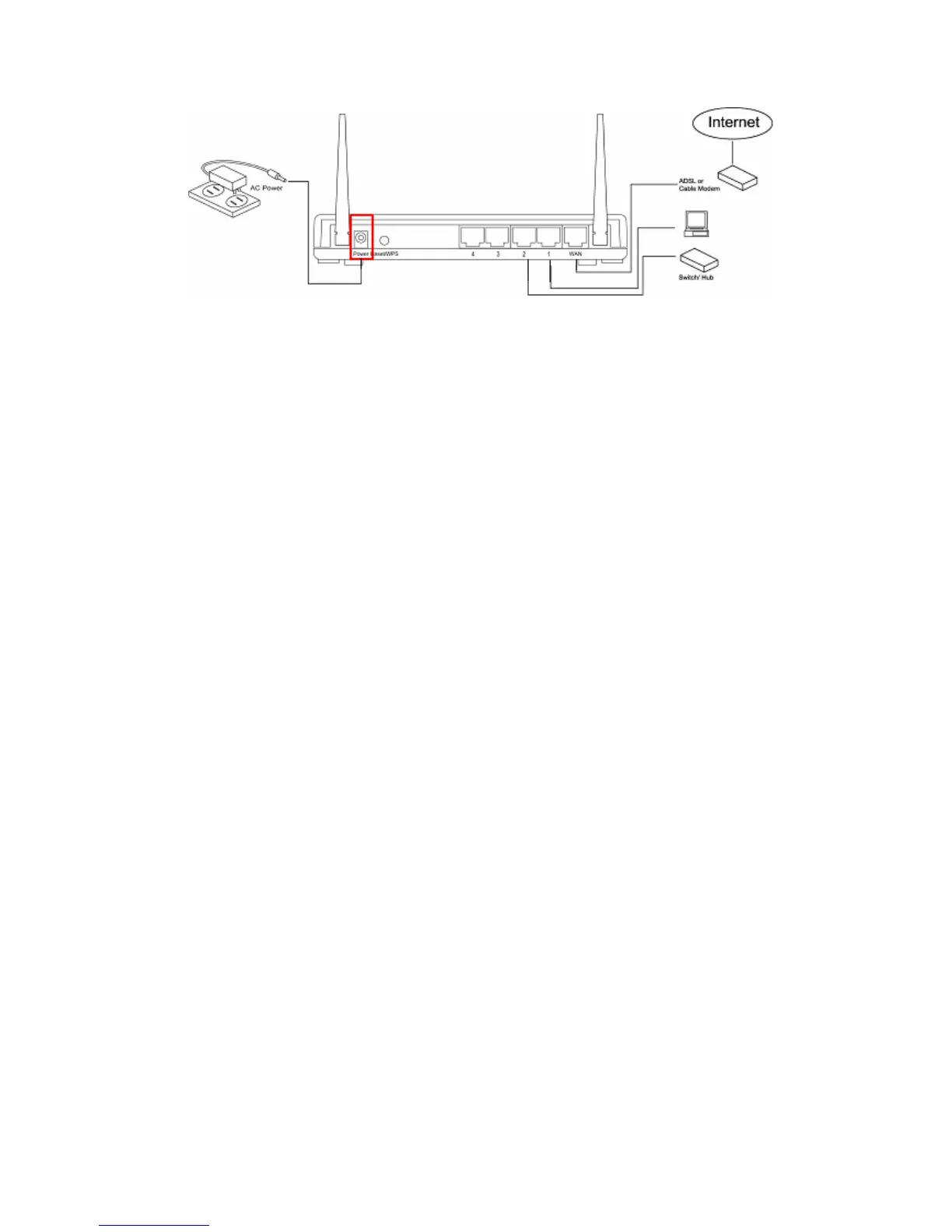
Step 4. Connect the adaptor to the 12V DC port on the back of the router.
3.2 Connecting to Web-Based Management
After the network connection is established, the next step is to setup the router with
proper network parameters for the user’s network environment.
Before connecting to the router and start configuration procedures, user’s computer
must be able to get an IP address automatically (use dynamic IP address). If the PC
is set to ‘static IP address’, then follow instructions below to reconfigure it to ‘dynamic
IP address’.
3.2.1 IP Address Configuration
a) Windows 95/98/Me
1. Click the Start button and select <Settings>, then click <Control Panel>. The
Control Panel window will appear.
2. Double-click on <Network> icon. The Network window will appear.
3. Check the list of Network Components. If TCP/IP is not installed, click the
<Add> button to install it. If TCP/IP is installed, go to step 6.
4. In the Network Component Type dialog box, select <Protocol> and click
<Add> button.
5. In the Select Network Protocol dialog box, select <Microsoft> and <TCP/IP>
then click the <OK> button to start installing the TCP/IP protocol. Windows CD
may be needed to complete the installation.
8



 To Next Page