the same. If the port number of Internet IP address and private IP address is different,
please use ‘Virtual Server’ function, described in next section.
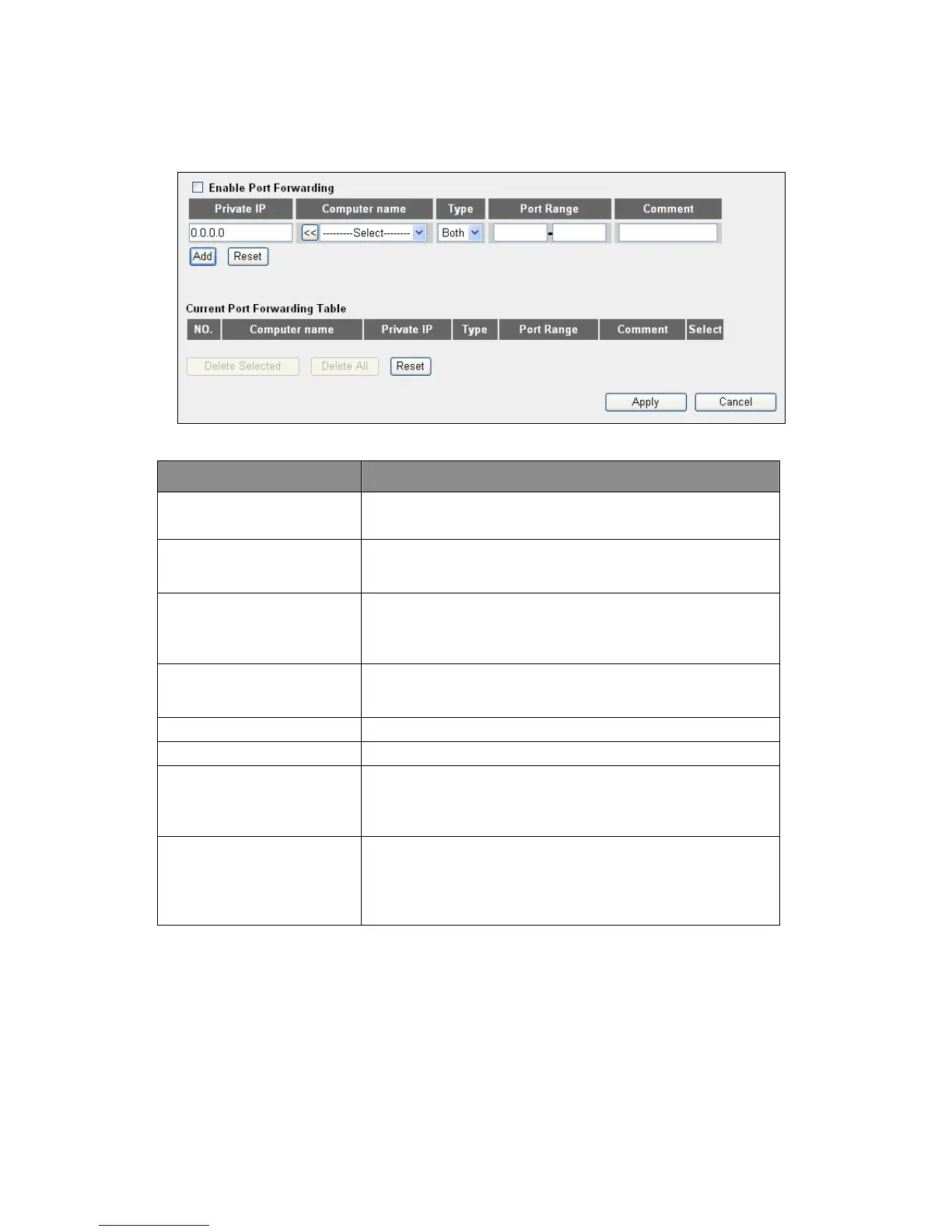
Parameter Description
Enable Port
Forwarding
Allow port forwarding to be enabled.
Private IP
This is the private IP of the server behind the NAT firewall.
Users will need to give the LAN PC clients a fixed/static IP
address for Port Forwarding to work properly.
Computer Name
Pull down the menu and all the computers connected to the
router will be listed here. Users can easily select the
computer name without checking the IP address of the
computer.
Type
This is the protocol type to be forwarded. Users can choose
to forward “TCP” or “UDP” packets only or select “both” to
forward both “TCP” and “UDP” packets.
Port Range The range of ports to be forward to the private IP.
Comment The description of this setting.
Add Port Forwarding
into the table
Fill in the "Private IP", “Type”, “Port Range” and "Comment"
of the setting and click <Add>. This Port Forwarding setting
will be added into the "Current Port Forwarding Table". Click
<Reset> and the fields will be cleared.
Remove Port
Forwarding into the
table
If users want to remove some Port Forwarding settings from
the "Current Port Forwarding Table", select the Port
Forwarding setting and click <Delete Selected>. Click
<Delete All> button to remove all settings. Click <Reset> to
clear the current selection.
Click <Apply> at the bottom of the screen to save the above configurations.
51



 To Next Page