Basic Concepts
FrontRunner™
2
v4.1.3, April 2012 Visionscape FrontRunner™ User’s Manual 2-5
FrontRunner will shutdown automatically. When you restart FrontRunner,
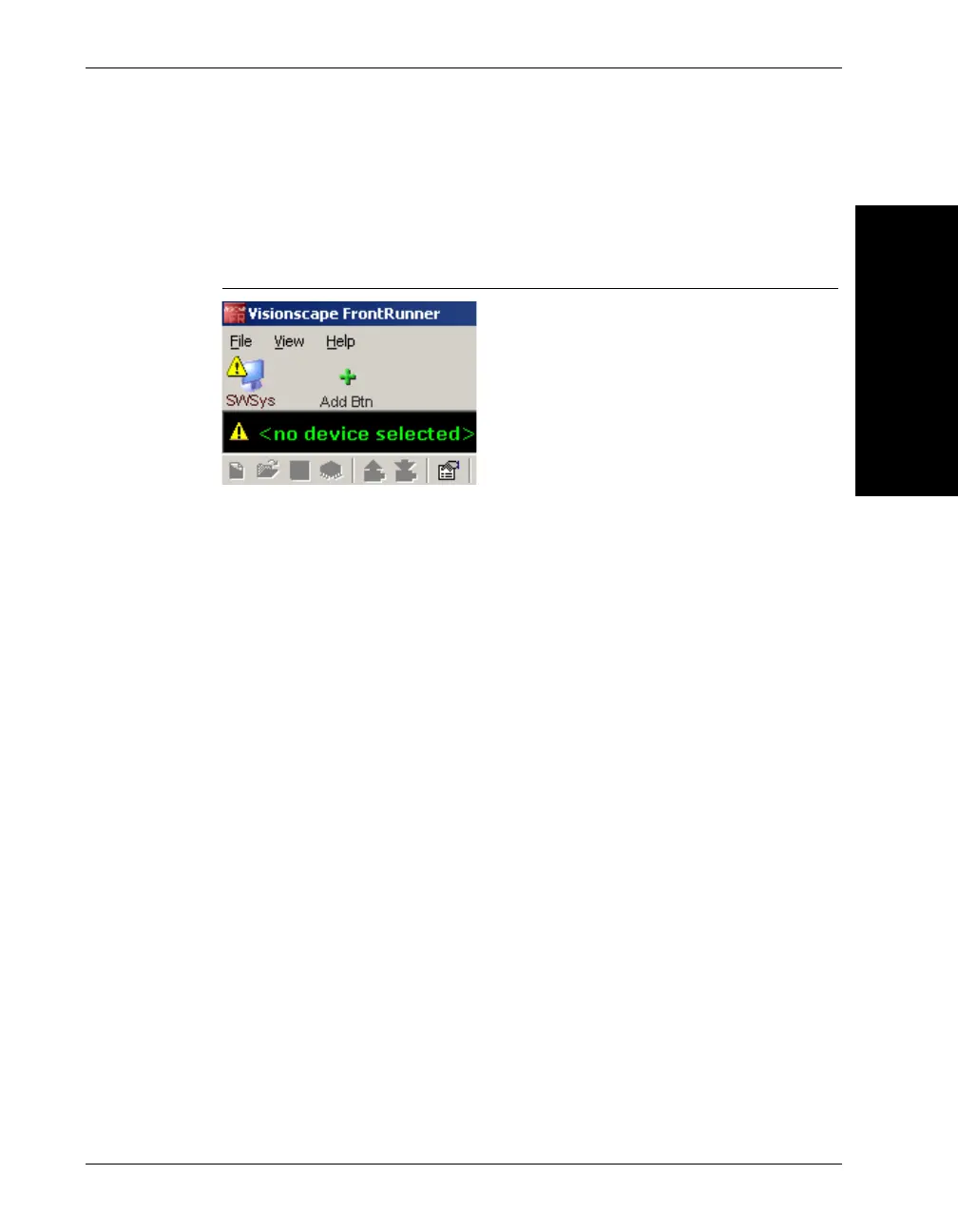
the Device Toolbar will contain an icon for the Software System you
specified (see the example in Figure 2–3):
FIGURE 2–3. Device Toolbar with Software System
Adding and Controlling a Smart Camera
When you look at the devices on your network, you’ll see numerous VS-1
Smart Cameras. Before you can build a Job to read a part on any of those
Smart Cameras, you have to “add” the camera so that it is connected to
your PC. After you add the camera, and before you start building a Job,
you have to take control of the camera on which you want to build a Job.
Other users can still see the camera on the network, they just can’t do
anything with it while you have control. To add a camera:
1. With a Smart Camera that is properly and securely mounted, and
connected to the network, start FrontRunner™ (either double click the
FrontRunner™ icon, or select Start > Visionscape > Visionscape
FrontRunner). FrontRunner™ starts up and displays its main window.
2. Click Add Btn. FrontRunner™ displays the Select Device dialog box.
3. Highlight a camera name and click OK. FrontRunner™ adds the new
Smart Camera icon to the Device Toolbar, as shown in Figure 2–4:



 To Next Page