Chapter 2 FrontRunner™
2-30 Visionscape FrontRunner™ User’s Manual v4.1.3, April 2012
• The padlock indicates to users on the network that the Smart Camera
is controlled
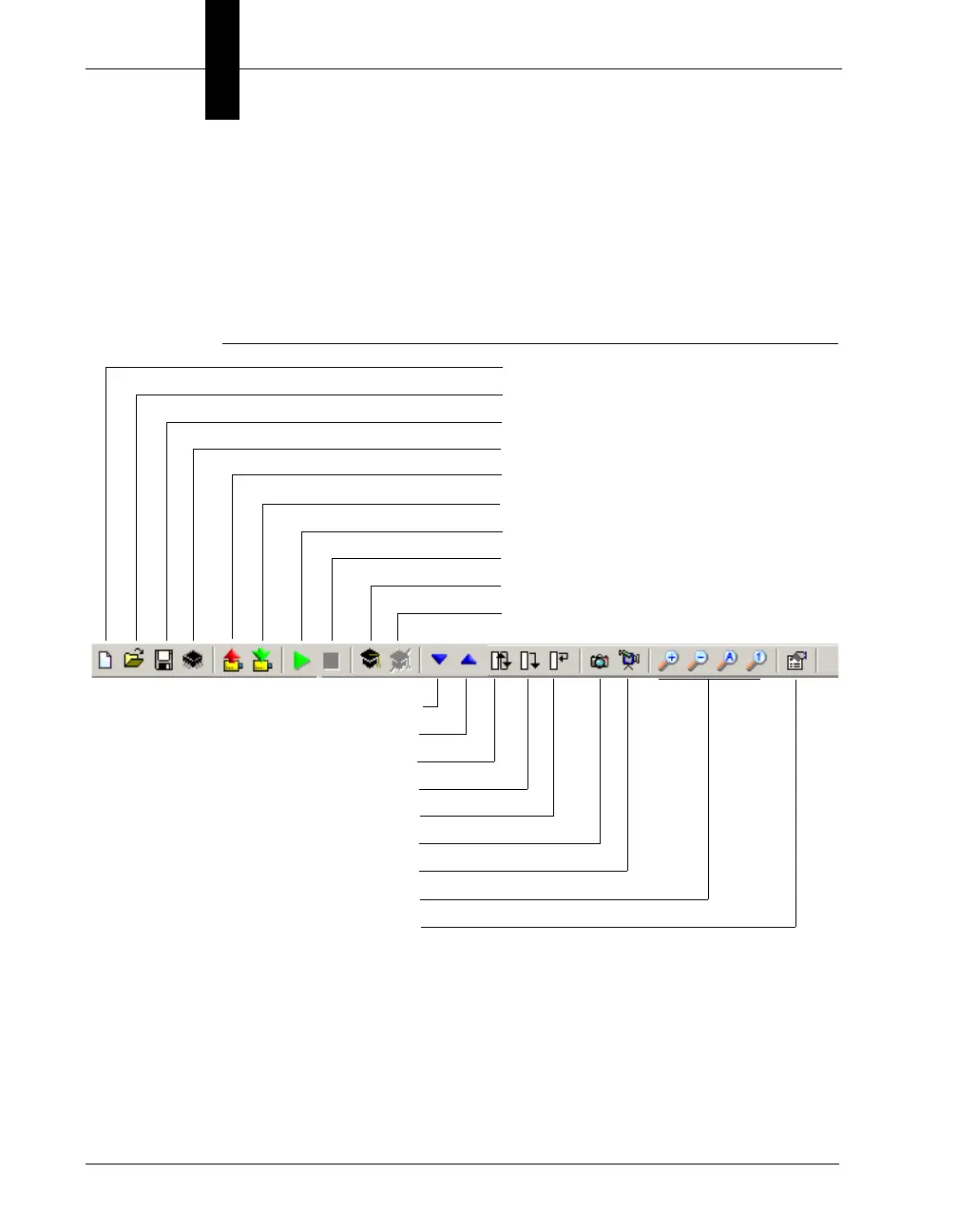
Setup Window Toolbar Buttons
The Setup Window Toolbar buttons are shown in Figure 2–15:
FIGURE 2–15. Setup Window Toolbar Buttons
• Create New Program — After you click this button, FrontRunner™
displays the Setup window (Figure 2–14).
• Open Existing Program — Opens a Job that was previously saved to
disk.
• Save Program — Saves the current Job to disk on the PC. If the Job
already resides on disk, FrontRunner™ will simply save the Job
Create New Program
Open Existing Program
Save Program
Save Program on Device to Flash
Upload Program from Device to PC
Download Program from PC to Device
Start Program on Device
Stop Program on Device
Train Selected Step
Untrain Selected Step
Run Current Step then Jump to Next Step
Jump to Previous Step
Tryout Program on PC in a Loop
Tryout Program on PC Once and then Stop
Tryout Current Step on PC
Acquire New Image
Live Video
Settings
Zoom Buttons



 To Next Page