Chapter 2 FrontRunner™
2-44 Visionscape FrontRunner™ User’s Manual v4.1.3, April 2012
The I/O Display Window
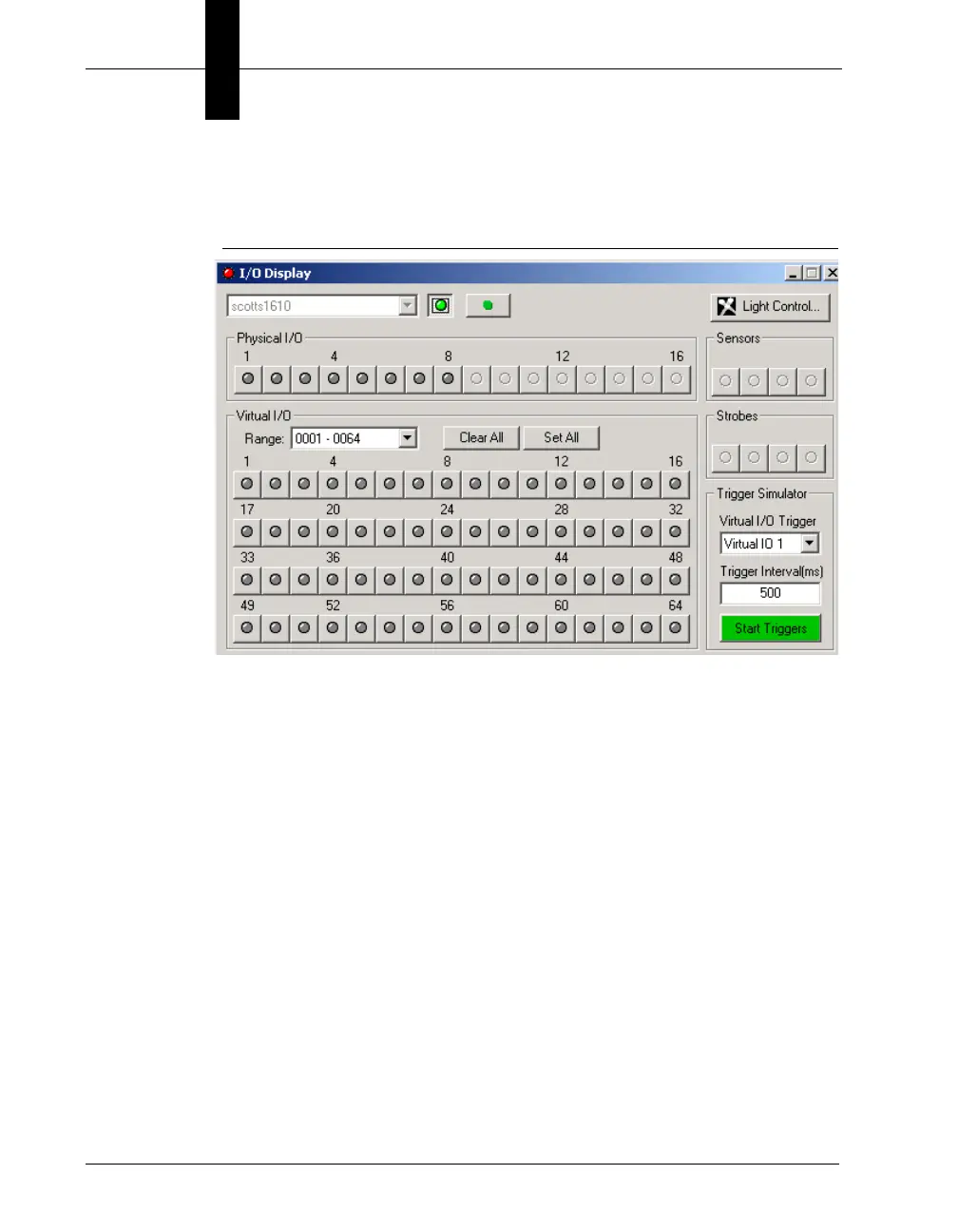
FIGURE 2–22. I/O Display Window
This window watches I/O transitions for Physical I/O, Sensors, Strobes,
and all 2048 Virtual I/O points. You can also use the green Click to record
transitions to a DSS file button to record transitions over time to a DSS file
and examine the transitions using the Digital Soft Scope tool. You can
select the Vision System in the list at the top, then connect or disconnect
the display using the green Connection button. I/O states are updated in
the display as they occur. When an I/O point is asserted, the button turns
red. You can also click the button to toggle the I/O point. For GPIO points
programmed as inputs as well as for Sensors, clicking the button has no
effect. You can display 128 points of the Virtual I/O at one time. Use the
Range: list box to select the points you want to display.
When using Virtual I/O points to generate triggers at regular interval, as
programmed in the Visionscape
®
IO Display or the FrontRunner RunView
IO bar or from within the avp itself with an IO Inspection, the accuracy of
the timing between triggers will depend on the Operating System the avp
runs on and also on the number of Virtual I/O points programmed to be
triggers. The following information provides guidelines based on
Device/OS configurations:



 To Next Page