Chapter II Network Connection
2.1 Setting the Camera over the LAN
Connecting the camera to a switch or a router is the most common connection method. The
camera must be assigned an IP address that is compatible with its LAN.
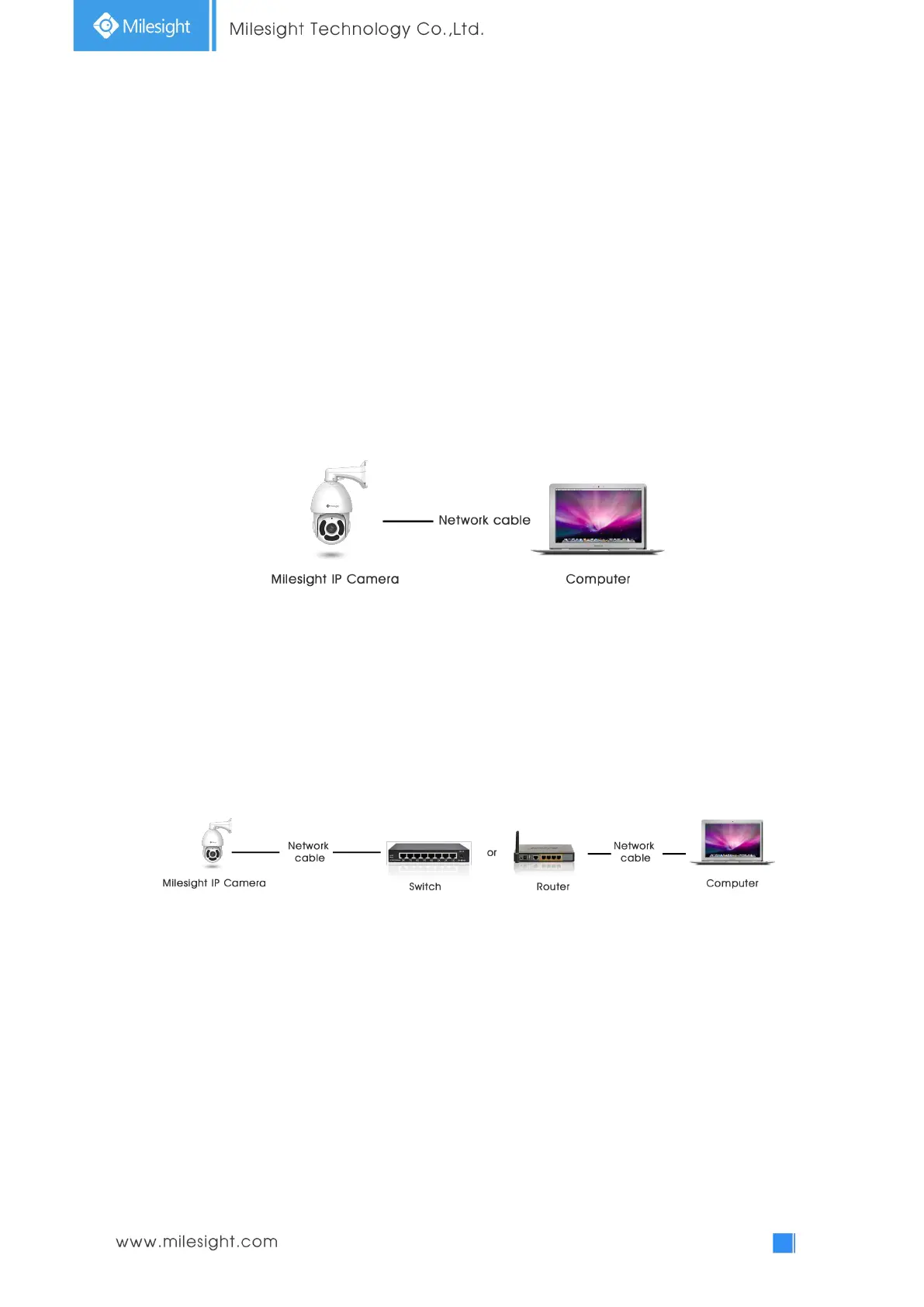
2.1.1 Connect the Camera to the PC Directly
In this method, only when the computer connected to a camera, it will be able to view the camera.
The camera must be assigned a compatible IP address to the computer. Details are shown as the
following figure.
Figure 2-1-1 Connect the camera to the PC directly
2.1.2 Connect via a Switch or a Router
Set network camera over the LAN via the switch or router as figure 2-1-2:
Figure 2-1-2 Connect via a switch or a Router
2.2 Dynamic IP Connection
Connecting the network camera via a router
Step1: Connect the network camera to a router;
Step2: On the camera, assign a LAN IP address, a Subnet mask and a Gateway;
Step3: On the router, set port forwarding. E.g. 80, 8000 and 554 ports. The steps for port
forwarding vary depending on different routers. Please look up the router's user manual for



 To Next Page