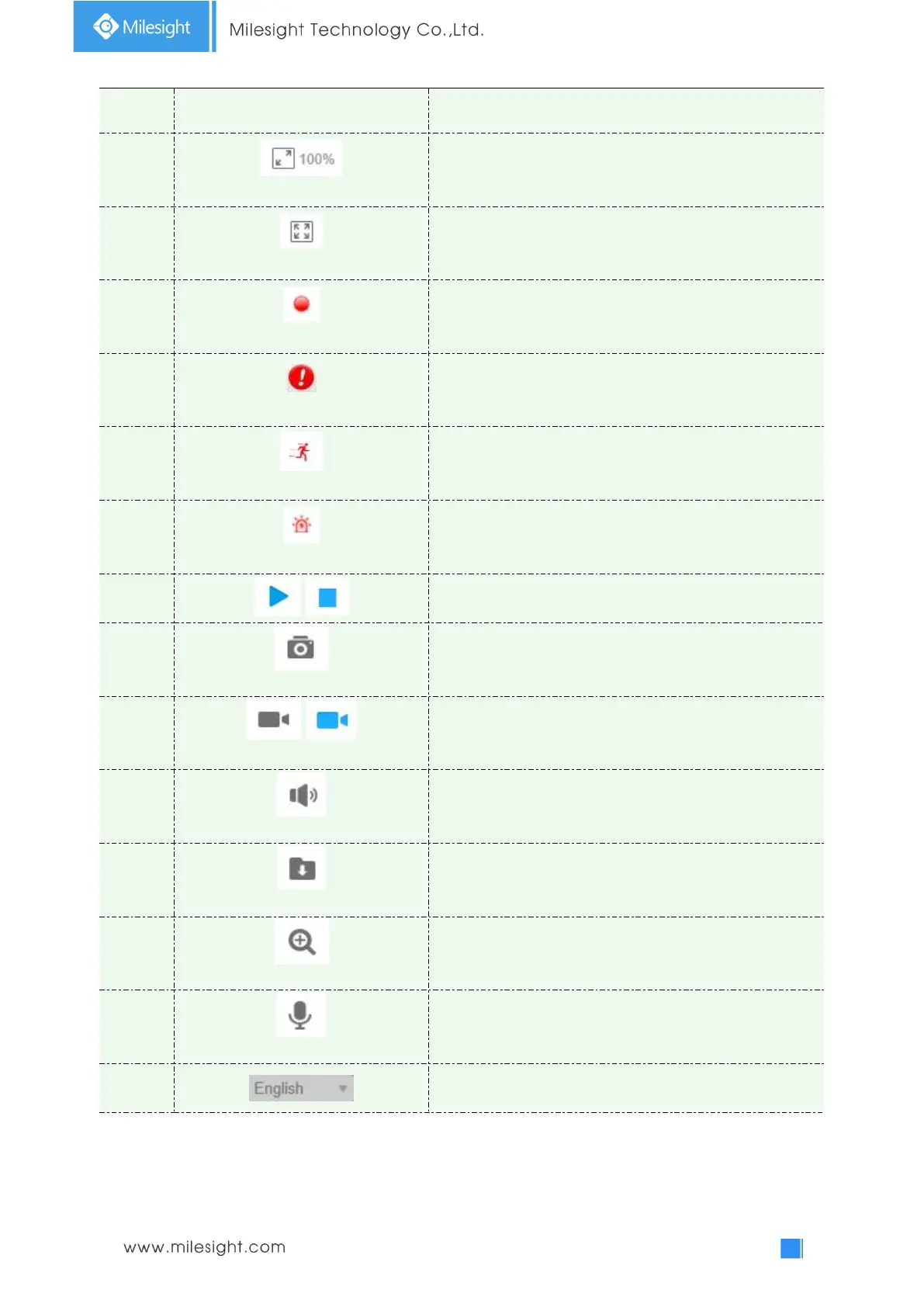
Click to display images at a real size.
Click to display images at full-screen.
When recording, the icon will turn red.
When an alarm of Smart Event was triggered, the icon
appears
When an alarm of Motion Detection was triggered, the
icon appears
Except for the two kinds of alarms above, when other
alarms were triggered, the icon appears
Click to start/stop Live View.
Click to capture the current image and save to the
configured path. The default path is
C:VMS\+-1\ IMAGE-MANUAL.
Click to start recording video and save to the configured
path. The default path is
C:VMS\+-1\MS_Record. Click again to stop recording.
Click to enable Audio Input/Output. It can also be set in
Audio configuration page.
Click to set the saving path for captured images and video
recordings of operating on the live view.
When it is enabled, you can zoom in within a specific area
of video image via your mouse wheel.
When it is enabled, you can start real-time talking.
Click to select system language.
4.1.2 3D Positioning
3D Positioning allows user to use mouse clicking and dragging to control the PTZ.



 To Next Page