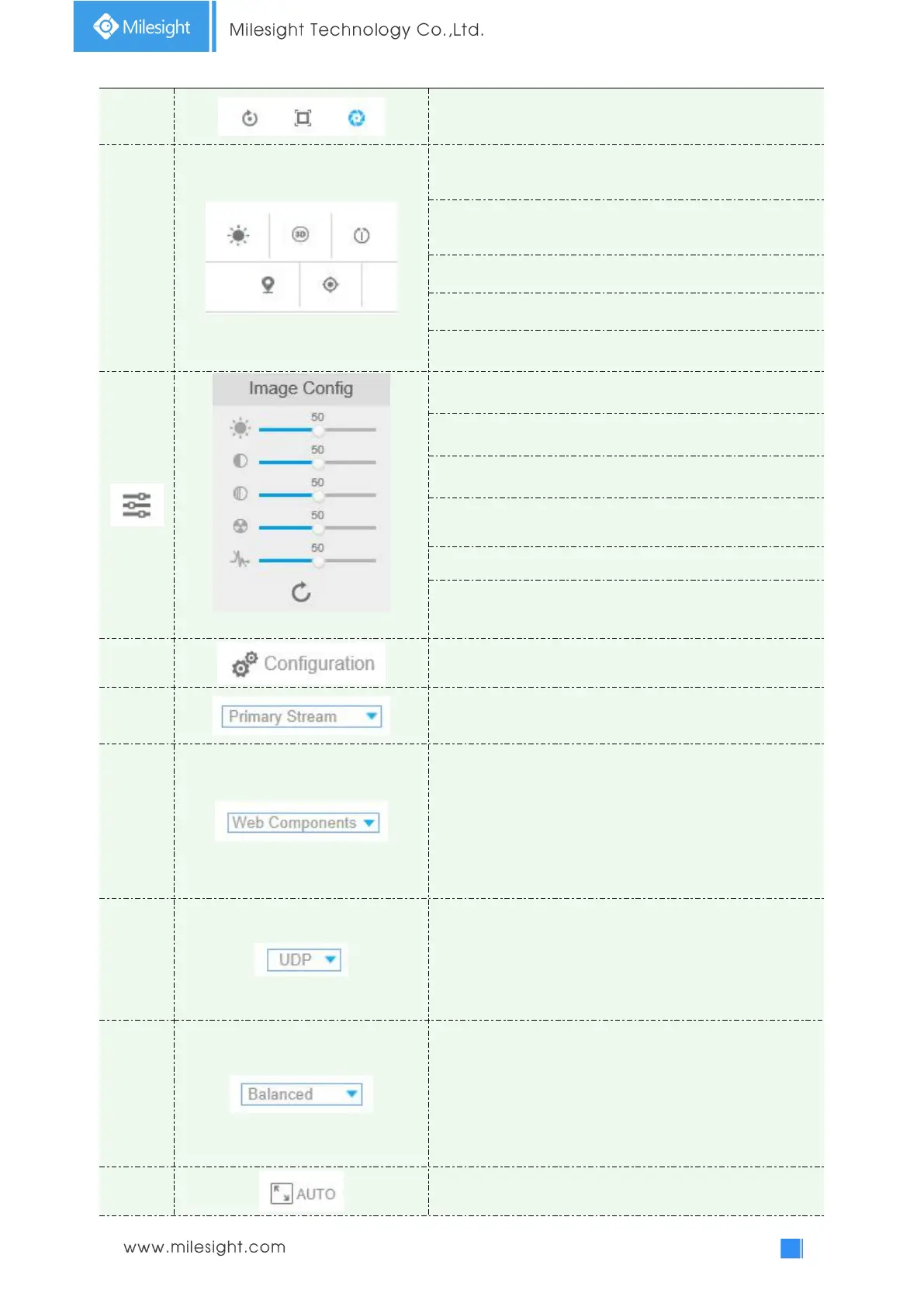
Lens Initialization, Auxiliary Focus and Auto Iris
Lighting For 30s: Click to open/ close the White LED for
lighting 30s.
3D Positioning: Click to enable/ disable 3D positioning.
One-touch Patrol:
Click to carry out the patrol.
Auto Home: Click to enable Auto Home.
Manual Tracking:
Click to track the moving objects.
Brightness: Drag to adjust brightness of the image.
Contrast: Drag to adjust color and light contrast.
Saturation: Drag to adjust color saturation of the image.
Sharpness: Drag to enhance the detail of the image by
sharpening the edges in the image.
2D DNR/3D DNR: Adjust the noise reduction level
Default: Drag to restore brightness, contrast and saturation
to default setup.
Configuration: Click to access the configuration page.
To choose the Stream
(
Primary/Secondary/Tertiary
)
to be
shown on the current video window.
Web Components: Support Firefox, Safari, Chrome; need to
install the component to display the view;
MJPEG: Support to display the view on Firefox, Safari,
Chrome;
(NOTE: IE chooses Web Components mode as default. In
this case, the options will not appear. )
TCP: More reliable connection;
UDP: More instantaneous connection, but if you cannot get
the live view successfully, please turn into TCP connection.
HTTP: Faster and safer connection especially in Internet
environment.
Least Delay: The most instantaneous mode in the three
modes;
Balanced: A balanced mode between Least Delay and
Best Fluency, maintains the fluency while keeps an
acceptable delay;
Best Fluency: The most fluent mode in the three modes.
Click to display images at a window size.



 To Next Page