EasyManua.ls Logo

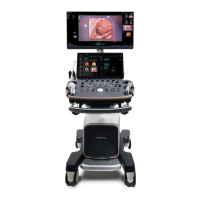
Mindray Resona 7 - Service Manual

Mindray Resona 7
365 pages
Print Icon
To Next Page IconTo Next Page
Loading...
Resona R9/Resona R9 Elite/Resona R9 Exp/Resona R9 Pro/Resona
R9 Plus/Resona R9 Super/Resona R Lumi/Resona R Elite/Resona R
MV/Crius R9/Anesus R9/Resona R9S/Resona R9T/Resona
R9W/Resona R9Q/Resona R9G/Resona R Swan/Resona R
Super/Resona R MS/Crius R9S/Anesus R9S/Nuewa R9/Nuewa R9
Elite/Nuewa R9 Exp/Nuewa R9 Pro/Nuewa R9 Plus/Nuewa R9
Super/Nuewa R Lumi/Nuewa R Elite/Nuewa R MV/Imagyn R9/Imagyn
R9 Elite/Imagyn R9 Exp/Imagyn R9 Pro/Imagyn R9 Plus/Imagyn R9
Super/Imagyn R Lumi/Imagyn R Elite/Imagyn R MV/Nuewa
R9S/Nuewa R9T/Nuewa R9W/Nuewa R9Q/Nuewa R9G/Nuewa R
Swan/Nuewa R Super/Nuewa R MS/Imagyn R9S/Imagyn R9T/Imagyn
R9W/Imagyn R9Q/Imagyn R9G/Imagyn R Swan/Imagyn R
Super/Imagyn R MS/Eagus R9/Eagus R9 Elite/Eagus R9 Exp/Eagus
R9 Pro/Eagus R9 Plus/Eagus R9S/Eagus R9T/Eagus R9W/Eagus R
Lumi/Eagus R Swan/Eagus R Elite/Resona Y/Resona Y xa/Resona Y
xv/Nuewa Y/Nuewa Y xa/Nuewa Y xv/Eagus Y/Eagus Y xa/Eagus Y
xv/Resona 7/Resona 7CV/Resona 7EXP/Resona 7OB/Resona
7S/Resona 7PRO/Imagyn 7
Diagnostic Ultrasound System
Service Manual
Revision 5.0

Table of Contents

Other manuals for Mindray Resona 7

Questions and Answers

  • D
    Danielle NelsonAug 18, 2025
    How to improve image quality on Mindray Medical Equipment?
    • J
      Janet TurnerAug 18, 2025
      To resolve degraded image quality on your Mindray Medical Equipment, first, select the correct exam mode. If the issue persists, adjust the image post-processing settings or revert to the default values. You may also need to reset the factory default presets.
  • M
    Mary HallAug 20, 2025
    What to do if my Mindray Resona 7 displays characters but no images?
    • C
      Carla Bailey MDAug 20, 2025
      If your Mindray Medical Equipment monitor shows characters and menus but no images, adjust the transmission power, gain, or TGC control. Also, check the probe connection to ensure it is properly connected. Finally, unfreeze the image if the system is in a frozen state.
  • C
    Christina AllenAug 23, 2025
    Why is the power indicator not lighting up on my Mindray Medical Equipment?
    • C
      Catherine SmithAug 23, 2025
      If the power indicator on your Mindray Medical Equipment doesn't light up after connecting the AC power, check if the system is properly plugged in. Also, ensure the system circuit breaker is in the Up position and that the plug is securely connected to the back of the system.
  • M
    Melissa VelezAug 26, 2025
    What to do if the Mindray Resona 7 monitor is on but the image is blank?
    • M
      Monica MorenoAug 26, 2025
      If the power indicator is on but the screen is blank on your Mindray Medical Equipment, turn off the system and wait at least one minute before restarting it. If the problem continues, adjust the monitor's brightness and contrast settings back to their factory defaults.
  • H
    Heather BenderAug 27, 2025
    How to fix a Mindray Resona 7 system that cannot power on?
    • R
      Ricky RamirezAug 28, 2025
      If your Mindray Medical Equipment system fails to power on, the issue might stem from several causes. It could be due to an AC power supply assembly error or a 5V board assembly error, in which case you should replace the AC power supply assembly or the 5V board assembly. Other potential causes include: no AC input (check the AC connection), the beaker not being closed (close the breaker), a PC carrier board error (replace the PC carrier board), the CPU module assembly failing to send an invalid signal (replace the CPU module), no 12V output from the AC power assembly (replace the AC power assembly), or no 3.3V or 5V output from the DC box assembly (replace the DC box assembly).
  • S
    smaciasAug 30, 2025
    What to do if Mindray Resona 7 Medical Equipment system cannot start?
    • G
      George MartinAug 30, 2025
      If your Mindray Medical Equipment system fails to start, it could be due to a CPU module failure, which requires replacing the CPU module. Alternatively, the loading operation might be failing because the hard disk or root directory of the SSD disk in the operating system is corrupted. In this case, try restoring the operating system. If that doesn't work, replace the SSD disk. Another potential cause is a corrupted system directory on the SSD disk, or a failure to load the system software due to corruption in the SSD disk or system software. In both of these scenarios, attempt to restore the operating system first, and if the problem persists, replace the SSD disk.
  • R
    Robin GuerreroSep 9, 2025
    What to do if Mindray Resona 7 shows Probe Socket System Malfunction?
    • D
      Donna BeanSep 9, 2025
      If your Mindray Medical Equipment is showing a Probe Socket System Malfunction, the issue likely lies with either the probe itself or the probe board. If the probe is malfunctioning, replace it. If the probe board is malfunctioning, replace the probe board assembly.
  • J
    Jennifer HowardSep 12, 2025
    Why does the Mindray Resona 7 ECG Module fail?
    • B
      Benjamin EvansSep 12, 2025
      If the ECG module on your Mindray Medical Equipment fails, it is likely due to an ECG error. Replace the ECG module.
  • L
    Laura RossSep 14, 2025
    How to troubleshoot 4D Drive issues on Mindray Medical Equipment?
    • D
      Danielle WoodwardSep 14, 2025
      To troubleshoot 4D Drive issues on Mindray Medical Equipment, consider these steps: If there is an abnormal drive or drive output failure, or an abnormal probe mechanism, replace the 4D module material package or the 4D probe. If the probe has an internal error and cannot detect the central area, replace the 4D probe.
  • J
    Jeff MoraDec 3, 2025
    Why is the LCD display failing on my Mindray Medical Equipment?

    Summary

    Safety Precautions

    Meaning of Signal Words

    Defines DANGER, WARNING, CAUTION, NOTE for safety instructions and their meanings.

    Symbols

    Explains safety symbols, warning labels, and general system symbols used in the manual.

    Safety Precautions

    General safety guidelines for electric, mechanical, and personnel safety.

    Specifications

    Overview

    General introduction to system specifications, intended use, and component overview.

    Specifications

    Detailed technical specifications including dimensions, electrical, environmental, and monitor details.

    System Installation

    Preparations for Installation

    Steps required before installing the system, including electrical needs and conditions.

    Unpacking

    Procedures for safely unpacking the ultrasound system and checking its contents.

    Bare Machine Transport

    Guidelines for transporting the system without its original packaging.

    Installing Main Unit

    Connecting the main unit components like monitor, power, ECG, and probes.

    Installing Peripherals

    Steps for connecting and installing external devices like printers and scanners.

    System Configuration

    Configuring system settings, network, DICOM/HL7, and security.

    Product Principle

    General Structure of Hardware System

    Overview of the system's hardware architecture and main units.

    Ultrasound Front Unit

    Details of the system's front-end components, including probe and engine boards.

    Ultrasound Back-end Unit

    Components of the back-end unit, including CPU, GPU, memory, and I/O.

    Power Supply Unit

    Description of the system's power supply components and modules.

    User Interaction Unit

    Components related to user interaction, such as control panel and displays.

    Function and Performance Checking Method

    Device Status Checking

    Verifying the system's running status and working conditions.

    General Exam

    Performing comprehensive checks on system components like control panel, monitor, and peripherals.

    Function Checking

    Testing specific system functions, imaging modes, and measurements.

    Performance Test

    Objective measurement of system performance including resolution, depth, and accuracy.

    Software Installation &Maintenance

    Entering Maintenance

    Steps to access the system's maintenance mode and login procedures.

    Software Installation;Restoration

    Procedures for installing or restoring system software and the operating system.

    Software Maintenance

    Procedures for exporting logs, managing logs, and activating the operating system.

    Data Backup and Storage

    Methods for backing up and restoring system preset data and patient data.

    Probe Check

    Diagnostic check to evaluate transducer performance and detect malfunctions.

    Adjustments

    Adjusting Monitor

    Procedures for adjusting monitor position, brightness, contrast, and testing.

    Touch Screen Adjustment

    Calibrating and adjusting the touchscreen's brightness, contrast, and performing tests.

    Control Panel Adjustment

    Adjusting control panel position, key backlights, volume, and functional key settings.

    Adjusting Caster

    Procedure for locking and unlocking the system's casters.

    Field Replaceable Unit

    Explosive View

    Visual representation of system components for identification.

    Assembly Explosive View

    Detailed breakdown of system assemblies with part numbers.

    Structure and Assembly;Disassembly

    Structure of the Complete System

    Overview of the system's physical layout and assembly structure.

    Preparation

    Tools required and safety requirements for disassembly procedures.

    Assembly;Disassembly

    Detailed procedures for disassembling and reassembling main modules and hardware boards.

    Installing Options

    Installing Optional Software

    Steps for installing software packages using key files from a USB drive.

    Installation of Hardware Optional Function

    Procedures for installing hardware options like ECG, WiFi, and probe adapters.

    System Diagnosis and Support

    General Status Indicator

    Understanding system status indicators on the control panel and IO rear board.

    Starting Process of the Whole Machine

    Step-by-step description of the system boot-up sequence.

    Alarming and Errors

    Information on system warnings, errors, and corresponding troubleshooting suggestions.

    Self Test

    Procedures for performing system self-tests and interpreting test reports.

    Care and Maintenance

    Overview

    Introduction to recommended maintenance procedures and required items.

    Cleaning

    Detailed procedures for cleaning system components and peripherals.

    Check

    Inspection procedures for general system health, performance, peripherals, and safety.

    Troubleshooting of Regular Malfunctions

    System Cannot Power On

    Troubleshooting steps for issues where the system does not power on.

    System Cannot Start

    Troubleshooting steps for failures during system startup.

    Image Problems

    Troubleshooting steps for issues related to image quality and appearance.

    Probe Socket System Malfunction

    Troubleshooting steps for issues with probe socket recognition or function.

    IO Interface System Failure

    Troubleshooting steps for failures related to system I/O ports and interfaces.

    Control Panel Failure

    Troubleshooting steps for issues with the control panel keys, trackball, or encoders.

    LCD Display Failure

    Troubleshooting steps for issues related to the LCD display and touchscreen.

    ECG Module Failure

    Troubleshooting steps for issues with the ECG module's functionality.

    4 D Troubleshooting

    Troubleshooting steps for issues related to 4D imaging and probe functionality.

    Mindray Resona 7 Specifications

    General IconGeneral
    TypeUltrasound System
    Power SupplyAC 100-240V, 50/60Hz
    Transducer Frequency Range1.0 MHz
    Transducer Ports4
    Transducer TypesConvex, Linear, Phased Array, Volume
    Imaging ModesB-Mode, M-Mode, Color Doppler, Power Doppler, Pulsed Wave Doppler, Continuous Wave Doppler, Tissue Doppler
    Advanced Imaging TechnologiesSpeckle Reduction Imaging
    ConnectivityDICOM, Ethernet, USB, HDMI
    ApplicationsGeneral Imaging, Radiology, Cardiology, Vascular, OB/GYN, Urology, Small Parts, Musculoskeletal
    Battery LifeNo battery

    Related product manuals