EasyManua.ls Logo

miniDSP DDRC-24 - User Manual

miniDSP DDRC-24
64 pages
Print Icon
To Next Page IconTo Next Page
Loading...
miniDSP Ltd, Hong Kong / www.minidsp.com / Features and specifications subject to change without prior notice 1
DDRC-24
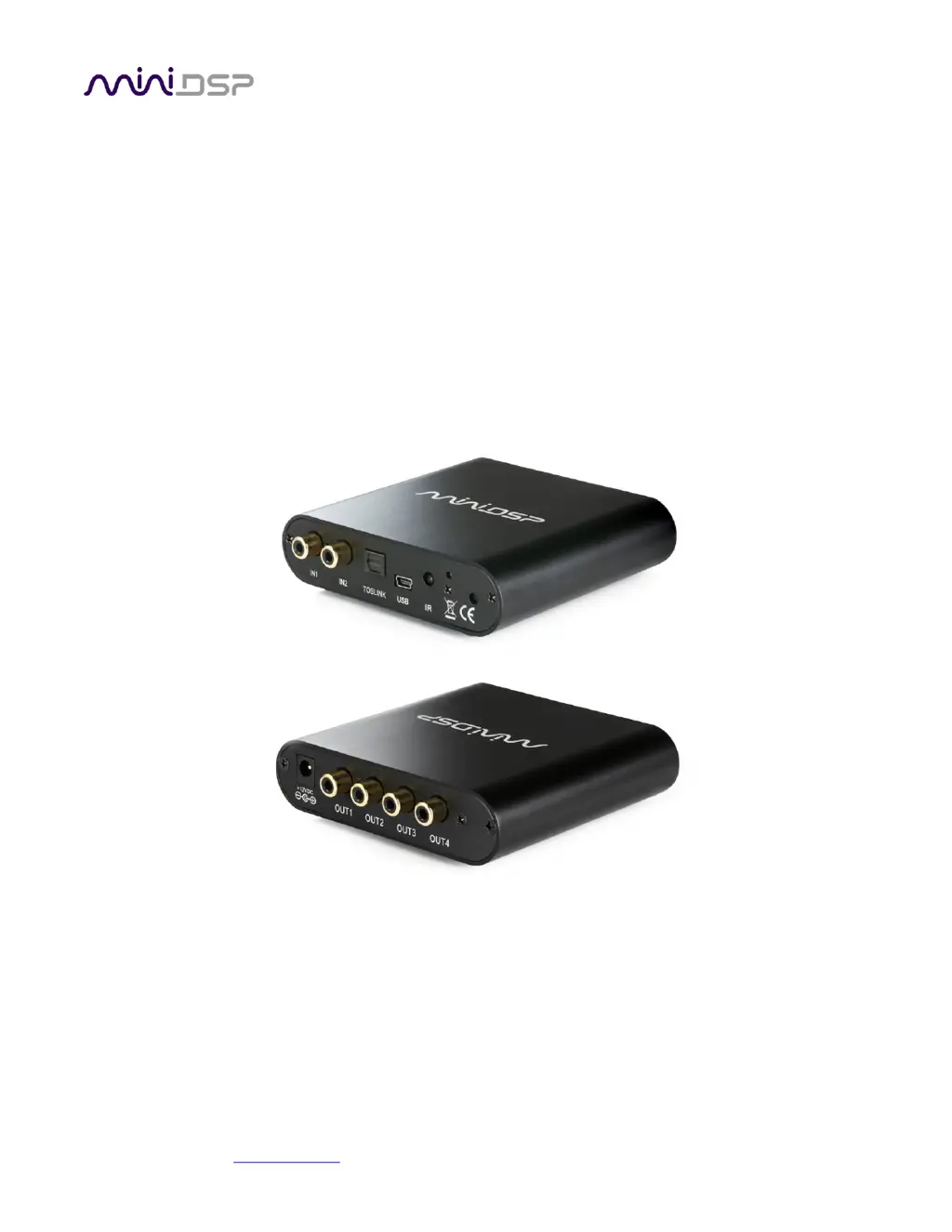
ULTRA-COMPACT 2-IN 4-OUT AUDIO PROCESSOR WITH
DIRAC LIVE® ROOM CORRECTION TECHNOLOGY
User Manual

Table of Contents

Questions and Answers

  • S
    Stephen KerrAug 19, 2025
    Why is the audio output so low on my miniDSP Recording Equipment?
    • V
      vwalkerSep 12, 2025
      If you're experiencing low audio output with your miniDSP Recording Equipment, several factors could be the cause. First, check the cabling connecting the processor to your amplifiers. Ensure your amplifiers are powered on and the volume controls are appropriately adjusted. Also, verify that the input and output meters are displaying a signal. Make sure that the master mute function isn't enabled and the master volume level is correctly set. Confirm that your crossover frequencies are properly configured and that the matrix mixer directs the correct inputs to the correct outputs.
  • J
    Jessica JensenAug 21, 2025
    What to do if there is no signal showing on input meters in DDRC-24 plugin of miniDSP Recording Equipment?
    • S
      smithconnorAug 21, 2025
      If no signal is showing on the input meters of your DDRC-24 plugin with your miniDSP Recording Equipment, try the following: * Check the cabling from your source. * Ensure that your audio source is playing and is not muted, and that the volume is turned up. * Verify that the plugin is synchronized with the hardware unit.
  • T
    Tyler MoonAug 23, 2025
    Why does the audio from my miniDSP DDRC-24 sound distorted?
    • S
      sheltondanielAug 23, 2025
      If the audio from your miniDSP Recording Equipment sounds distorted, check the output meter to ensure you are not overloading the outputs. If necessary, reduce the output gain and/or the amount of boost in the EQ blocks.
  • N
    Nancy EricksonAug 26, 2025
    What to do if DDRC-24 plugin is running in background but not showing for miniDSP Recording Equipment?
    • M
      Melanie PerryAug 26, 2025
      If the DDRC-24 plugin is running in the background but not showing for your miniDSP Recording Equipment, it might be due to the Adobe Air environment. The first time you run a plugin, it may require a network connection. Close the plugin, ensure your computer has a network connection, and restart the plugin. Alternatively, the Adobe Air environment may need a version update. Download the latest version from http://get.adobe.com/air/.
  • J
    Joseph StanleyAug 27, 2025
    What to do if DDRC-24 plugin cannot connect to miniDSP Recording Equipment?
    • A
      Adam PetersonAug 27, 2025
      If your DDRC-24 plugin cannot connect to your miniDSP Recording Equipment, make sure the USB cable is firmly connected to the DDRC-24. If the connection is secure, try resetting the processor by power-cycling the unit.
  • D
    Daniel GuerraAug 29, 2025
    How to fix insufficient recording level on miniDSP Recording Equipment?
    • S
      Samantha HillAug 30, 2025
      If you're experiencing insufficient recording levels with your miniDSP Recording Equipment, consider the following solutions: * Increase the microphone level in the Output & Levels tab. * Navigate to the Control Panel, access the Recording tab within the Sound pane, select the UMIK-1, and view its Properties. In the Levels section, set the gain to 100. * Increase the system output volume.
  • G
    Gwendolyn LarsonSep 1, 2025
    Why is audio coming through the wrong outputs on my miniDSP Recording Equipment?
    • T
      Timothy BerrySep 1, 2025
      If audio is coming through the wrong outputs on your miniDSP Recording Equipment, check the cabling from the processor to your amplifiers. Also, verify that you have correctly set up the matrix mixer to send the correct inputs to the correct outputs.
  • O
    omercadoSep 3, 2025
    What to do if the measurement test signal produces no output from miniDSP Recording Equipment?
    • K
      Kimberly YoungSep 3, 2025
      If the measurement test signal produces no output with your miniDSP Recording Equipment, ensure that the DDRC-24 processor is connected correctly into the audio system. Check that the downstream amplification is powered on, is not muted, and doesn’t have gain/trim controls set to zero. Quit DLCT, open the DDRC-24 plug and click connect. Connect an analog source to the inputs, and confirm that signal levels are seen on input and output meters.
  • N
    normanjenniferSep 5, 2025
    Why is there no input from measurement microphone on miniDSP DDRC-24?
    • R
      ramosmichelleSep 5, 2025
      If you're not getting any input from the measurement microphone on your miniDSP Recording Equipment, check that the USB cable to the UMIK-1 is securely seated. Also, ensure that the UMIK-1 is selected in the Mic Config tab. Try removing any USB hubs and extensions as well.
  • M
    Megan CarneySep 7, 2025
    What to do if I am unable to generate correction filters (Optimize button) on miniDSP DDRC-24 Recording Equipment?
    • B
      Brian PriceSep 7, 2025
      If you are unable to generate correction filters using the Optimize button on your miniDSP Recording Equipment, check that your computer is connected to the Internet and able to pass HTTP (web) traffic. Also, ensure that you do not have any other program running that is attempting to communicate with the DDRC-24, such as the DDRC-24 plugin.

Summary

Important Information

System Requirements

Specifies minimum hardware and operating system requirements for configuring the DDRC-24 audio processor.

Software Installation and License Activation

Configuring with the DDRC-24 Plugin

Acoustic Measurement for Dirac Live

Measurement Setup and Positioning

Guidelines for loudspeaker/microphone positioning and required connections for acoustic measurements.

Dirac Live Calibration Process

Running Measurements

Procedures for executing acoustic measurements, managing listening environments, and saving projects.

Designing Your Target Curve

Guides on creating, editing, and adjusting the desired in-room frequency response target curve.

Dirac Live Filter Design and Loading

Firmware Upgrade

Troubleshooting and Support

Plugin and Dirac Live Issues

Common problems and solutions for the DDRC-24 plugin and Dirac Live calibration software.

miniDSP DDRC-24 Specifications

General IconGeneral
Input Channels2
Output Channels4
Sample RateUp to 96 kHz
Bit Depth24-bit
Digital Signal ProcessingYes
Weight0.5 kg
DSP Resolution32-bit floating point
THD+N<0.005%
USB AudioYes
Signal to Noise Ratio> 100 dB
Dirac LiveYes
USB Audio InterfaceYes
Room CorrectionYes
CompatibilityWindows, macOS
Frequency Response20 Hz - 20 kHz
Digital InputToslink (optical)
Input TypeRCA (unbalanced), Toslink (optical)

Related product manuals