TX3 Configurator Software Guide
LT-973 9
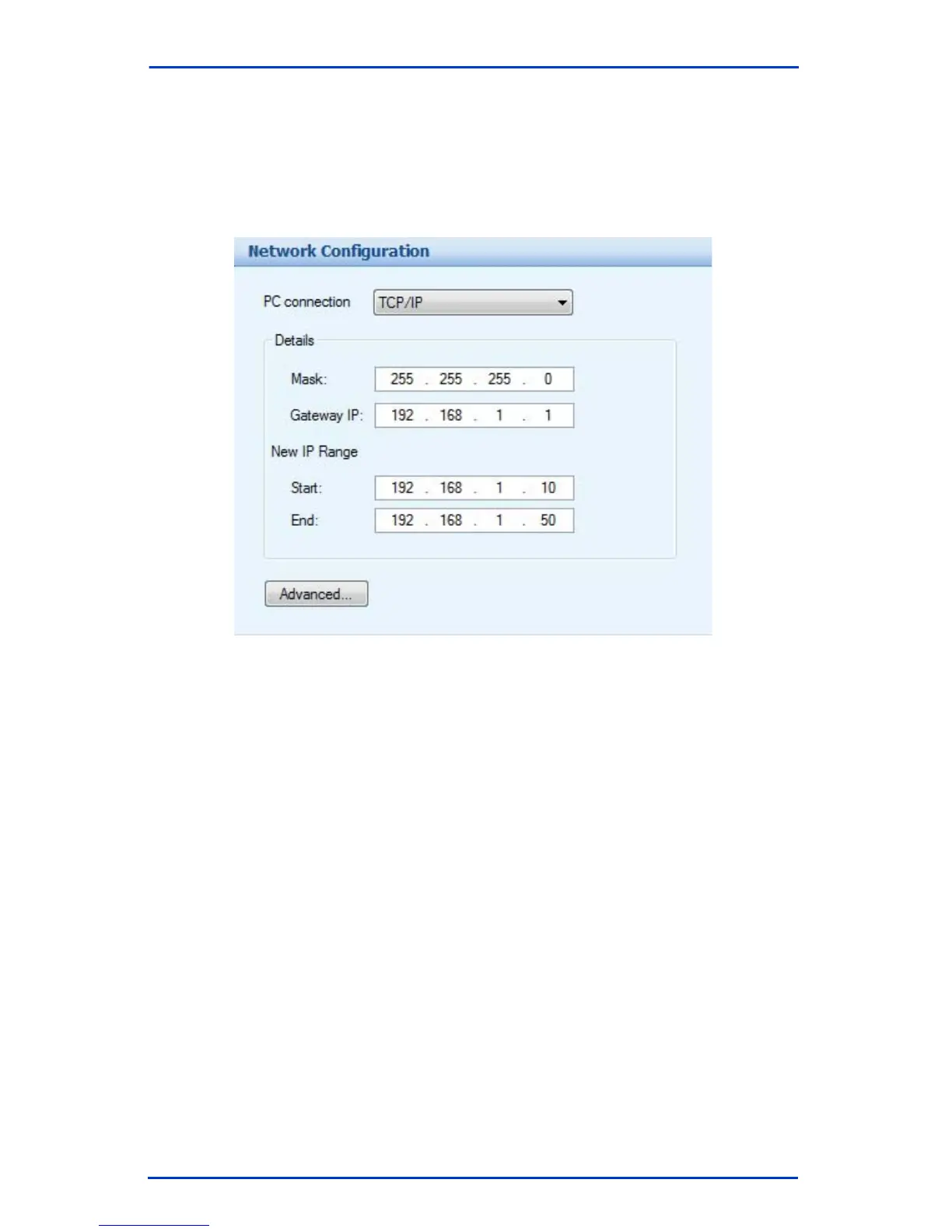
To establish a TCP/IP connection
1. Connect your PC to the ethernet TCP/IP network.
2. Click Network. The Network Configuration window appears.
3. Select TCP/IP from the PC connection list. The connection
automatically establishes and no settings are required.
4. Click Advanced. The Advanced Network Setup window appears.
The settings are the same as in step 6 of “Connecting Using a
Modem”.
5. Click on the “Connect” icon on the top picture menu to connect. It
will give you a connected message in green. If a connection was not
made, a red error message displays. Check your panel and network
settings if the connection fails.
6. When finished adding, editing and deleting within the job file select
the “Send” icon on the top picture menu to send the job to the panels
or download the configuration to the entry panel.
7. See Opening and Creating a Job File on page 12.





 To Next Page