EasyManua.ls Logo

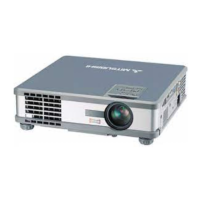
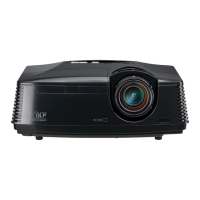
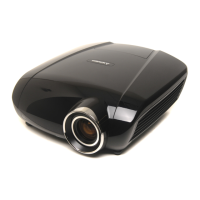
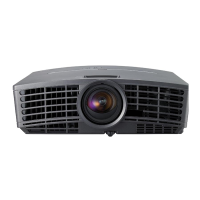
Mitsubishi HC6800 - User Manual

Mitsubishi HC6800
47 pages
Print Icon
To Next Page IconTo Next Page
Loading...
LCD PROJECTOR
This User Manual is important to you.
Please read it before using your projector.
MODEL
HC6800
User Manual
HC6800

Questions and Answers

  • C
    Claudia ThomasAug 16, 2025
    How to fix a 'No Signal' message on Mitsubishi HC6800?
    • F
      fcummingsAug 17, 2025
      If your Mitsubishi Projector displays 'NO SIGNAL', try these steps: First, ensure the connected device is powered on and functioning correctly. Verify the external device is outputting signals and that the connecting cable isn't defective. Confirm the projector is connected to the external device using the correct terminals and that the connected device is correctly selected as the input source. If you're using an extension cord, replace it with the supplied cable to see if that resolves the issue; if it does, use an RGB signal amplifier with the extension cord.
  • T
    Tracy SmithAug 19, 2025
    Why won't my Mitsubishi Projector turn on?
    • E
      Edward JacksonAug 19, 2025
      If your Mitsubishi Projector won't turn on, make sure the lamp cover is securely fitted. You may also need to reset the lamp operating time.
  • C
    Cory StokesAug 22, 2025
    What to do if my Mitsubishi HC6800 Projector power turns off by itself?
    • T
      Tiffany GarciaAug 22, 2025
      If your Mitsubishi Projector's power turns off unexpectedly, it could be due to a few reasons. Check if the intake and exhaust vents are blocked and clear them if necessary. Then: 1. Wait for the fans to stop. 2. Turn off the main power switch. 3. Wait at least 10 minutes. 4. Turn the main power switch back on. 5. Press the POWER button. If the STATUS indicator is steady red, replace the lamp. Ensure AUTO POWER OFF is set to OFF. A deteriorated lamp may also cause the projector to turn off after a short time.
  • B
    butlerheatherAug 26, 2025
    How to fix blurred images on Mitsubishi HC6800 Projector?
    • P
      Phillip SchmidtAug 26, 2025
      To resolve blurred images on your Mitsubishi Projector, start by adjusting the focus. Clean the lens if necessary. Press the t or u button on the remote control to eliminate flicker. Adjust TRACKING and FINE SYNC in the SIGNAL menu, as well as BRIGHTNESS and CONTRAST in the IMAGE menu. Finally, ensure the projector and screen are perpendicular to each other.
  • C
    Chris DrakeAug 28, 2025
    What causes shaking images on a Mitsubishi HC6800 and how to fix it?
    • B
      brent42Aug 28, 2025
      Shaking or displaced images on your Mitsubishi Projector can be caused by a loose cable connection. Ensure the cable connected to the external device isn’t intermittent and connect the cable’s plug firmly to the external device’s connector. You can also try pressing the AUTO POSITION button. If you still experience issues, some computers may output out-of-spec signals; in this case, adjust the SIGNAL menu.
  • K
    Kevin HermanAug 31, 2025
    How to correct distorted images on a Mitsubishi HC6800?
    • A
      Ashley BoltonAug 31, 2025
      To correct distorted images on your Mitsubishi Projector, adjust the projector and the screen so that they are perpendicular to each other.
  • N
    Natasha CisnerosSep 3, 2025
    Why are the projected images dark on my Mitsubishi Projector?
    • J
      James LopezSep 3, 2025
      If the projected images on your Mitsubishi Projector are too dark, first adjust the BRIGHTNESS and CONTRAST in the IMAGE menu. If the problem persists, you may need to replace the lamp.
  • K
    Kathy MorenoSep 6, 2025
    How to fix afterimages on Mitsubishi HC6800?
    • J
      Jenna StephensSep 6, 2025
      If you notice afterimages persisting on the screen of your Mitsubishi Projector, projecting an evenly bright image may improve this phenomenon.
  • T
    Troy BaileySep 9, 2025
    How do I get rid of noise around the image on my Mitsubishi HC6800 Projector?
    • L
      Leslie WallsSep 9, 2025
      If noise appears around the image on your Mitsubishi Projector, especially with DVD content, decrease the setting value of OVER SCAN in the SIGNAL menu.
  • J
    Jamie LongSep 12, 2025
    What to do if Mitsubishi Projector menu can’t be used?
    • S
      Shelley WilliamsSep 12, 2025
      If the menu on your Mitsubishi Projector is unresponsive, the microcomputers inside the projector may be malfunctioning due to noise. Turn off the main power, wait about 10 minutes, and then turn the main power back on.

Summary

Important Safeguards

General Safety Instructions

Read and follow all operating and safety instructions.

Safe Operation and Handling

Covers cleaning, power, accessories, and safe usage practices.

Servicing and Repair Safety

Guidelines for servicing, damage, and replacement parts.

Installation and Environmental Guidelines

Environmental Operating Conditions

Specifies temperature, humidity, and altitude requirements.

Safe Installation Location

Guidance on projector placement to prevent damage and ensure safety.

Preparing Your Projector

Checking Accessories

Lists projector accessories and instructions to check package contents.

Inserting Batteries into Remote Control

Step-by-step guide for installing batteries in the remote control.

Removing Batteries from Remote Control

Instructions on how to remove batteries from the remote control.

Preparing Your Projector (Continued)

Projector Components Overview

Identifies projector parts, indicators, control panel, and terminals.

Lens Cap Attachment

Instructions on how to attach and remove the lens cap.

Preparing Your Projector (Continued)

Bottom Side Features

Identifies adjustment feet on the projector's bottom.

Remote Control Layout and Buttons

Diagrams and lists all buttons on the remote control.

Adjusting Picture Quality Buttons

Explains how to adjust contrast, brightness, color, and sharpness.

Using the Remote Control

Operational Range and Conditions

Details the effective range and conditions for remote control operation.

Reception Angle Illustration

Illustrates the angles at which the remote control sensor receives signals.

Setting Up Your Projector

Screen Setup and Size Configuration

Guides on screen positioning and setting aspect ratio.

Projection Distance for 16:9 Screens

Tables detailing projection distances for 16:9 screens.

Setting Up Your Projector (Continued)

Projection Distance for 4:3 and 2.35:1 Screens

Data on projection distances for 4:3 and CinemaScope screens.

Setting Up Your Projector (Continued)

Adjusting Image Position with Lens Shift

Using Lens Shift to adjust image position vertically and horizontally.

Correcting Skewed or Distorted Image

Adjusting projector tilt and feet for image alignment.

Keystone Correction for Trapezoidal Distortion

How to adjust keystone correction for trapezoidal distortion.

Setting Up Your Projector (Continued)

Ceiling Mounting Installation

Installation guidelines for ceiling mounting the projector.

Rear Projection Setup

Guidance for setting up the projector for rear projection.

Trigger Terminal Function

Explanation of the trigger terminal for controlling external devices.

Viewing Video Images

Connecting to Video Equipment

General steps for connecting video sources to the projector.

Basic Home Theater System Connection

Diagram showing connections for a typical home theater setup.

Viewing Video Images (Continued)

Connecting Video Players (Composite;S-Video)

How to connect standard video players using composite or S-video.

Connecting DVD;HDTV Players (Component)

Instructions for connecting via component video inputs.

Viewing Video Images (Continued)

Connecting via HDMI Terminal

Guide for connecting via HDMI for high-quality digital images.

Viewing Video Images (Continued)

Plugging in the Power Cord

Safety and procedural steps for connecting the power cord.

Viewing Video Images (Continued)

Projecting Images Start

Step-by-step guide to start projecting images.

Adjusting Focus and Zoom

How to adjust focus and zoom for image clarity and size.

Viewing Video Images (Continued)

Adjusting Projector Position and Angle

Using Lens Shift and other methods to align the image on the screen.

Procedures to Stop Projecting

Procedures for safely turning off the projector and cooling down the lamp.

Viewing Video Images (Continued)

Setting the Aspect Ratio

How to adjust the image aspect ratio for different video signals.

Viewing Video Images (Continued)

How to Change Aspect Ratio Settings

Using remote control or menus to adjust aspect ratio settings.

Viewing Computer Images

Connecting Projector to Computer

Steps for connecting the projector to a computer using an RGB cable.

About DDC Standard

Explanation of DDC standards for communication between projector and computer.

Power Cord Connection

Reference to power cord connection instructions.

Viewing Computer Images (Continued)

Projecting Computer Images Start

Step-by-step guide for projecting computer images.

AUTO POSITION Button Usage

How to automatically adjust image position for computer input.

Connecting to Notebook Computers

Notes on connecting to notebook computers and external output.

Setting Display Resolution

Importance of matching computer and projector resolutions.

Menu Operation

Menu Structure Overview

Lists and briefly describes the main menu categories: IMAGE, INSTALLATION, FEATURE, SIGNAL, INFORMATION.

Menu Operation (Continued)

How to Set Menus

General procedure for navigating and setting menus.

IMAGE Menu Settings Explained

Detailed explanation of IMAGE menu items and their functions.

Menu Operation (Continued)

INSTALLATION Menu Settings Explained

Detailed explanation of INSTALLATION menu items and their functions.

Menu Operation (Continued)

FEATURE Menu Settings Explained

Detailed explanation of FEATURE menu items and their functions.

Menu Operation (Continued)

SIGNAL Menu Settings Explained

Detailed explanation of SIGNAL menu items and their functions.

USER Menu Settings Explained

Detailed explanation of USER menu items and their functions.

Menu Operation (Continued)

INFORMATION Menu Details

Details on lamp time, input signals, and resolution displayed.

AV Memory Function

How to store and enable image quality settings.

Adjusting Projected Images

Adjusting Brightness (Contrast;Brightness)

How to adjust image contrast and brightness via the menu.

Adjusting Color (Color;Tint)

How to adjust image color intensity and tint via the menu.

Adjusting Sharpness

How to adjust image sharpness via the menu.

Adjusting Projected Images (Continued)

Adjusting White Tone (Color Temp.)

Selecting preset or customizing color temperature.

Adjusting Image Brightness with Auto Iris

Using the Auto Iris function to adjust image brightness.

Adjusting Projected Images (Continued)

Adjusting Gamma Mode

Selecting or customizing gamma modes for brightness adjustment.

Noise Reduction Functions

Explains TRNR, MNR, and BAR noise reduction functions.

Adjusting Projected Images (Continued)

Adjusting Computer Images via Menu

Troubleshooting computer image display issues using the SIGNAL menu.

LPF (Progressive Filter) Function

Using the LPF to reduce streak noise in projected images.

Advanced Features

Password Function Setup

Setting up password protection for display or menu access.

Canceling Password Function

Procedures to disable the password protection feature.

Kensington Lock Information

Information on using a Kensington Security Standard lock.

Replacing the Lamp

Lamp Replacement Warnings

Critical safety warnings related to lamp replacement.

Lamp Replacement Interval

Guidance on lamp lifespan and replacement indicators.

Replacing the Lamp (Continued)

Steps for Lamp Replacement

Step-by-step instructions for physically replacing the projector lamp.

Resetting Lamp Operation Time

How to reset the lamp operating time after replacement.

Replacing the Lamp (Continued)

Lamp Removal for Ceiling Mount

Specific steps for lamp removal in ceiling-mounted installations.

Maintenance

Maintenance Safety Warnings

Safety warnings before performing maintenance.

Cleaning the Air-Filter

Instructions for cleaning or replacing the air filter.

Cleaning Projector and Ventilation Slots

How to clean the projector body and ventilation grilles.

Cleaning the Lens

Method for cleaning the projector lens safely.

Troubleshooting

No Image Appears on Screen

Solutions for when no image is displayed, checking indicators and connections.

Power Cannot Be Turned On

Steps to take if the projector fails to power on.

Power Turns Off Unexpectedly

Troubleshooting steps when the projector turns off unexpectedly.

Troubleshooting (Continued)

Images Not Displayed Correctly

Solutions for common image display problems like shaking or distortion.

Afterimages Persist on Screen

Addressing issues like image burn-in or persistent afterimages.

Fine Streaks on Projected Images

Solutions for streak noise or interference on the projected image.

Troubleshooting (Continued)

Color Tint Variations

Explaining color variations between projectors or displays.

Interface and Control Issues

Covers menu unresponsiveness and the 'mark' indicator.

Temperature Warning and Exhaust Air

Explains temperature warnings and normal warm exhaust air.

Indicators

Normal Indicator Conditions

Describes normal operational states indicated by POWER and STATUS lights.

Abnormal Indicator Conditions and Solutions

Explains abnormal indicator states and their solutions.

Specifications

General Specifications

Covers type, model, display tech, lens, image size, resolution, inputs, terminals, dimensions.

Dimension Drawings

Visual representation of the projector's physical dimensions.

Specifications (Continued)

Specification of RGB Signals

Table detailing RGB signal specifications and supported modes.

Specifications (Continued)

Connector Pin Assignments

Pin assignments for Serial, Computer/Component, and HDMI connectors.

Replacement Part Information

Identifies the spare lamp part number.

Mitsubishi HC6800 Specifications

General IconGeneral
BrandMitsubishi
ModelHC6800
CategoryProjector
LanguageEnglish

Related product manuals