EasyManua.ls Logo

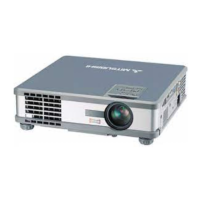
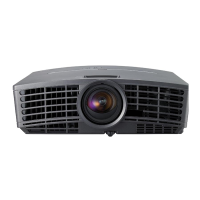
Mitsubishi HC7000 - User Manual

Mitsubishi HC7000
47 pages
Print Icon
To Next Page IconTo Next Page
Loading...
LCD PROJECTOR
This User Manual is important to you.
Please read it before using your projector.
MODEL
HC7000
User Manual
HC7000

Other manuals for Mitsubishi HC7000

Questions and Answers

  • C
    Cindy BarnettAug 13, 2025
    How to fix no image on Mitsubishi HC7000 Projector screen?
    • Y
      ysotoAug 13, 2025
      If no image appears on the screen of your Mitsubishi Projector, first ensure the lens cap is removed. Allow approximately one minute for the lamp to fully light up. If the lamp doesn't ignite initially, wait briefly before attempting again. Also, confirm the intake vent is unobstructed and clean. Ensure the lamp cover is securely closed and that all cables to external devices are intact. If using an extension cable, try the supplied cable instead. Check the video device's operation manual for connection guidance. Finally, make sure that SCART INPUT in the FEATURE menu is set to OFF.
  • D
    duncanchristineAug 17, 2025
    What to do if my Mitsubishi HC7000 Projector says 'No Signal'?
    • J
      Jonathan WatsonAug 17, 2025
      If your Mitsubishi Projector displays “NO SIGNAL”, first verify that the connected device is powered on and functioning correctly, paying special attention to notebook computers. Check that the cable connecting the devices isn't defective and that you're using the correct terminals. Ensure the connected device is selected as the input source. If using an extension cord, try replacing it with the original cable. If this resolves the issue, use an RGB signal amplifier with the extension cord.
  • N
    Noah JordanAug 20, 2025
    Why does my Mitsubishi HC7000 power turns off by itself?
    • V
      Veronica WolfeAug 20, 2025
      If your Mitsubishi Projector turns off unexpectedly, the intake or exhaust vents may be blocked. Remove any obstructions, wait for the fans to stop and the STATUS indicator to go out, then unplug the power cord for at least 10 minutes before plugging it back in and pressing the POWER button. If the STATUS indicator is steady red, the lamp needs replacement. Also, ensure that AUTO POWER OFF is set to OFF. A deteriorated lamp may also cause the projector to turn off after a short time.
  • B
    Brandon MccannAug 25, 2025
    How to fix blurred images on Mitsubishi HC7000 Projector?
    • E
      erin47Aug 25, 2025
      If the images from your Mitsubishi Projector are blurred, try adjusting the focus and cleaning the lens. You can also press the W or X button on the remote to eliminate flicker. Adjust TRACKING and FINE SYNC in the SIGNAL menu, as well as BRIGHTNESS and CONTRAST in the IMAGE menu. Finally, ensure the projector and screen are perpendicular to each other.
  • E
    Eric McdonaldAug 28, 2025
    Why are my Mitsubishi HC7000 Projector images dark?
    • C
      Cassandra PalmerAug 28, 2025
      If the projected images from your Mitsubishi Projector appear dark, try adjusting the BRIGHTNESS and CONTRAST settings in the IMAGE menu. If this doesn't resolve the issue, the lamp may need to be replaced.
  • A
    Alex HoffmanAug 31, 2025
    What causes Mitsubishi HC7000 images to shake?
    • K
      Kristina HensleySep 1, 2025
      If the projected images from your Mitsubishi Projector are shaking, ensure the cable connecting to the external device is securely connected and not intermittent. Press the AUTO POSITION button. If the issue persists, some computers output out-of-spec signals and you may need to adjust the SIGNAL menu.
  • D
    Dawn QuinnSep 5, 2025
    How to correct distorted images on Mitsubishi Projector?
    • D
      Dr. Elaine Lee DVMSep 5, 2025
      To correct distorted images on your Mitsubishi Projector, adjust the projector and the screen so that they are perpendicular to each other.
  • R
    ronald96Sep 9, 2025
    Why does my Mitsubishi HC7000 have a different color tint?
    • N
      nicolehancockSep 9, 2025
      When comparing images projected by two Mitsubishi Projectors, tints may vary due to differences in optical components; this is normal. Similarly, differences in color reproducibility can cause tint variations when comparing projector images to those on a television or PC monitor; this is not a malfunction.

Summary

Important Safeguards

General Safety Instructions

Comprehensive safety guidelines for projector operation and handling, covering instructions, warnings, and precautions.

Setting Up Your Projector

Screen Setup and Projection Distance

Guidance on screen installation and tables for projection distance based on screen size and aspect ratio.

Adjusting Image Position and Distortion

How to adjust image position using lens shift and correct keystone distortion or image skew.

Viewing Video Images

HDMI and Power Connection

How to connect HDMI devices for high-quality images and safely plug in the projector's power cord.

Projecting Video Images

Steps for turning on the projector, adjusting focus, zoom, selecting input sources, and stopping projection.

Setting the Aspect Ratio

Changing the image aspect ratio to match the video signal for optimal display and viewing.

Viewing Computer Images

Projecting Computer Images

Steps for powering on, adjusting focus/zoom, selecting input, alignment, and resolution for computer display.

Menu Operation

Adjusting Projected Images

Basic Image Adjustments

How to adjust core image properties like contrast, brightness, color, tint, and sharpness via the menu.

Replacing the Lamp

Lamp Replacement Guidelines

Information on lamp lifespan, replacement timing, and critical safety warnings during replacement.

Lamp Replacement Procedure

Step-by-step instructions for safely removing the old lamp and installing a new one, including resetting time.

Troubleshooting Common Issues

Power and Image Display Issues

Solutions for common problems like the projector not turning on or displaying an image.

Image Quality and Display Problems

Troubleshooting steps for image-related issues such as distortion, color problems, and afterimages.

Mitsubishi HC7000 Specifications

General IconGeneral
Matrix size0.7 \
Vertical scan range50 - 120 Hz
Horizontal scan range15 - 100 kHz
Projection technologyLCD
Contrast ratio (typical)-
Screen size compatibility50 - 300 \
Keystone correction, vertical-15/15 °
Lamp power160 W
Light source typeLamp
Service life of light source (economic mode)5000 h
Focal length range23.5 - 37.6 mm
Audio input1
Dimensions (WxDxH)427 x 440 x 159 mm
Power requirementsAC 100-240V, 50/60Hz
Connectivity technologyWireless
Noise level17 dB
Dot clock scanning frequency162 MHz
Full HDNo
Analog signal format systemNTSC, PAL, SECAM
Serial interface typeRS-232
Power consumption (typical)250 W
Weight and Dimensions IconWeight and Dimensions
Weight7500 g

Related product manuals