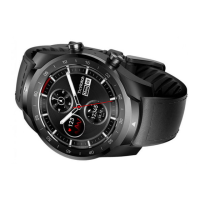
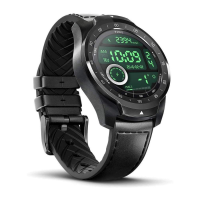
Schedule Essential mode
You can customize the entry and exit time based on your habits.
The watch will automatically enter and exit the Essential mode during the set time
period.
Smart Essential mode
Smart Essential mode enables a smarter and smoother mode switching experience.
Under Smart Essential mode, during the above scheduled timeslot, the TicWatch will
only switch to Essential mode if you wear it to sleep or leave it off your wrist for more
than 30 minutes.
Notes: There is a conflict between the Schedule/Smart Essential mode and the
Screen lock. After the screen lock is set, when the watch comes back from Essential
mode, the screen lock can not be skipped. You have to unlock the screen manually.
Before unlocking the screen, since the system is not completely starting, some
functions are restricted. Therefore, we recommend that you enable only one of these
options at the same time.
Auto switch based on the battery level
If this option is enabled, the watch will automatically enter Essential mode when the
battery level drops below 5%.
How to exit Essential mode?
Press and hold the side button until the booting screen appears to exit Essential
mode and enter the Wear OS Smart mode.
Other Apps & features
Install new apps
• Launch the Play Store app and log in to your Google account on your watch.
•
Browse apps by category or search for apps by keyword
• Tap the Download to download and install the app on your watch.
Google Wallet
Add a credit card or debit card


 To Next Page