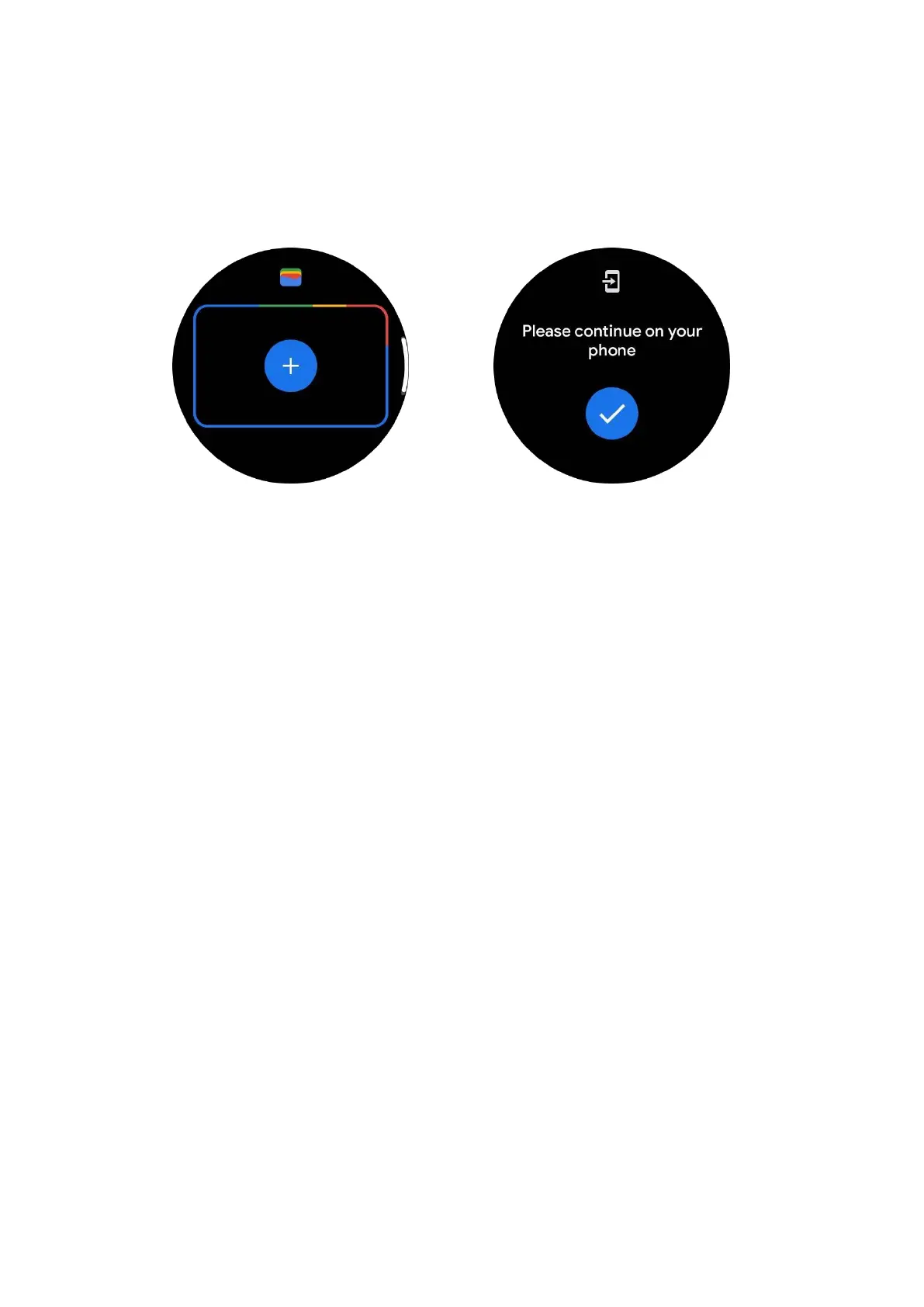
1.
Double tap the side button to open Google Wallet.
2. After the tutorial is finished, tap the "Add Card" icon.
3.
Follow the on-screen instructions on your phone to add a credit card or debit
card.
Google Maps
When you download the Google Maps app from the Play Store, you can use
navigation, find local destinations or your location, and get other useful info on your
watch.
Important:
• To use navigation, you must allow location tracking on your phone and
smartwatch.
• Maps on your Wear device uses the distance unit that's on your paired phone.
Get directions on your watch
To get directions on your watch, you can start navigation on your watch or on your
paired phone. The route appears on your phone, and as you go, you get directions
for every turn on your watch. Maps currently supports navigation for cycling, driving,
and walking.
Tip: When you allow location on your phone, navigation works on your watch even
when your phone is locked. Learn how to allow location on your phone.
Search for locations
1. If you can't see your watch screen, wake up the watch.
2. Swipe up to find your apps and open the Maps app.
3.
To select from your home, work, or recent locations, tap Search.


 To Next Page