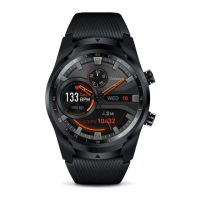
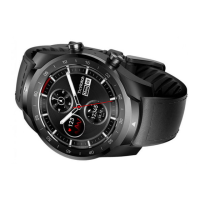
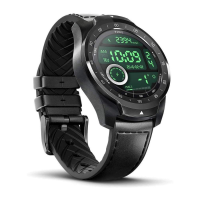
The settings of the ULP display
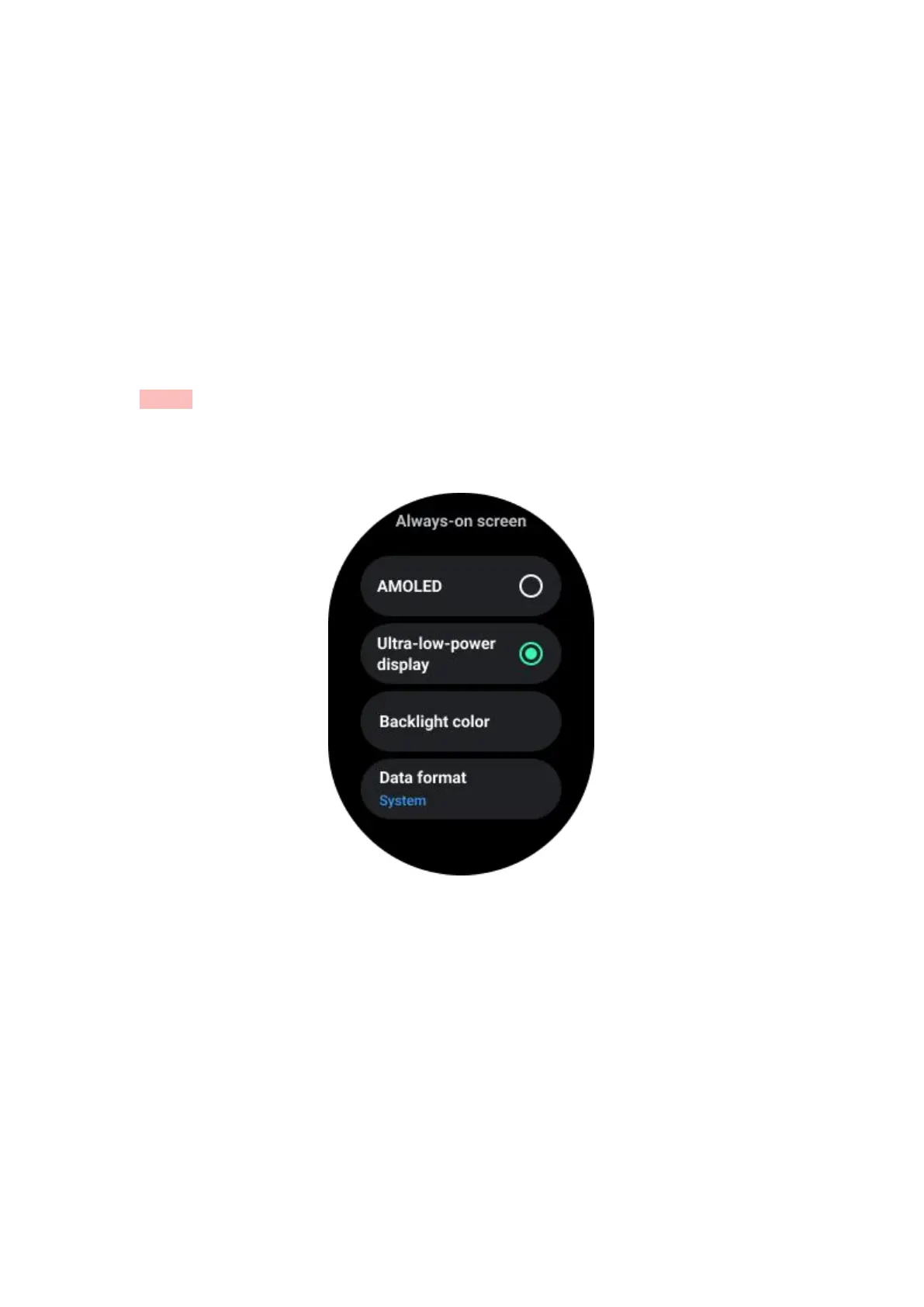
The setting option for ULP display is located in the system settings menu.
Please go to "Settings -> Display -> Always-on screen" for details.
How to set up Always-on screen?
Within the Always-on screen settings, there are two display options available: a
colorful AMOLED display and a low-power ULP display.
The ULP display is pre-selected as the default option. You can change to your
favorite option.
Notes: Only the ULP display is supported for always-on screen in Essential mode.
This means that if you choose AMOLED as Always-on screen, it will only apply to
Smart mode. When the watch enters Essential mode, the always-on screen will
automatically switch to the ULP display.
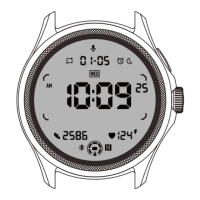
What options are available for ULP display?
When the ULP display is used as an always-on screen, you can customize the
backlight color and date format.
Backlight Settings
You can choose your preferred backlight color from the predefined color options.


 To Next Page