Need help?
Do you have a question about the Mobvoi TicWatchPro5 and is the answer not in the manual?
Details the functions of the side button and rotating crown for watch operation.
Describes how to use the rotating crown for controlling various watch functions.
Provides guidance on fitting the watch for accurate data and comfortable wear.
Instructions on how to power on the TicWatch Pro 5.
Instructions on how to power off the TicWatch Pro 5.
Procedure for restarting the watch when it is unresponsive.
Guide to downloading and installing the essential Mobvoi Health application.
Step-by-step instructions for pairing the watch with a smartphone via the app.
Information on how to pair multiple TicWatches with an Android device.
Tips for ensuring a stable Bluetooth or Wi-Fi connection between watch and phone.
Describes how to enter and exit different screen interfaces like QSS and Notification trays.
Instructions on applying and setting up the Sleep Coach watch face.
Explains how the watch reminds you to go to bed on time.
How to check last night's sleep data and provide feedback.
Instructions for interacting with the Happy Rotation watch face and its game mode.
How to find and apply watch faces using the TimeShow app.
Steps to browse, preview, download, or purchase watch faces from the watch.
Guide to logging in, selecting, and paying for watch faces on the watch.
How to find and manage watch faces using the TimeShow app on a smartphone.
Information on creating personalized watch faces.
Instructions for applying watch faces and adding them to favorites.
How to customize existing watch faces by editing elements like complications.
Steps to apply and customize watch faces via the Mobvoi Health app.
How to open and view the quick setting panel on the watch.
Instructions for customizing the icons within the quick settings panel.
Steps to add, remove, reorder, and save changes to quick setting icons.
Explanation of icons used to indicate watch status like charging or battery.
Icon meaning for Bedtime mode activation.
Icon meaning for screen lock status.
Icon meaning for touch lock status.
Icon meaning for accessing essential mode settings.
Icon meaning for launching the main Settings app.
Icon meaning for activating sound or silent mode.
Icon meaning for activating Theatre mode.
Icon meaning for activating Bedtime mode.
Icon meaning for activating airplane mode.
Describes how to view and navigate tiles using the screen or crown.
Instructions for adding new tiles and removing existing ones.
Steps to manage watch tiles using the Mobvoi Health app.
How to see and access notifications on the watch.
Method for removing individual notifications from the watch.
Instructions for managing notification settings on the watch and phone.
Steps to edit, pin, or unpin applications in the app list.
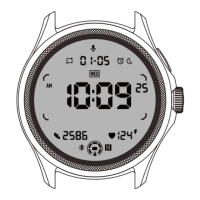
Explanation of the ULP display's purpose and features.
Overview of the user interface elements of the ULP display.
Indicates GPS acquisition status for TicExercise.
Displays standby date or workout time.
Indicates the presence of new or unread notifications.
Indicates elevation gain and loss during TicExercise.
Main display area for various data like time, heart rate, pace.
Indicates AM or PM for 12-hour format.
Indicates the watch is in Bedtime mode.
Indicates if 24-hour heart health monitoring is enabled.
Shows the current battery level.
ULP tile designed for active heart rate detection.
ULP tile designed for active blood oxygen detection.
ULP tile for quickly checking daily calories.
ULP tile for quick viewing of directions.
Explains the switch from standby to TicExercise ULP tiles during workouts.
ULP tile designed to display exercise duration.
ULP tile supporting imperial and metric distance units.
ULP tile to display real-time exercise heart rate.
ULP tile supporting imperial and metric pace units.
ULP tile supporting imperial and metric speed units.
ULP tile to display calories burned during exercise.
ULP tile designed to display laps or counts.
ULP tile showing elevation gain, loss, and current elevation.
ULP tile for quick viewing of directions.
Instructions on managing the tilt-to-wake backlight for the ULP display.
Methods to temporarily or permanently disable the tilt-to-wake backlight feature.
Procedure to unlock and lock the ULP display using the rotating crown.
How to navigate between different ULP tiles by rotating the crown.
Options for setting up the Always-On screen with AMOLED or ULP display.
Available customization options for the ULP display when used as always-on.
How to select preferred backlight colors from predefined options.
How backlight color indicates current exercise HR zone during workouts.
Setting preferences for DD-MM or MM-DD date formats.
Introduction to TicHealth for recording and displaying health and exercise data.
How to check daily status including steps, activity hours, and calories.
Steps to launch TicHealth and set daily step, exercise time, and active hours goals.
How to configure notifications for TicHealth, including do not disturb and reminders.
Introduction to TicPulse for heart health monitoring features.
Detection of irregular heartbeats like tachycardia, bradycardia, and AFib.
How to manually check heart health status.
Enabling continuous 24-hour automatic heart health monitoring.
Choosing between common and real-time monitoring frequencies for heart rate.
Steps to manually measure heart rate using the TicPulse app.
Reasons for potential misidentification of sleep states.
How the watch automatically detects and records sleep status.
How to set personal sleep and wake-up times for better sleep tracking.
Customizing start and end times for sleep tracking.
How to define periods when sleep data is not recorded.
Enabling and displaying sleep respiration rate data.
Enabling and setting monitoring frequency for sleep blood oxygen.
Choosing between hourly, 30-min, or real-time sleep SpO2 monitoring.
Steps to manually measure blood oxygen using the TicOxygen app.
Enabling continuous 24-hour automatic blood oxygen monitoring.
How to perform a quick measurement of health indicators.
Explanation of stress measurement based on HRV data.
Steps to measure and view stress levels using the TicZen app.
How to use the TicBreathe app for guided breathing exercises.
How to adjust the duration of breathing exercises in TicBreathe.
Steps to open TicExercise, select sports, and start recording data.
How to set goals for time, calories, or distance in TicExercise.
How to change the displayed exercise types and their order.
How to control music playback from the watch during exercise.
How to manually pause and resume exercises.
How the watch automatically pauses and resumes exercises.
Tips for optimal GPS signal acquisition for workouts.
How to wear the watch for accurate heart rate measurement during exercise.
How the app generates a summary of your workout after completion.
How to view previous workout records on the TicExercise homepage.
Steps to share or delete individual exercise records.
Conditions and requirements for calculating VO2 Max and recovery time.
Factors affecting data accuracy for VO2 Max and recovery time.
How to sync sports data to the Mobvoi Health app.
How TicMotion actively recognizes your continuous activity.
How TicMotion pre-identifies motion types for accurate recognition.
Enabling TicMotion features and recognition notifications.
How to manually enable recognition for specific exercise types.
Setting exercise goals like workout duration or weekly goals.
How GPS monitoring impacts power consumption.
Customizing goals for outdoor running and other exercise types.
Choosing manual or automatic lap counting and setting lap distance.
Checking barometric pressure and altitude data.
Manually inputting current elevation for calibration.
Using GPS calibration in an open area for accurate data.
Explanation of Essential mode as a power-saving feature with health monitoring.
How to enter Essential mode via the side button.
Health features supported by Essential mode.
Viewing health data and switching to smart mode for full access.
Supports active and 24-hour passive heart rate monitoring.
Supports active and 24-hour passive blood oxygen monitoring.
Supports 24-hour passive stress monitoring.
Support for sleep stage, SpO2, respiration, and skin temperature tracking.
Tracking daily activities like steps, calories, active hours, and floors.
Disables tilt-to-wake backlight, shows moon icon, but allows crown-lit backlight.
How the sleep alarm from TicSleep works and can be snoozed or ended.
Using the Compass ULP tile to identify directions and recalibrate.
Methods to activate Essential mode via App list or battery icon.
How to manually enter Essential mode.
Enabling automatic switching to Essential mode based on a schedule.
Smarter mode switching based on schedule and user activity.
Customizing entry and exit times for Essential mode.
Smart Essential mode switches based on schedule and wrist detection.
Automatic entry into Essential mode when battery drops below 5%.
Steps to download and install apps from the Play Store.
How to add a credit or debit card to Google Wallet.
Using Google Maps for navigation on the watch.
Starting navigation on the watch independently or via mirroring.
Customizing watch settings via the Settings app.
Connecting the watch to a phone via Bluetooth.
Activating Wi-Fi to connect to a network.
Using NFC for payments and tickets.
Disabling wireless functions by activating Airplane mode.
Setting the screen to stay on while wearing the watch.
Changing the color of the Ultra-low-power display backlight.
Adjusting screen brightness manually or adaptively.

 To Next Page
 General